
Using the VQL Editor
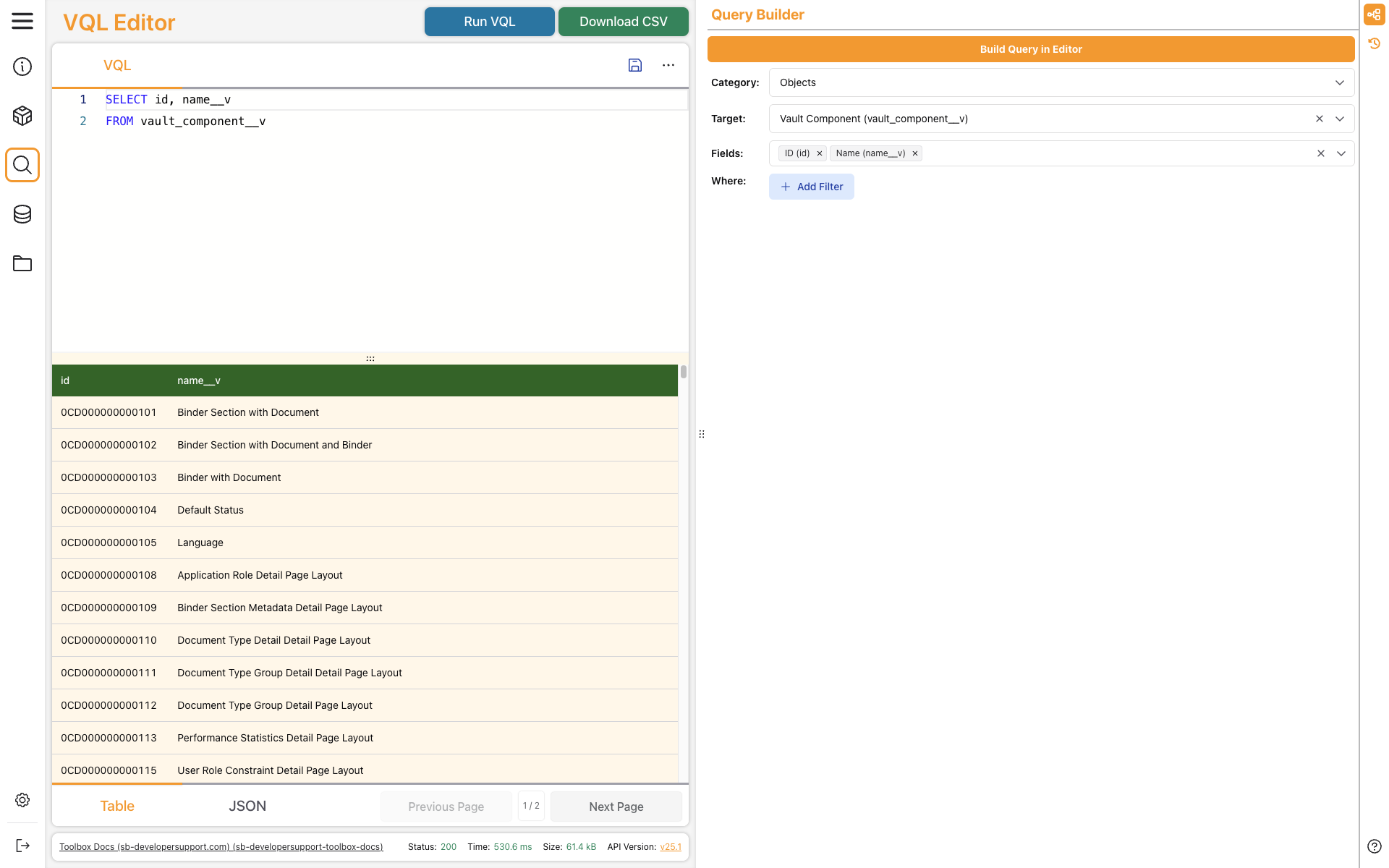
Vault Toolbox includes a VQL Editor that allows you to send Vault Query Language (VQL) queries to access, retrieve, and interact with Vault data. The VQL Editor includes a Query Builder interface to assist with building VQL queries. See the VQL Overview to learn more.
This guide explains how to use the VQL Editor to build, run, and save VQL queries, as well as download their results.
Querying Vault
Section link for Querying VaultTo send a VQL query, you can enter the query directly in VQL Editor or build one using the Query Builder. Click Run VQL to send the query.
Viewing & Downloading Query Results
Section link for Viewing & Downloading Query ResultsQuery results appear in the bottom half of the editor. You can select Table or JSON below the query results panel to change the format of the results. Click Download CSV to download query results in CSV format.
The VQL Editor retrieves results using the default PAGESIZE. You can reduce this by setting the PAGESIZE in your query. Click Next Page and Previous Page at the bottom of the editor to navigate through results. Learn more about PAGESIZE in the VQL documentation.
Saving Queries
Section link for Saving QueriesThe VQL Editor allows you to save up to 20 queries. This is helpful for preserving long or complicated queries for future use.
To save the query currently in the editor:
- Click Save Query (
). - In the dialog, provide a name for the query and select it from the dropdown. Provide the name of an existing query to overwrite it.
- Optional: To make the query load automatically when you open the VQL Editor, select the Default? checkbox. Doing so unsets any previously set default query.
- Click Save (
).
Click the
Using the Query Builder
Section link for Using the Query BuilderThe Query Builder in the right panel of the VQL Editor allows you to select values from dropdowns to build a query. This is especially helpful if you don't know the API names of the objects, fields, relationships, or picklist values you want to query. Toggle the
To build a query with the Query Builder:
- Select the Category of the query target.
- Select a query Target. This value will be added to the query's
FROMclause. - Select one or more Fields. These values will be added to the query's
SELECTclause. - Optional: Click + Add Filter to set values for the query's
WHEREclause. - Optional: To add additional filters, click + Add Filter again. Select an operator, either AND or OR. To remove a filter, click the red minus (-) icon.
- Click Build Query in Editor. Your query will appear in the editor panel.
- Click Run VQL to run the query.
Viewing Query History
Section link for Viewing Query HistoryThe VQL Editor is capable of storing your query history. To see queries you’ve previously run in all environments, click Query History (
You can click the
Click Rebuild (