
Managing Environments
Vault Toolbox connects to Vault through saved environments. Environments are named connections to a Vault DNS, each with its own authentication method. You can save multiple environments and connect to more than one at a time, with one marked as active at any moment.
This guide explains how to add, connect to, and manage environments.
Authentication Methods
Section link for Authentication MethodsWhen you add an environment, you can select from one of the following authentication methods:
- Basic (User Name/Password): Prompts for your username and password.
- Session ID: Prompts for an active Vault session ID.
- API Access Token: Prompts for a Vault API access token.
Adding an Environment
Section link for Adding an EnvironmentTo add an environment:
- Select the Vault Toolbox icon in the lefthand panel.
- Select the Environments (
) tab. - Click Add Environment.
- Enter a Vault DNS, for example
myvault.veevavault.com. - Optional: Enter a Label to distinguish this environment. If left blank, Vault Toolbox adopts the connected Vault's own name on first connect.
- Select an Authentication Method (Basic, Session ID, or API Access Token) and provide the corresponding credentials.
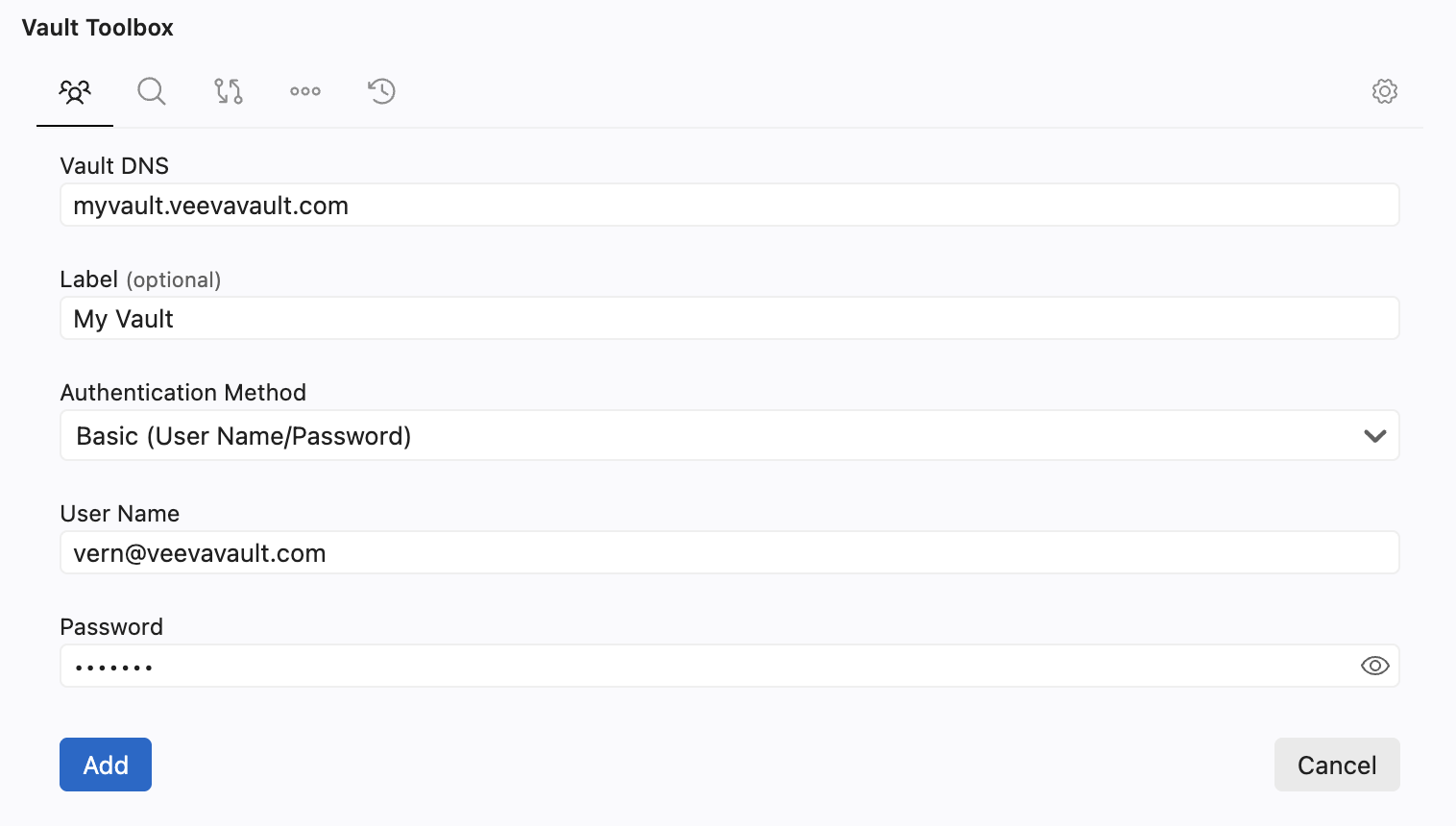
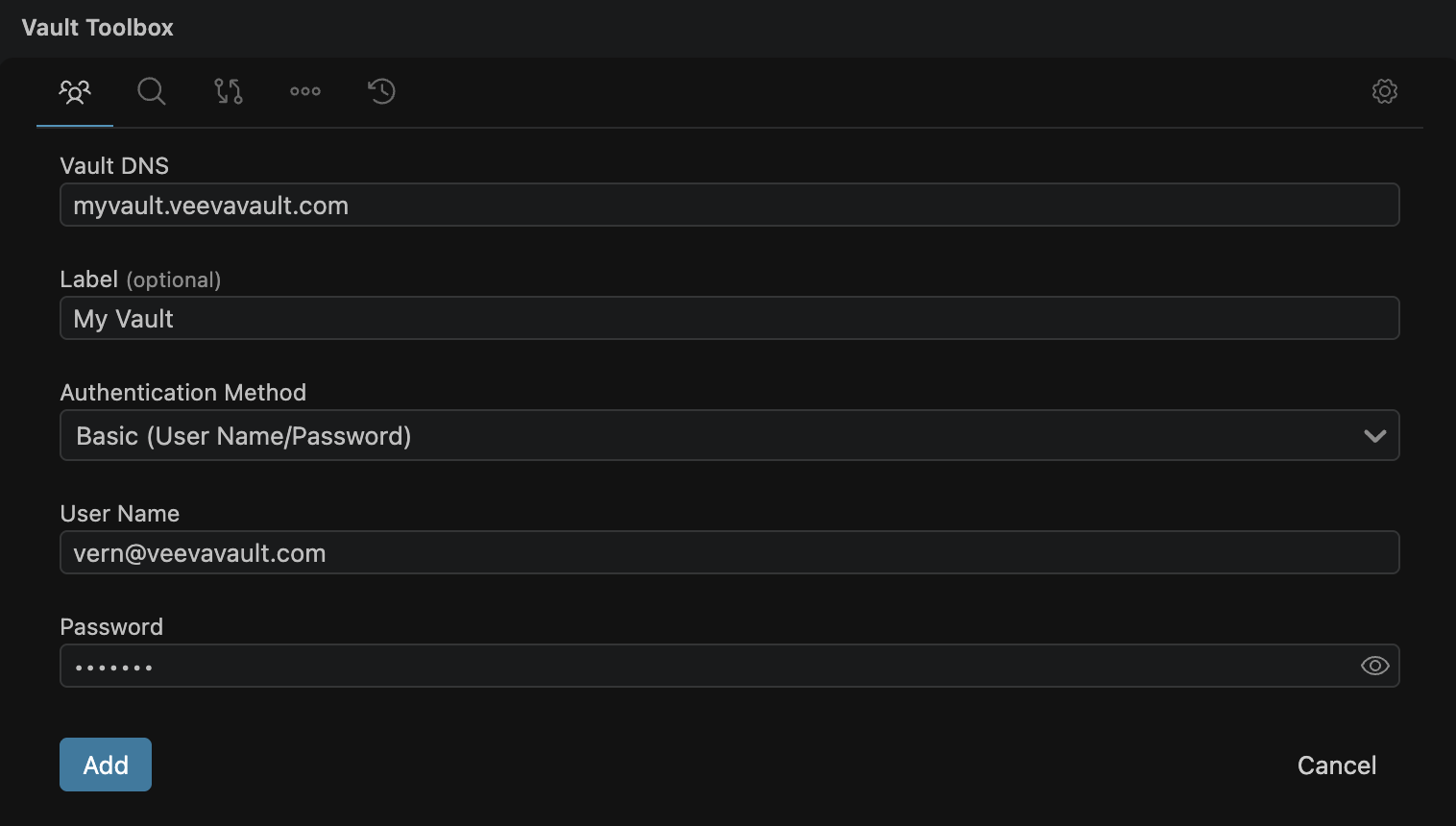
- Click Add.
Once successfully added, a card for the new environment appears under the list of All Environments.
Connecting to an Environment
Section link for Connecting to an EnvironmentIn the Environments tab, click
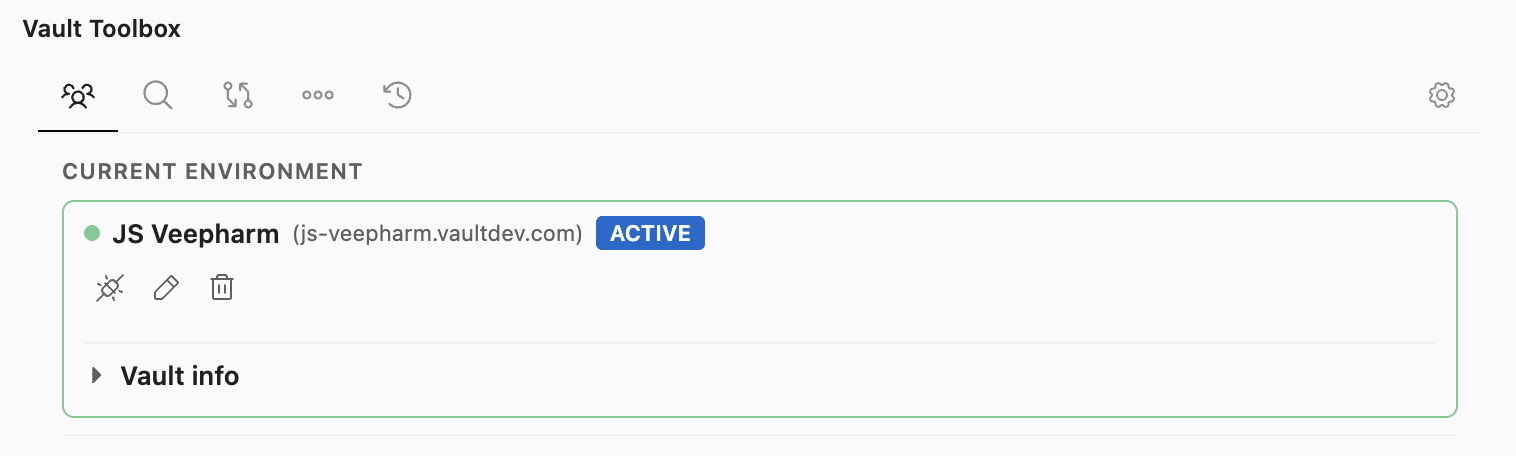
The environment you're actively working with is marked ACTIVE. The active, connected environment is pinned in a Current Environment section at the top of the list. Every other environment, connected or not, appears under All Environments. Click
Expand Vault Info on a connected environment's card to view the details of that Vault, including a link that opens the Vault DNS in your browser.
Editing or Removing an Environment
Section link for Editing or Removing an EnvironmentClick
Click
Working with Production Vaults
Section link for Working with Production VaultsVault Toolbox labels a connected environment with PROD when it detects a production Vault. Actions that write to Vault, such as deploying or dropping MDL, deploying or deleting Vault Java SDK code, and applying changes from comparing environments, are blocked on a production Vault.