
Using the Data Navigator
Vault Toolbox includes a Data Navigator that allows you to thoroughly examine an object record's metadata.
This guide explains how to use Data Navigator to retrieve object record metadata from your Vault.
Viewing Object Record Metadata
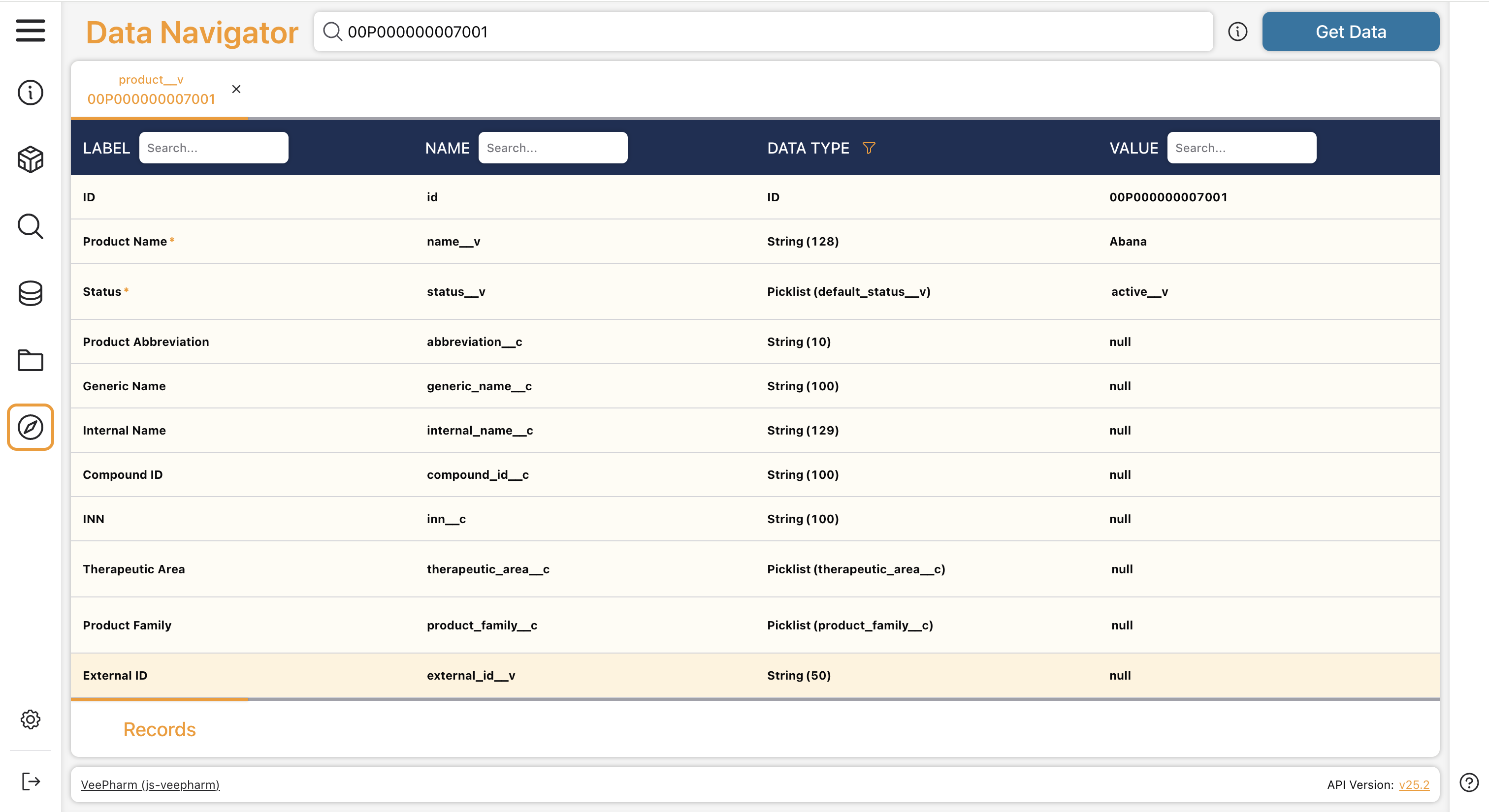
Section link for Viewing Object Record MetadataYou can use Data Navigator to view information about an object record, including the field names, their API names, and values. You can only view metadata for object records your user account has access to in the Vault UI.
To view an object record's metadata:
- In the search bar, enter a record's ID, the URL of the record in Vault, or the record ID in the format
{object_name}:{record_id}. Click theicon next to the search bar to view examples of the supported input formats. - Click Get Data.
- Optional: Repeat Steps 1-2 for each record you'd like to retrieve metadata for. Data Navigator can display up to 10 object record tabs.
Data Navigator displays each object record's metadata in its own tab, including the Label, Name, Data Type, and Value columns.
Viewing Records in Vault
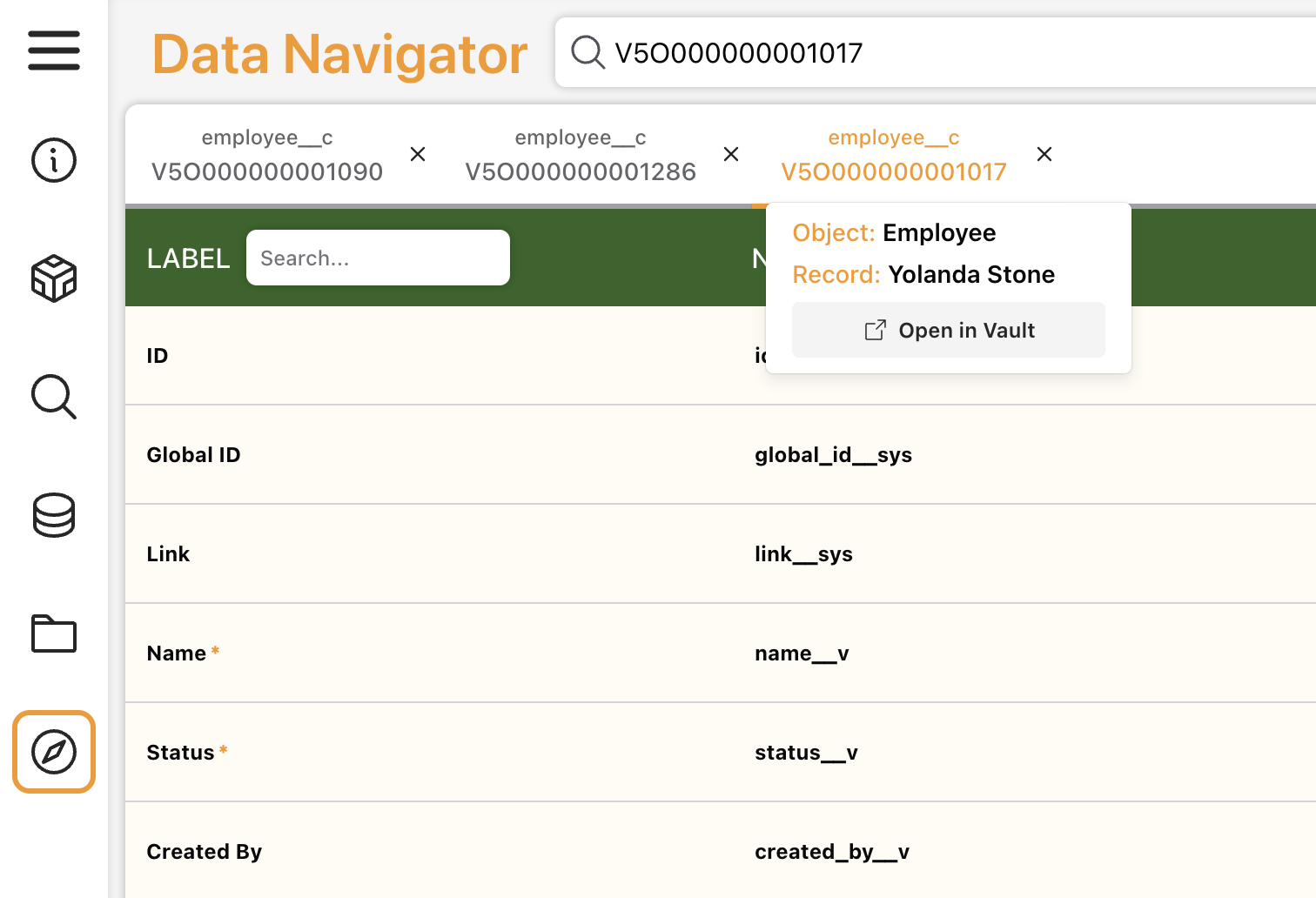
Section link for Viewing Records in VaultHover over a record tab to view the Object name and the Record name. Click Open in Vault (
Within the Value column, object reference fields are distinguished by an orange hyperlink next to the referenced record's ID in parentheses within the. Click the hyperlink to open the referenced record in a new tab.
Viewing Fields in Vault
Section link for Viewing Fields in VaultWhen hovering over any field in the record view, an Actions menu (
Viewing Component MDL
Section link for Viewing Component MDLWhen hovering over object lifecycle or picklist fields in the record view, an Actions menu (
Searching, Sorting, & Filtering Fields
Section link for Searching, Sorting, & Filtering FieldsFrom the Label, Name, and Value columns, you can search for specific words. If you type within the search bar, Data Navigator updates the record view to only show fields that match. As shown in the screenshot below, if you search for "Abana" within the Value column, the record view shows the Product Name field that has the same value. Click

Click on the Label or Name column to toggle between sorting fields by ascending (