Creating Web Sections
Web sections add iframes containing external content to the layout of an object record detail page. Web sections can only be created using MDL.
Web sections are defined in the page_markup attribute of a Pagelayout component. To create a new object page layout containing a web section, we recommend first creating the layout in the Vault Admin UI, then adding the web section to the existing page_markup XML as shown in the example below.
Web Section Elements
Section link for Web Section Elements| Value | Description |
|---|---|
vault:section | Defines a section on an object detail page layout. |
vault:websection | Defines a web section within a section tag. |
Section Attributes
Section link for Section Attributes| Value | Description |
|---|---|
title | The section title as it appears in the UI. For example, “Product Website”. |
name | The name of the section. For example, product_website__c. |
Websection Attributes
Section link for Websection Attributes| Value | Description |
|---|---|
is_post_session | Boolean. If true, Vault sends the current user’s session credentials to the target URL. The default value is false. |
section_height | The height, in pixels, of the iframe embedded in the web section. For example, 500px. Must be between 40 and 730. The default value is 150px. |
view_mode_url | The URL Vault will display in the web section when the object record page is in view mode. Must follow HTTPS protocol. |
edit_mode_url | Optional: The URL Vault will display in the web section when the object record page is in edit mode. Must follow HTTPS protocol. If omitted, Vault hides this section in edit mode. |
About URL Tokens
Section link for About URL TokensYou can add tokens to both the view mode and edit mode URLs. Tokens pass information about a user or Vault to the target URL. Web sections support the following tokens:
| Token | Description |
|---|---|
${User.id} | The id of the currently logged-in user. See Retrieve User for details. |
${User.name__v} | The user_name__v of the currently logged-in user. See Retrieve User for details. |
${User.email__v} | The user_email__v of the currently logged-in user. See Retrieve User for details. |
${Vault.domain} | The vaultDNS of the Vault containing the web section. See Retrieve Domain Information for details. |
${Vault.domain_type} | The domain_type__v of the Vault containing the web section. See Retrieve Domain Information for details. |
${Vault.id} | The vault_id__v of the Vault containing the web section. See Retrieve Domain Information for details. |
Additionally, you can create dynamic tokens using any object fields that can be used in a Text type formula field. Learn more about tokens in Vault Help
You must escape the { and } characters when adding tokens to a URL for a web section. For example:
https://myexternalsite.com/?userId=$\{User.id\}
Web Section Example
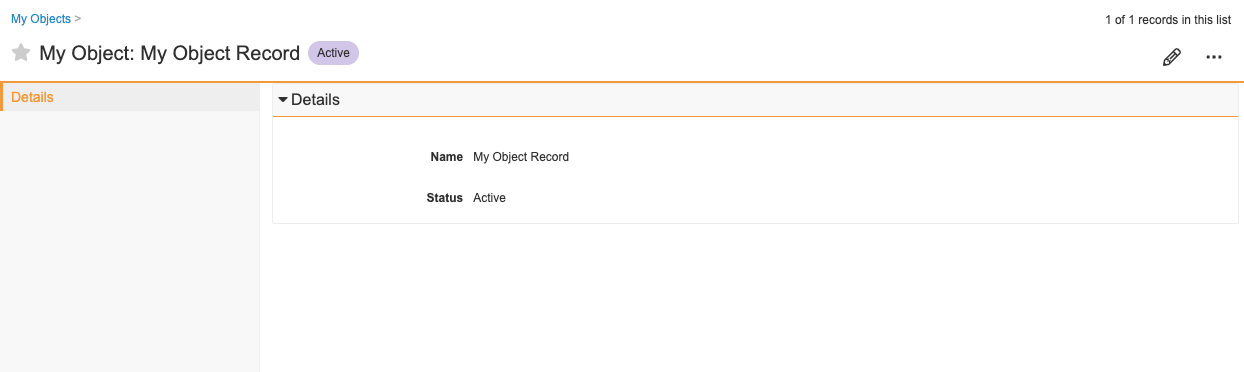
Section link for Web Section ExampleIn this example, we’ll add a web section to the page layout of all My Object records. Currently, My Object pages contain one detail form section, which is named Details. The Details section contains two fields, Name and Status, and appears as shown below in the Vault UI.
Retrieve MDL
Section link for Retrieve MDLThe following request retrieves page layout metadata for My Object records as MDL. You can retrieve component record metadata using the Retrieve Component Record (MDL) endpoint:
GET /api/mdl/components/Pagelayout.my_object_detail_page_layout__c
Response
Section link for ResponseRECREATE Pagelayout my_object_detail_page_layout__c (
label('My Object Detail Page Layout'),
page_markup({
<vault:page xmlns:vault="VeevaVault" controller="Objecttype.my_object__c.base__v">
<vault:section title="Details" name="details__c">
<vault:detailform type="One-Column">
<vault:field reference="name__v" />
<vault:field reference="status__v" />
</vault:detailform>
</vault:section>
</vault:page>
})
);Web Section XML
Section link for Web Section XMLUse the following template to add a web section. See Websection Attributes for more information.
<vault:section title="{section title}" name="{section_name__c}">
<vault:websection is_post_session="{true or false}" section_height="{height in px}" view_mode_url="{https://myviewmodeurl.com}" edit_mode_url="{https://myeditmodeurl.com}" />
</vault:section>
Paste your XML into the RECREATE command generated in the previous step in the place you want it to appear. For example, to make a section appear first on the page, place the XML on the line following the <vault:page> tag. To place it after another section, paste the text on the line following that section’s </vault:section> tag.
The <vault:section> and </vault:section> tags must be within the <vault:page> and </vault:page> tags and must not be within another section’s <vault:section> and </vault:section> tags.
Adding the Web Section
Section link for Adding the Web SectionUse the Vault REST API’s Execute MDL Script endpoint to execute your RECREATE command.
POST /api/mdl/execute
In this example, we’ll add a web section called References after the Details section and configure it to display this reference.
RECREATE Pagelayout my_object_detail_page_layout__c (
	label('My Object Detail Page Layout'),
	page_markup({
		<vault:page xmlns:vault="VeevaVault" controller="Objecttype.my_object__c.base__v">
			<vault:section title="Details" name="details__c">
				<vault:detailform type="One-Column">
					<vault:field reference="name__v" />
					<vault:field reference="status__v" />
				</vault:detailform>
			</vault:section>
			<vault:section title="References" name="references__c">
				<vault:websection is_post_session="false" section_height="500px" view_mode_url="https://developer.veevavault.com/mdl" />
			</vault:section>

		</vault:page>
	})
);
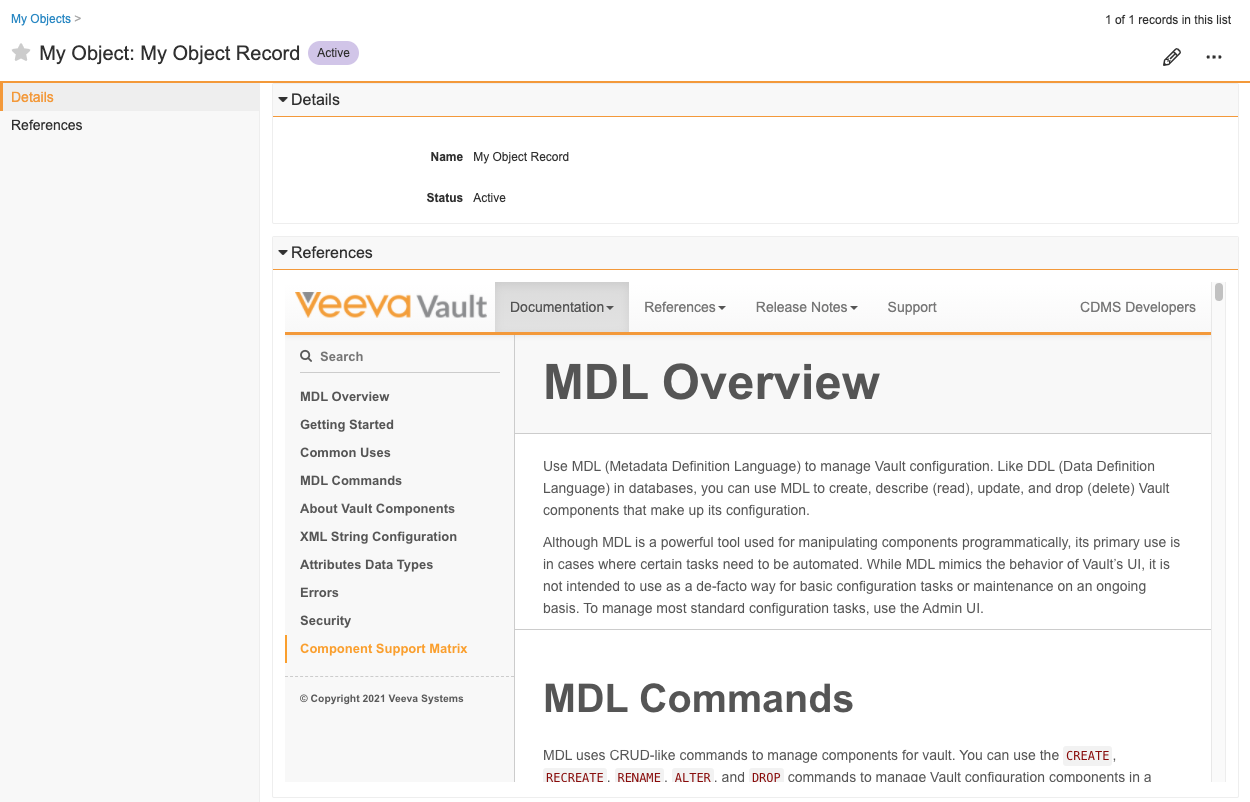
Detail pages for My Object records now include a web section as shown below.