
Using the VQL Editor
Vault Toolbox includes a VQL Editor for running read-only Vault queries directly within Visual Studio Code. The VQL Editor features syntax highlighting, a Query Builder, saved queries, query history, query formatting, and CSV export.
This guide outlines how to write and run queries in the editor and build queries visually with the Query Builder. Learn more about sending VQL queries.
Running Queries
Section link for Running QueriesTo run a query:
- Select the Vault Toolbox icon in the lefthand panel.
- Select the VQL Editor () tab.
- Type a VQL statement in the editor, or select a query from the saved-queries or history dropdown. For example,
SELECT id FROM documents. - Optional: Click (
) Format Query to reformat the query for readability. - Click Run VQL, or press
Cmd+Enter(macOS) orCtrl+Enter(Windows/Linux).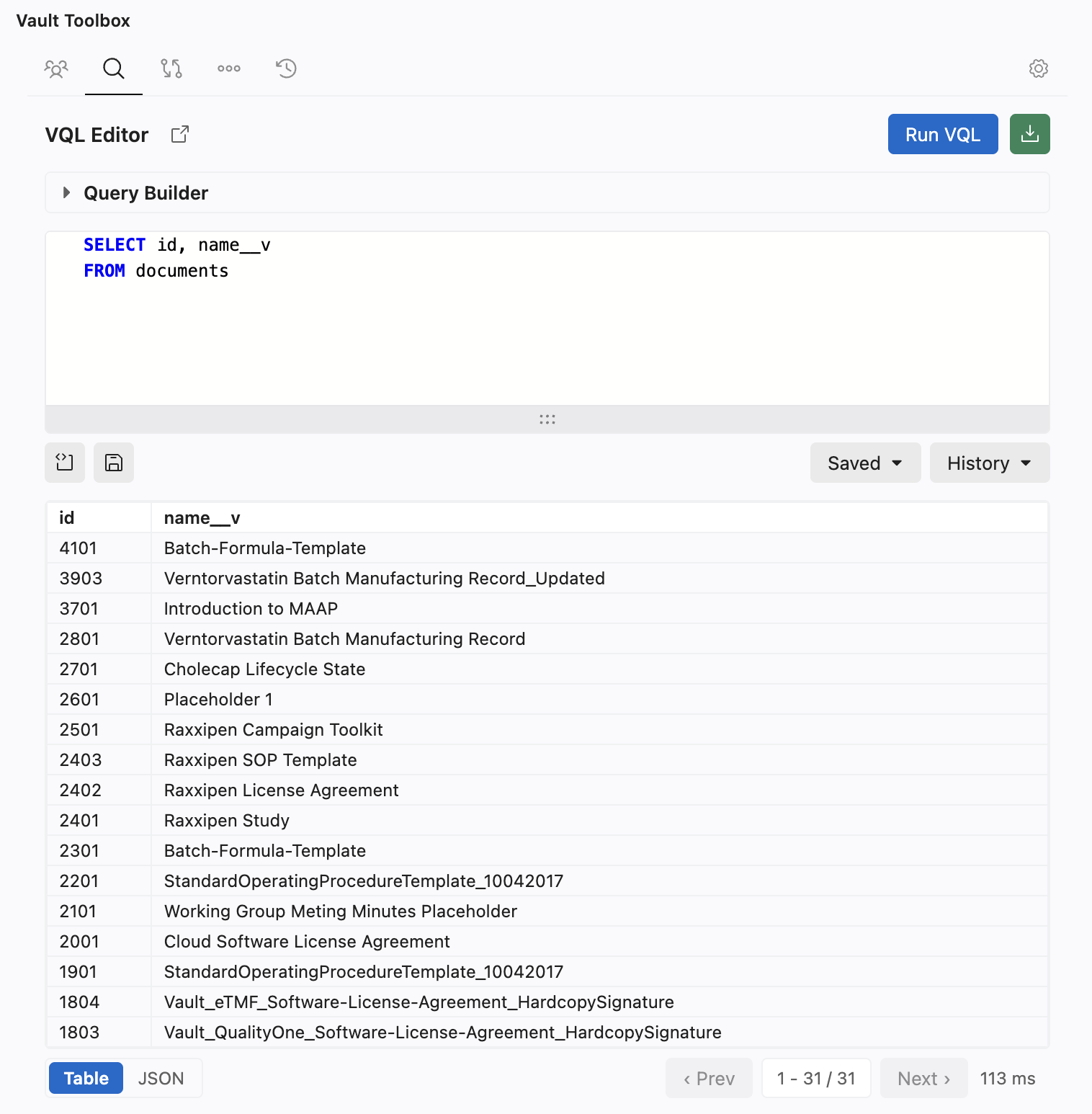
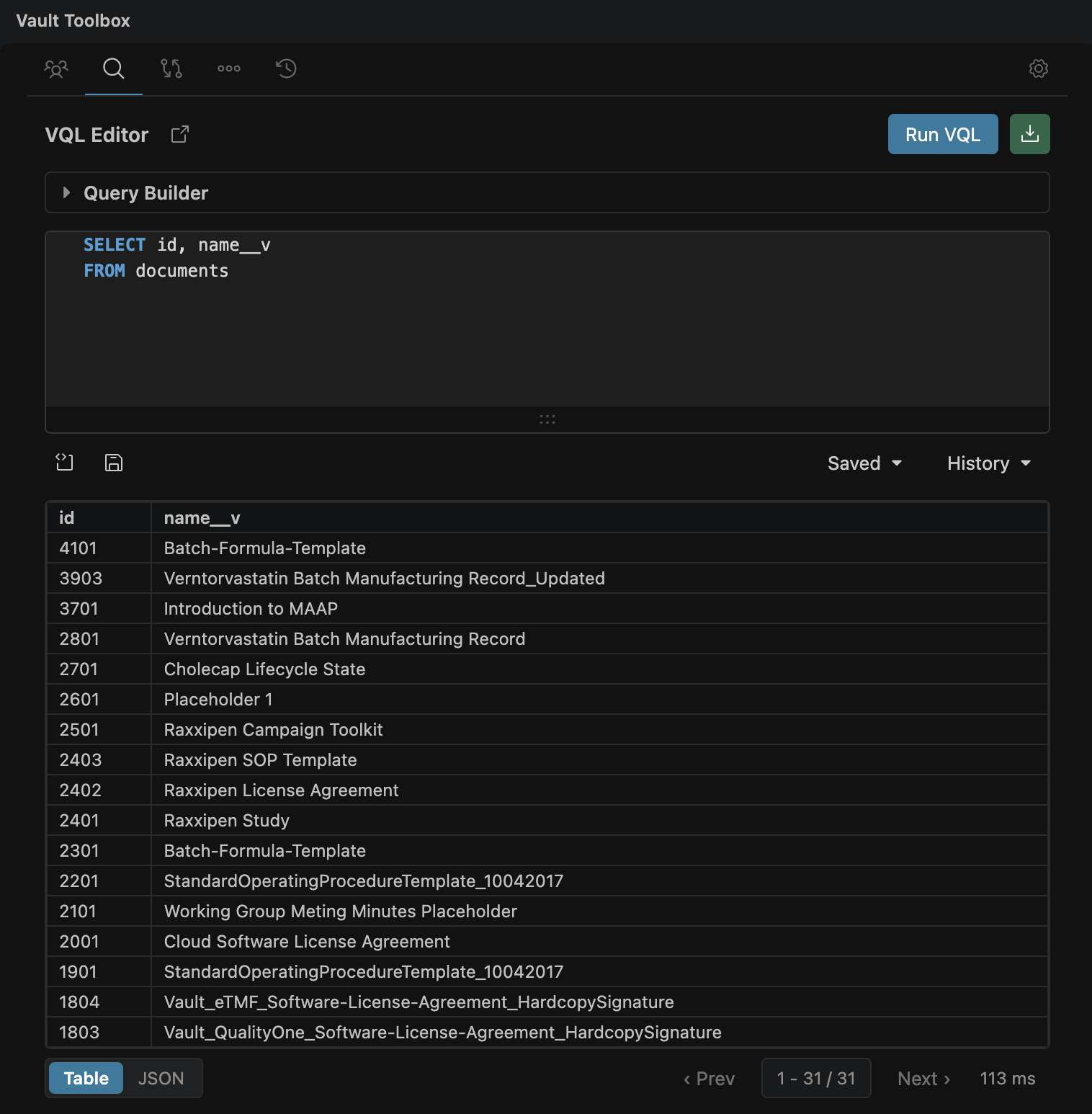
Results display in a table below the editor. Use ‹ Prev and Next › to page through results. A range label shows how many of the total rows are currently displayed. Click JSON next to Table to view the raw response instead of a grid.
Opening in an Editor Tab
Section link for Opening in an Editor TabClick
Saving and Reusing Queries
Section link for Saving and Reusing QueriesClick (
Exporting Results
Section link for Exporting ResultsClick (
Building Queries Visually
Section link for Building Queries VisuallyThe Query Builder helps you construct a VQL statement without writing it by hand. Pick a query target, choose which fields to select, add filter conditions, and optionally set a page size, then insert the result into the editor.
To build a query visually:
- From the VQL Editor, expand the Query Builder and select a query Target. For example, Product.
- Select Fields. Picking a field on the object itself adds it directly. Picking a field through a relationship adds either a dotted
relationship.fieldexpression or an inbound subquery, depending on the relationship direction. - Optional: Click + Add filter to add a
WHEREclause. Select a Field, an operator valid for that field's type (=,!=,<,>,<=,>=,CONTAINS,LIKE), and a Value. Use the match mode to combine multiple filter rows with AND or OR. - Optional: Enter a Page Size. Leave blank to use the default page size.
- Click Build Query in Editor.
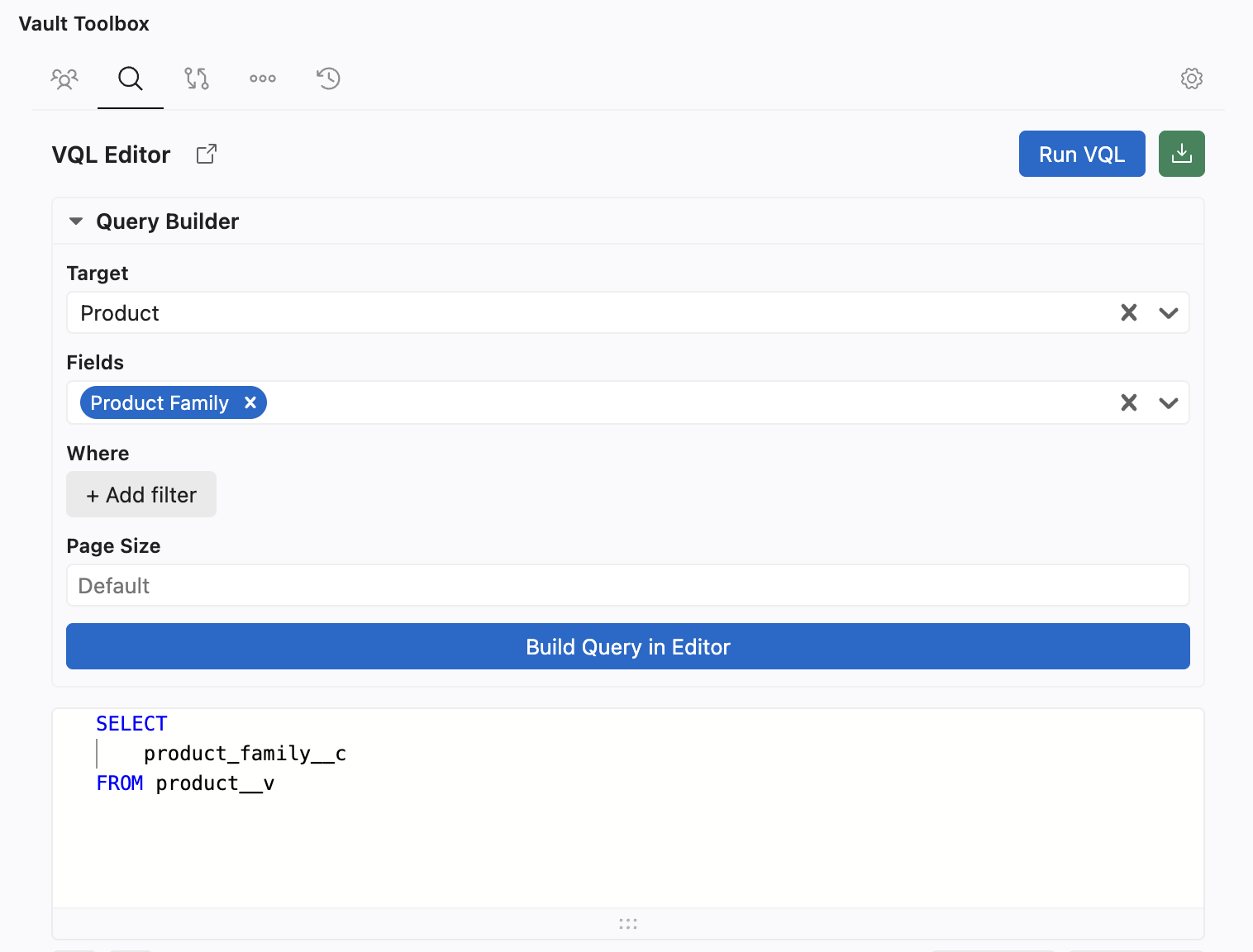
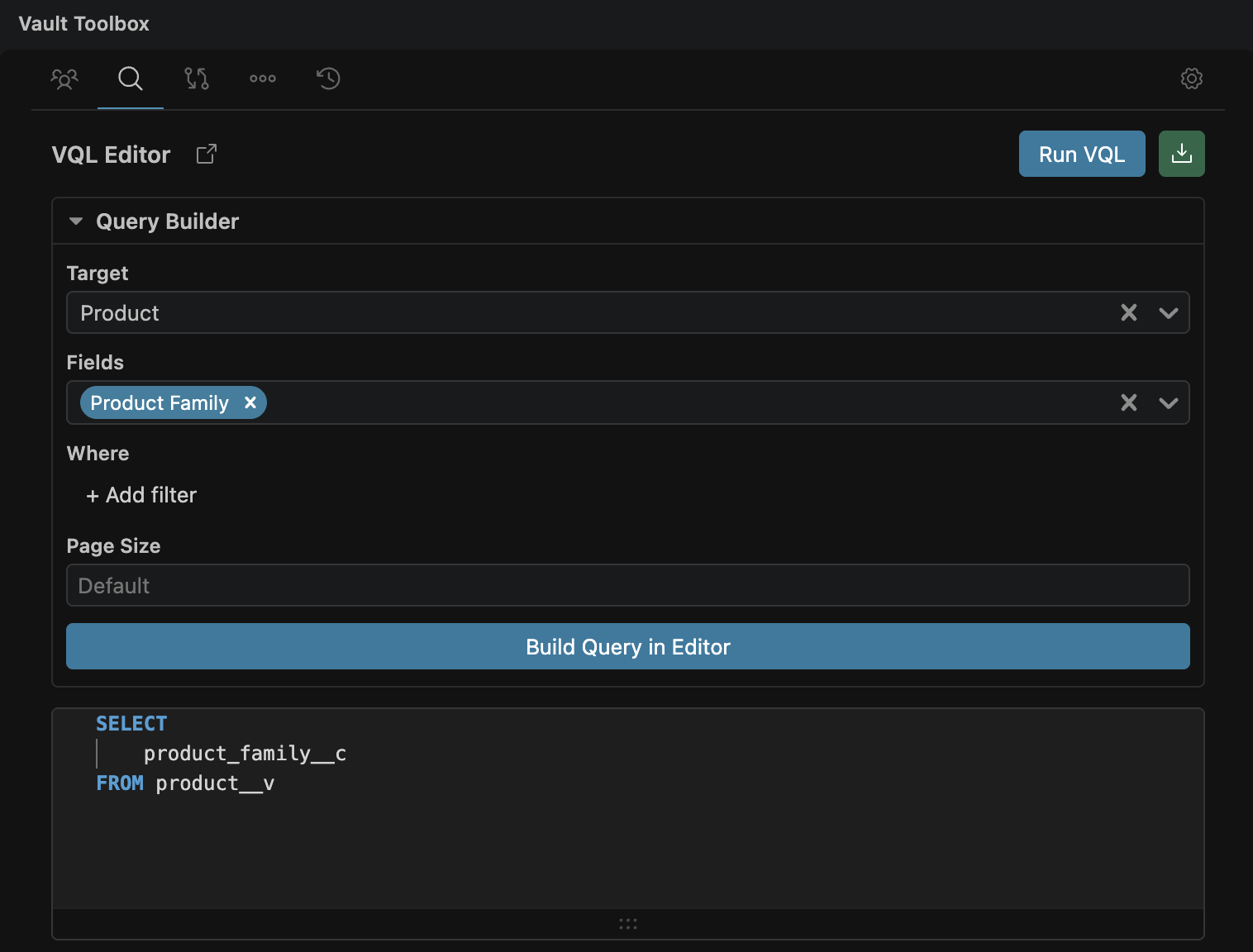
The generated query does not run automatically. Review and edit it in the editor, then click Run VQL to send it.