
Navigating Vault Toolbox
Vault Toolbox provides a seamless user interface, featuring a responsive sidebar navigation to access the various tools available. This guide explains how to understand and navigate the UI, as well as configure Vault Toolbox for your unique needs.
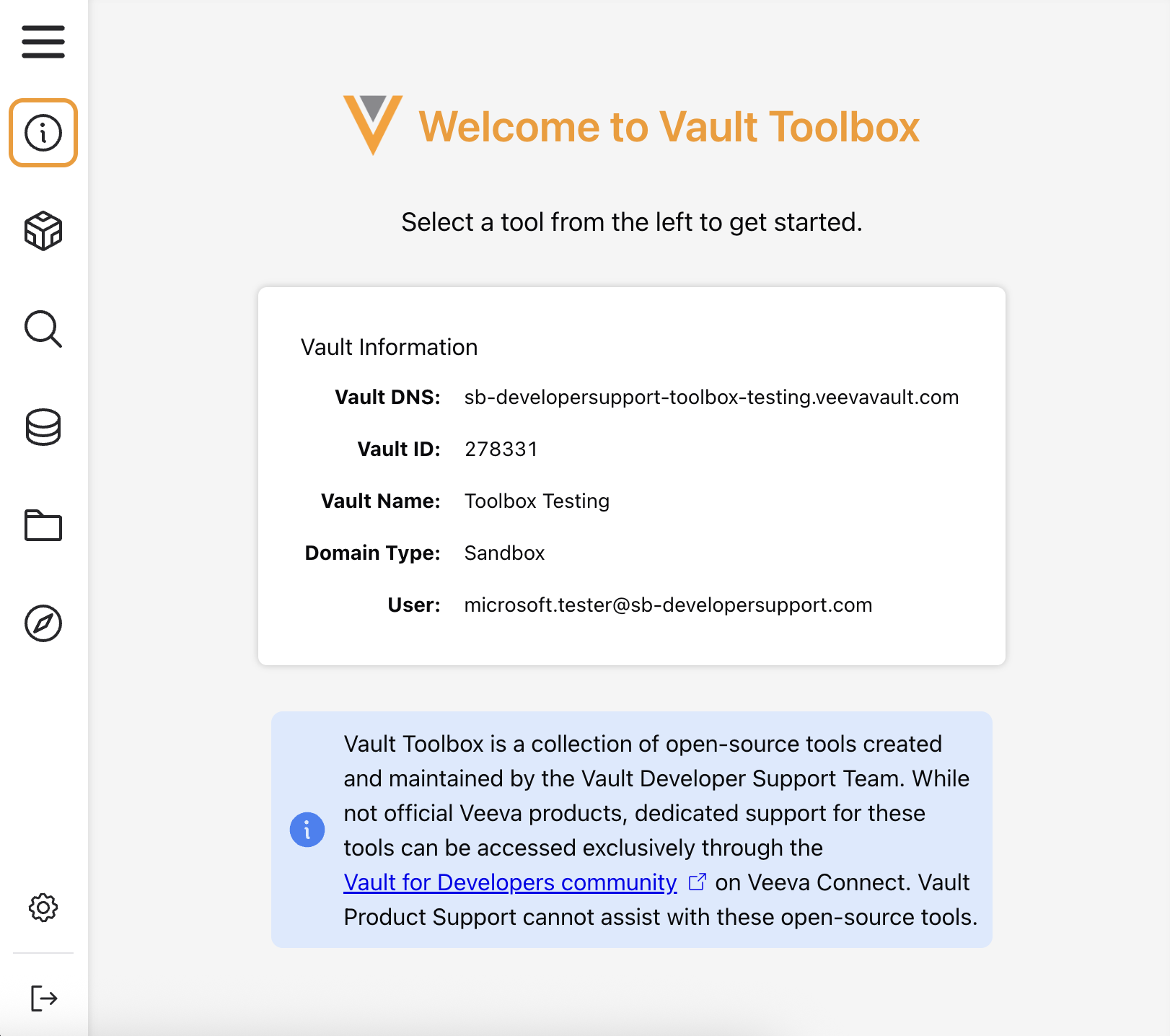
Vault Information
Section link for Vault InformationUpon login, the Vault Information page shows information about the authenticated Vault, such as the Vault DNS, Vault ID, and Vault Name. From the Vault Information page, you can select any icon from the lefthand navigation panel. From any other page, click the
Viewing & Hiding Tools
Section link for Viewing & Hiding ToolsClick the
Settings
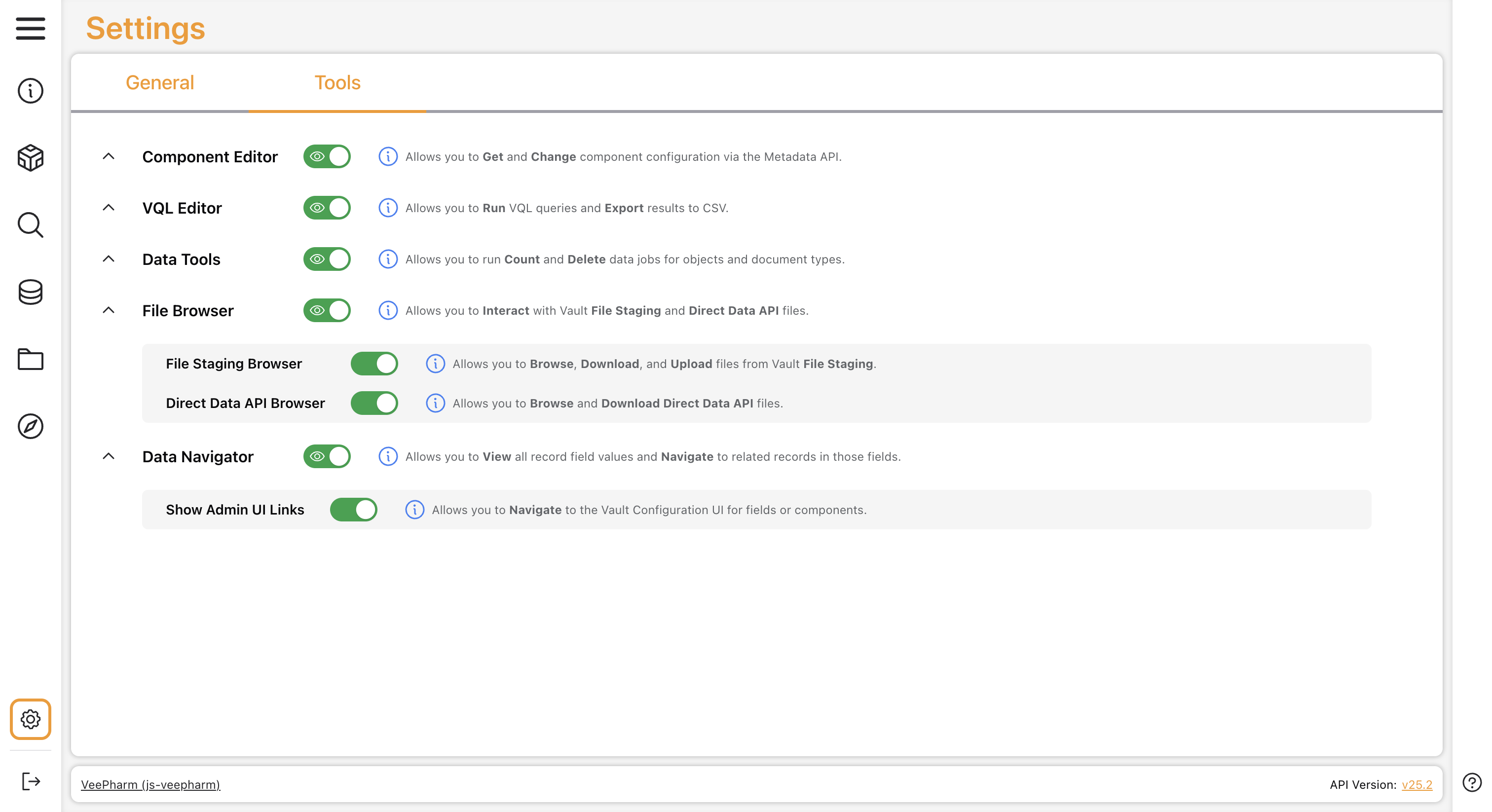
Section link for SettingsClick the Settings () icon in the navigation panel to access the Settings page. Settings can be enabled or disabled using their respective toggle.
General
Section link for GeneralThe following settings under the General tab are available:
- Dark Mode: Enables Dark Mode for Vault Toolbox
- Integrated Login: Enables auto-integrated login using an existing Vault session when launched from a browser tab with an active Vault UI session. You can also enable or disable this setting from the login page.
The settings within the Tools tab are responsible for controlling the visibility of all Vault Toolbox tools and their features, if applicable. Change which tools appear in the lefthand navigation panel by selecting the toggle for the tool.
You can control which features appear on a tool's page by selecting the toggle for the feature. For example, if File Browser > Direct Data API Browser is toggled off, the feature will not appear on the File Browser page.
API Info Panel
Section link for API Info PanelThe API Info Panel appears at the bottom of the Settings page and on all tool pages. By default, the panel displays the currently authenticated Vault DNS and the API version. After executing an operation on a tool page, the panel displays the status, time, and size of the last API call.

At any time, you can click the current API Version to change to another version or click the Vault DNS hyperlink to open the Vault UI in a new browser tab.
Getting Help
Section link for Getting HelpFrom any Vault Tool page, click the Help (
Logging Out
Section link for Logging OutClick the Logout (