
Browser Extension Quickstart
Learn how to set up the Vault Toolbox extension for your browser, navigate its user interface, and run queries with the VQL Editor.
In this tutorial, you will learn how to:
- Install Vault Toolbox
- Log into Vault Toolbox using Basic authentication
- Use the VQL Editor to run a simple query
Prerequisites
Section link for PrerequisitesTo follow this tutorial, you need:
- A Google Chrome
or Microsoft Edge browser downloaded and installed - A sandbox Vault with full Admin and the required permissions
Installing Vault Toolbox
Section link for Installing Vault ToolboxYou can install Vault Toolbox from the Chrome Web Store
Logging Into Vault Toolbox
Section link for Logging Into Vault ToolboxOnce the Vault Toolbox extension has been installed in your preferred browser, you can access Vault Toolbox from your Extensions (
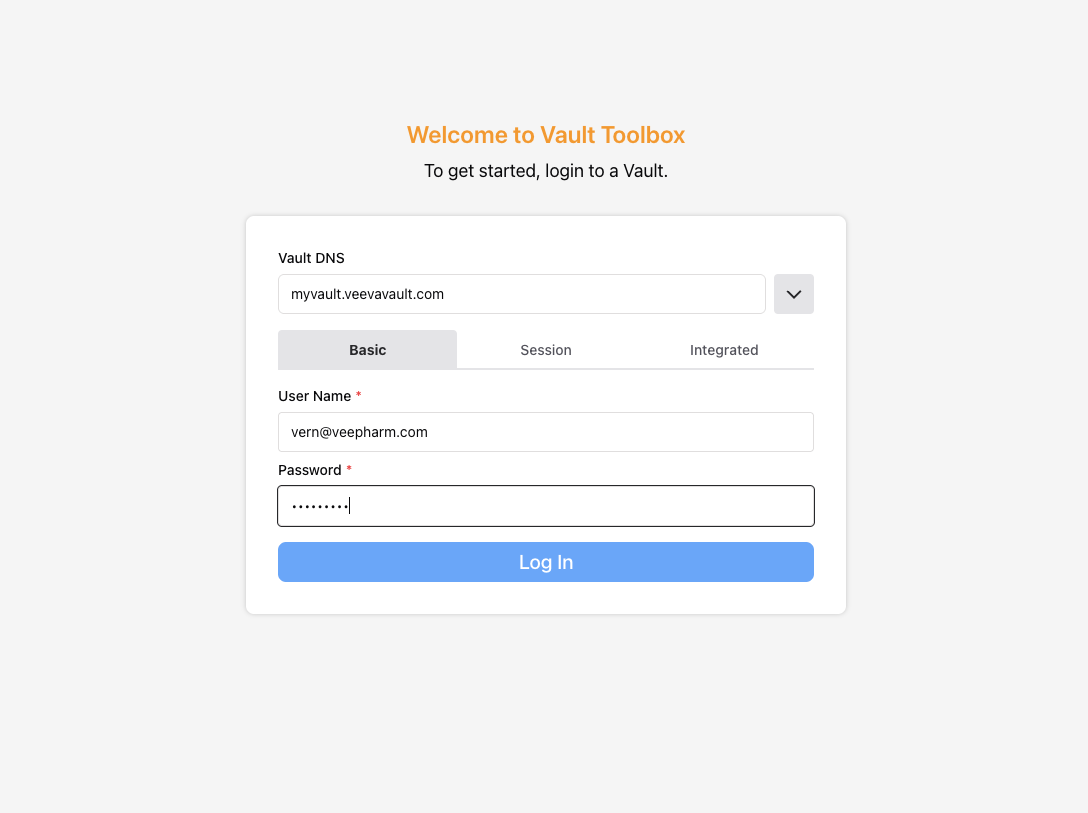
To log into Vault Toolbox:
- Enter the Vault DNS. For example,
myvault.veevavault.com. - For this Quickstart, select the Basic tab. See Authenticating to Vault Toolbox to learn more about the other available authentication methods.
- Enter your Vault User Name and Password.
- Click Log In.
Once successfully logged in, the home page displays the Vault Information, such as the Vault ID and Vault Name. See Navigating Vault Toolbox to gain familiarity with the user interface.
Running a Query
Section link for Running a QueryWithin Vault Toolbox, navigate to the VQL Editor (). The following steps guide you through building a VQL query with the Query Builder to retrieve information about active Person (person__sys) records in your Vault.
To run a VQL query:
- In the VQL Editor, select the
icon to show the Query Builder. - From the Category dropdown, select Objects as the query target.
- From the Target dropdown, select Person (person__sys). This value will be added to the query’s
FROMclause. - From the Fields dropdown, select the following fields: ID (id__sys), Name (name__v). These values will be added to the query’s
SELECTclause. - Click + Add Filter to set values for the query’s
WHEREclause. Create a filter with the following values:- VaultRecordField: Status (status__v)
- Operator: =
- Value: Active
- Click Build Query in Editor. Observe the following query appear in the editor panel:
SELECT id, name__v
FROM person__sys
WHERE (status__v = 'active__v')- Click Run VQL to run the query. Observe the results in the bottom panel of the editor.
- Click Download CSV to download a CSV file of the query results.
Congratulations, you’re up and running with the Vault Toolbox browser extension!