
Authenticating to Vault Toolbox
There are multiple ways to authenticate to Vault using the Vault Toolbox browser extension. On the Vault Toolbox login page, you can select one of the following authentication methods:
- Basic: Prompts for the Vault DNS and a combination of your username and password.
- Session: Prompts for the Vault DNS and an active session ID.
- Integrated: Accesses Vault Toolbox from an active Vault tab where the user is logged in.
This guide explains how to log into Vault using any authentication method and save Vault credentials to expedite the process.
Basic Login
Section link for Basic LoginTo authenticate using basic login:
- From the login page, enter the Vault DNS. For example,
myvault.veevavault.com. If you launch Vault Toolbox from a browser tab where you are logged into Vault, this will autofill. - Select the Basic tab.
- Enter your Vault User Name and Password.
- Click Log In.
Saving Vaults
Section link for Saving VaultsVault Toolbox allows you to save up to 100 Vault environments and designate one as the default. When a Vault environment is saved, Vault Toolbox stores the Vault DNS and user name, excluding the password.
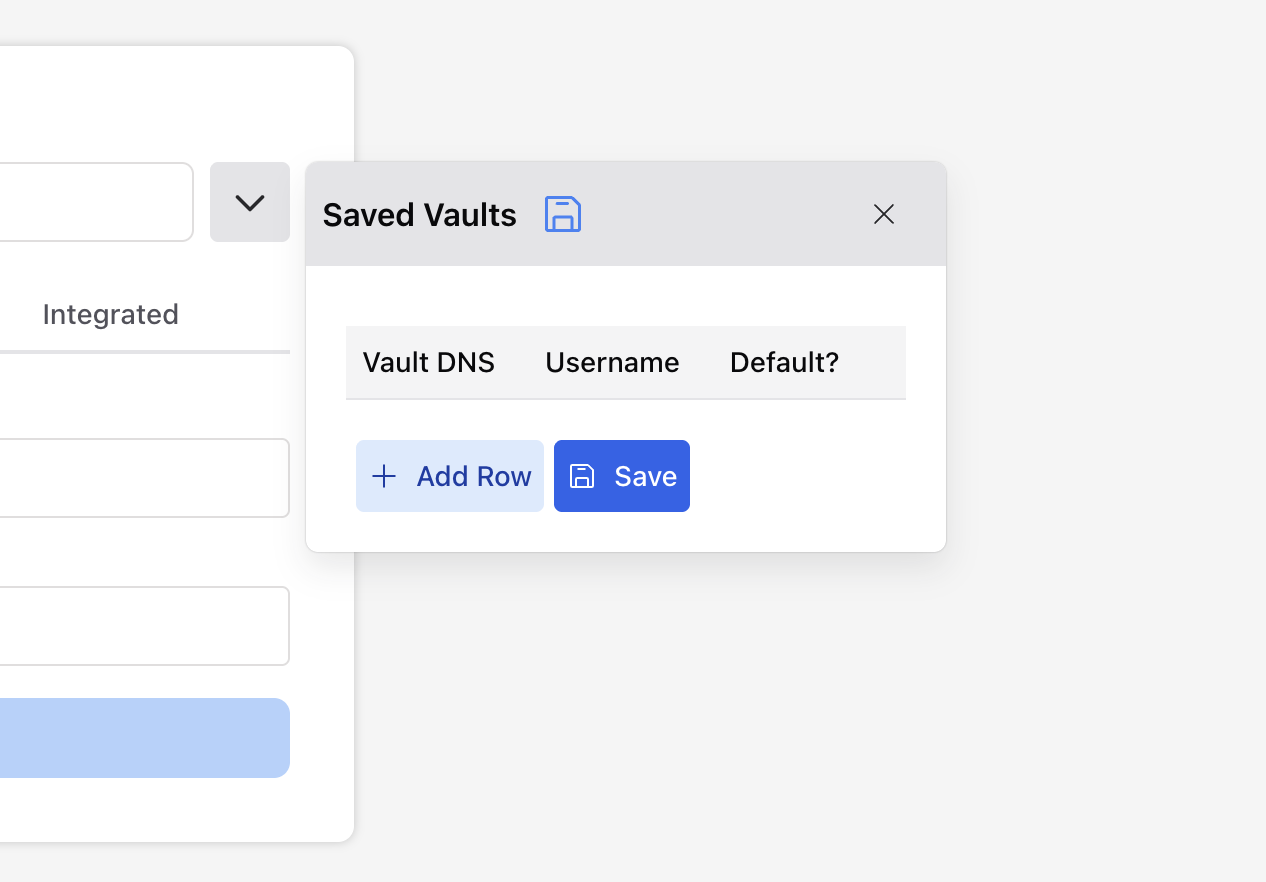
To add a saved Vault:
- From the login page, click the
icon to open the Saved Vaults dialog. - Click the
icon, then click + Add Row. - Enter the Vault DNS and Username.
- Optional: Select the Default? checkbox to make this your default environment. This unsets any previously set default environment.
- Click + Add Row to add another Vault, or click Save to save your changes.
- Click the
icon to close the dialog.
To select a saved Vault, click the
Session Login
Section link for Session LoginTo log in using an active Vault session ID:
- From the login page, enter the Vault DNS. For example,
myvault.veevavault.com. If you launch Vault Toolbox from a browser tab where you are logged in to Vault, this will autofill. - Select the Session tab.
- Enter a valid Session ID. You can generate session IDs using Vault API.
- Click Log In.
Integrated Login
Section link for Integrated LoginThis option allows you to log in by opening Vault Toolbox from a browser tab with an active Vault UI session.
To log in using integrated login:
- From a browser tab with an active Vault UI session, select the Vault Toolbox extension from your browser's top navigation bar. The Vault Toolbox login page appears in a new tab. The Integrated tab has already been selected.
- Confirm the Vault DNS. For example,
myvault.veevavault.com. It should be automatically populated. - Optional: Select the Enable Auto-Integrated Login (All Vaults) toggle. When enabled, Vault Toolbox automatically logs you in when you select the extension from an active Vault UI session, skipping the login page.
- Click Log in with Existing Vault Session.
Alternatively, you can enable or disable auto-integrated login by navigating to Settings () > General in Vault Toolbox and selecting the Integrated Login toggle. When enabled, you can log in to Vault Toolbox automatically from a browser tab with an active Vault UI session.