
Downloading SDK Runtime Logs
Vault Toolbox can download Vault Java SDK Runtime logs directly from Visual Studio Code, without needing to do so from the Vault UI. Your user account must have the Admin: Logs: Vault Java SDK Logs permission to download this log. Vault retains SDK Runtime logs for 30 days.
To download an SDK Runtime log:
- Select the Vault Toolbox icon in the lefthand panel.
- Select the Actions (
) tab. - Expand Developer Logs (
) and select Download SDK Runtime Log ( ). - Select one or more days from the Dates (UTC) calendar. Vault only accepts a date within the last 30 days.
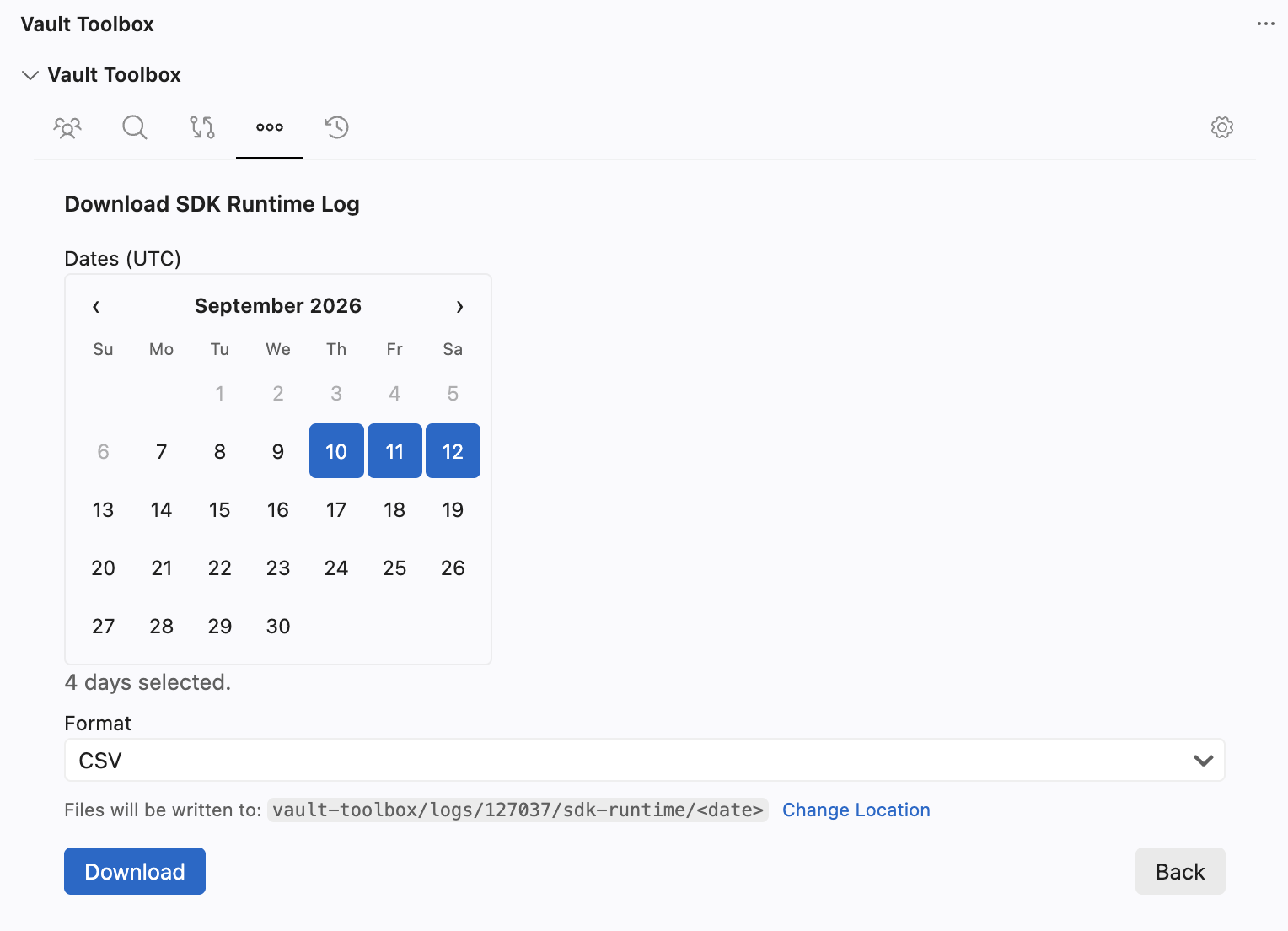
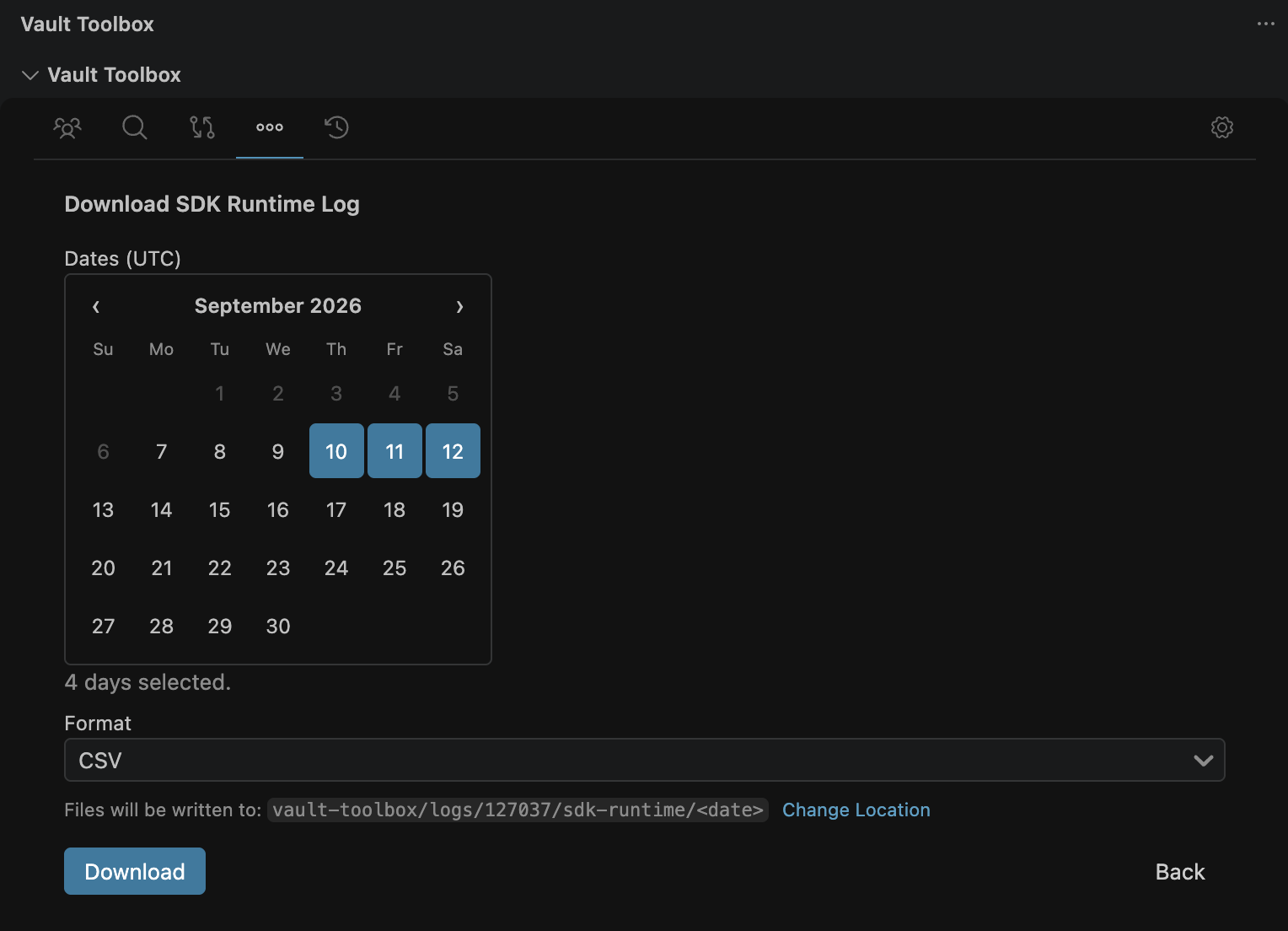
- Select a Format: CSV or Log file.
- Optional: Click Change Location to update the folder the log downloads to.
- Click Download.
Vault Toolbox downloads one log file per selected date, sequentially, inside a single cancellable progress notification. Once the download completes, Vault Toolbox opens the destination folder in the Explorer panel. By default, logs are written to vault-toolbox/logs/<vaultId>/sdk-runtime/<date>, so re-downloading the same date refreshes that date's file rather than creating a duplicate.
If a multi-date download partially fails, Vault Toolbox keeps the days that succeeded and reports which days failed so you can retry them. If every day fails due to a missing permission, the error names the exact permission to request from a Vault Admin.