
Using the ERD Explorer
Vault Toolbox includes an Entity Relationship Diagram (ERD) Explorer that allows you to visualize and explore Vault object relationships from an interactive canvas. Diagrams in the ERD Explorer are highly customizable. You can reposition objects, control which fields are displayed, adjust visual settings, and export the result as an image, a Mermaid
This guide explains how to use the ERD Explorer to build, navigate, and export entity relationship diagrams.
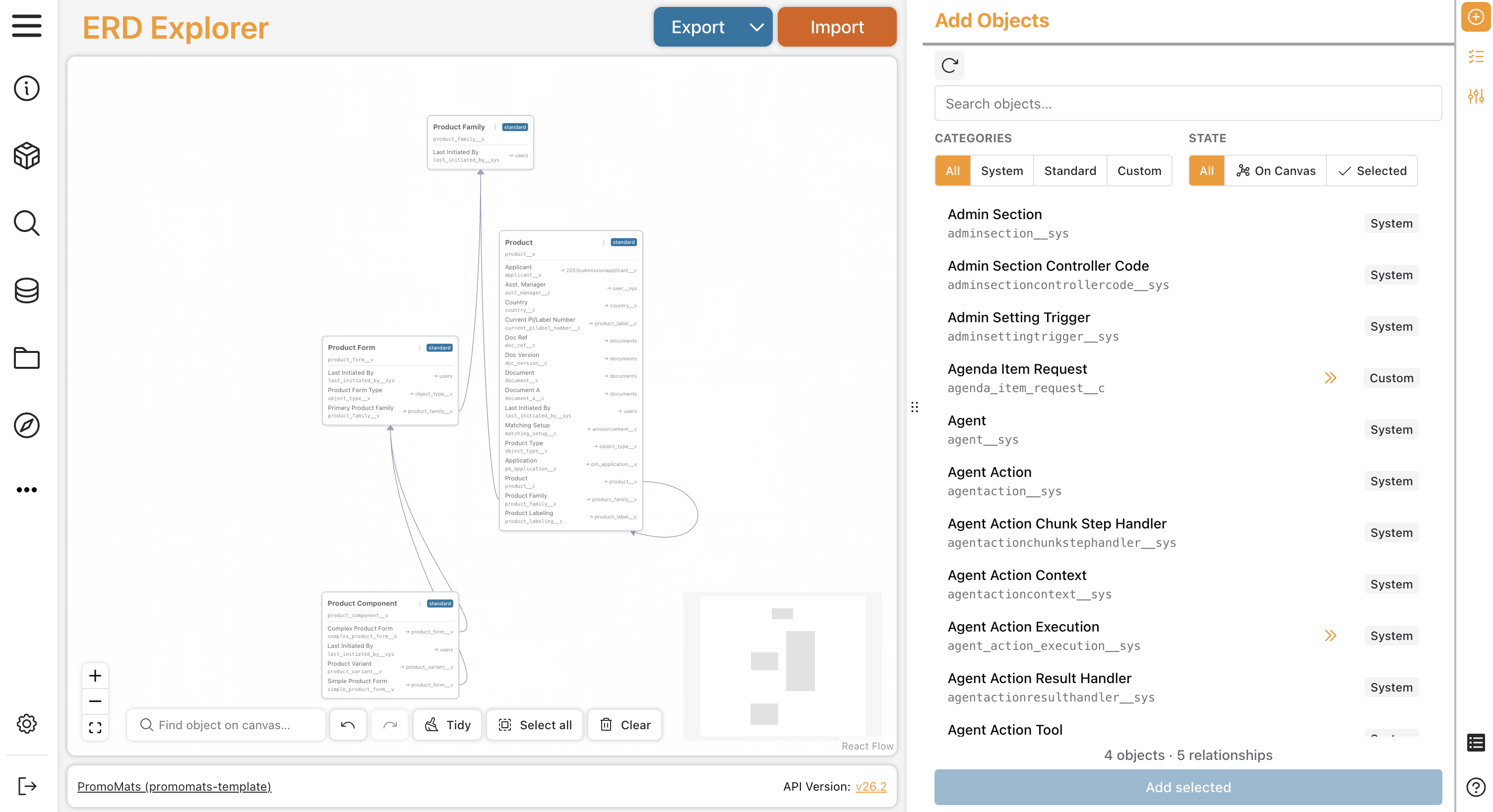
Adding Objects
Section link for Adding ObjectsPopulate the canvas from the Add Objects sidebar tab. Click objects in the list to select them, then click Add selected at the bottom to place them.
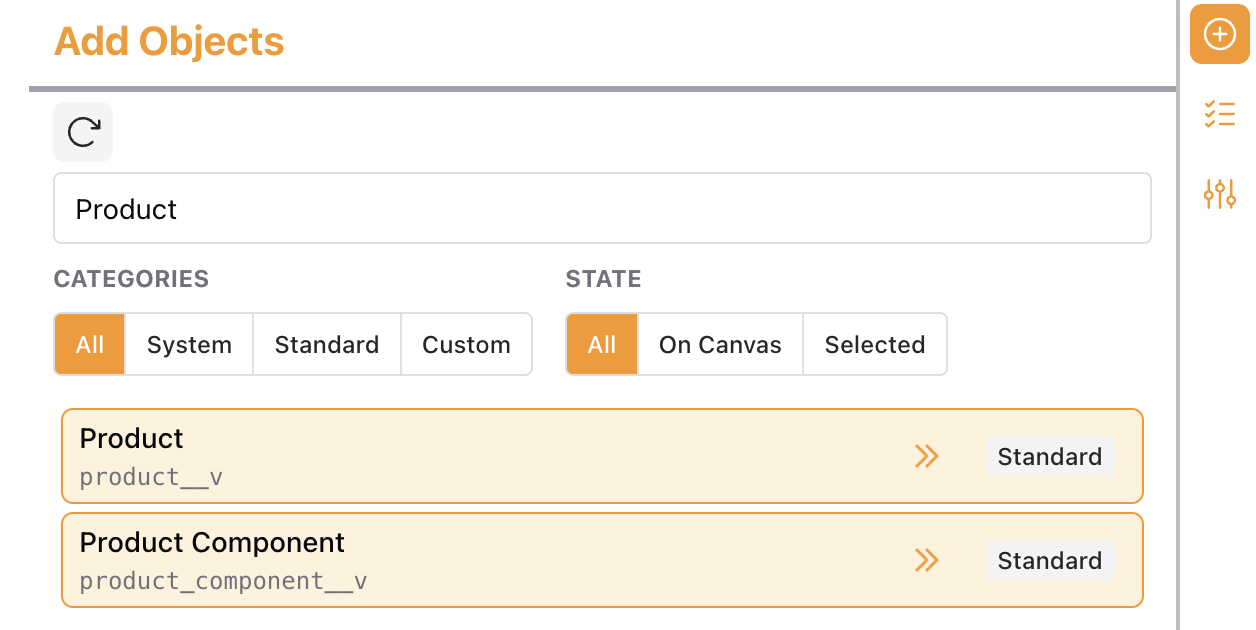
In addition to the search bar, the tab includes several ways to narrow the list:
- Categories: Show only Standard, Custom, or System objects.
- State: Limit the list to objects On Canvas or currently Selected for addition.
Click Reload objects from Vault (

For objects already on the canvas, an On Canvas badge appears with an
Viewing Object Relationships
Section link for Viewing Object RelationshipsClick Options (
- Add related: Filter and search the object's inbound and outbound relationships, then select objects to add to the canvas.
- Add related (recursive): Expand the graph outward automatically. See Add Related Recursive for more information.
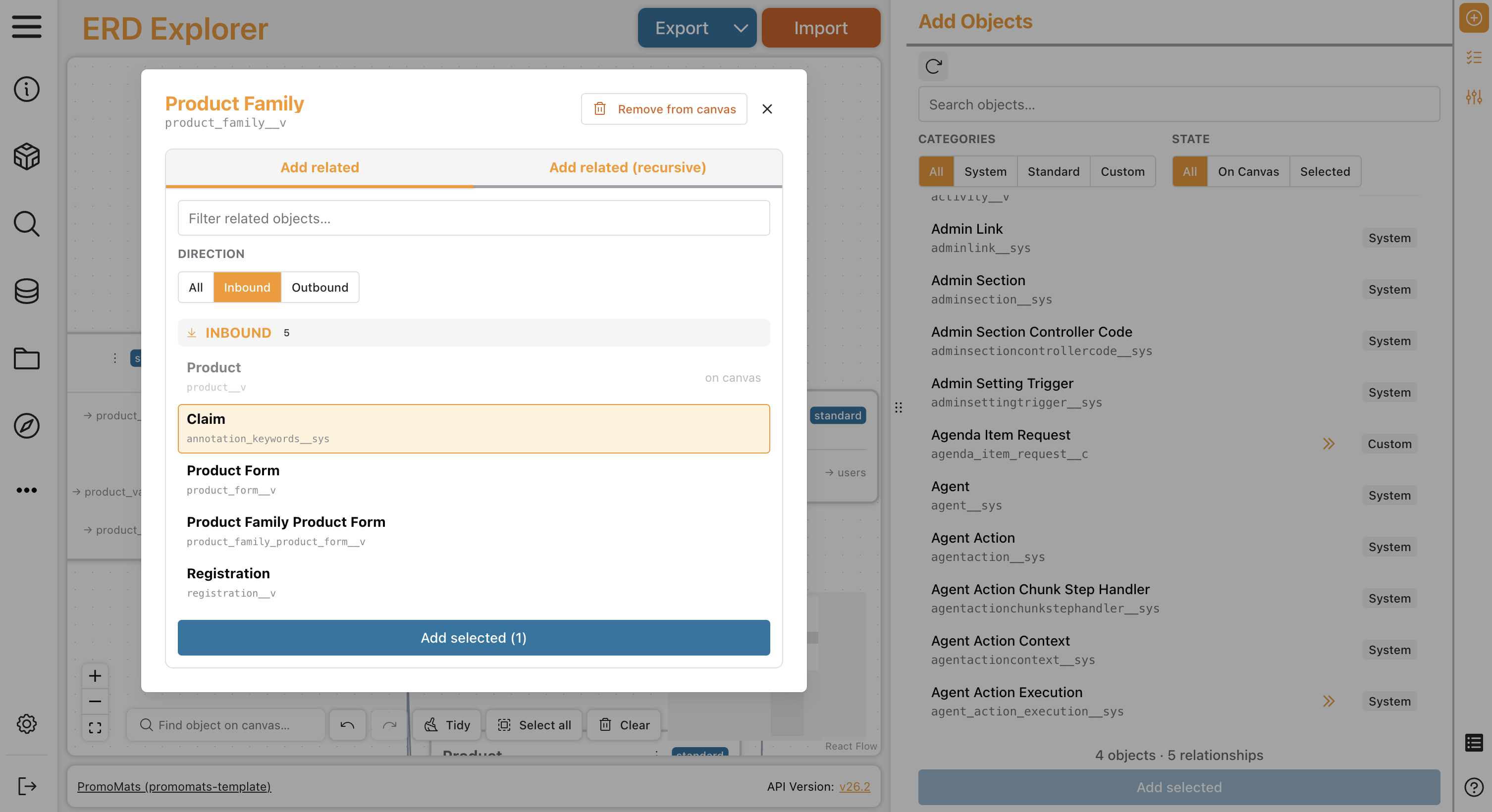
The dialog also includes
Add Related Recursive
Section link for Add Related RecursiveFrom the Add related (recursive) tab, indicate the number of levels to expand the object relationships and whether to follow Inbound relationships, Outbound relationships, or both. Then click Add selected to expand the graph. Expansions that would add 100 or more new objects require confirmation. The ERD Explorer does not support expansions of 500 or more new objects.
Navigating the Canvas
Section link for Navigating the CanvasThe canvas includes the following panning and zooming capabilities:
- Pan: Right-click drag or middle-click drag.
- Zoom: Scroll wheel, or use + / − in the bottom-left controls.
- Fit to view (
): Click the icon in the bottom-left controls to zoom and center all objects at once.
A minimap in the bottom-right corner shows an overview of the full canvas. Click and drag it to pan.
Finding Objects on the Canvas
Section link for Finding Objects on the CanvasUse the Find object on canvas search bar in the bottom-left canvas controls to locate an object by name. Select a result to pan and zoom the canvas to that object.
Vault Toolbox automatically centers newly placed objects on the canvas, a related-objects selection, or a recursive add in view shortly after they're added.
Moving and Selecting Objects
Section link for Moving and Selecting ObjectsThe canvas allows the following capabilities to relocate and select objects:
- Move: Left-click drag a selected object to reposition it.
- Multi-select: Hold
Shift,Cmd, orCtrlwhile clicking to add or remove individual objects from the selection, or left-click drag on empty canvas space to draw a selection box. HoldShiftwhile drawing the selection box to extend the current selection instead of replacing it. - Select all: Click Select all in the bottom-left controls to select all objects on the canvas.
- Remove selected: Press
BackspaceorDeleteto remove all selected objects from the canvas. - Tidy layout: Click Tidy (
) to automatically arrange all objects in an organized layout. - Clear canvas: Click Clear (
) to remove all objects at once.
When you select two or more objects, a toolbar appears above the canvas showing the number of objects selected, the field visibility presets described in Field Selector Tab, and a
Viewing Relationship Details
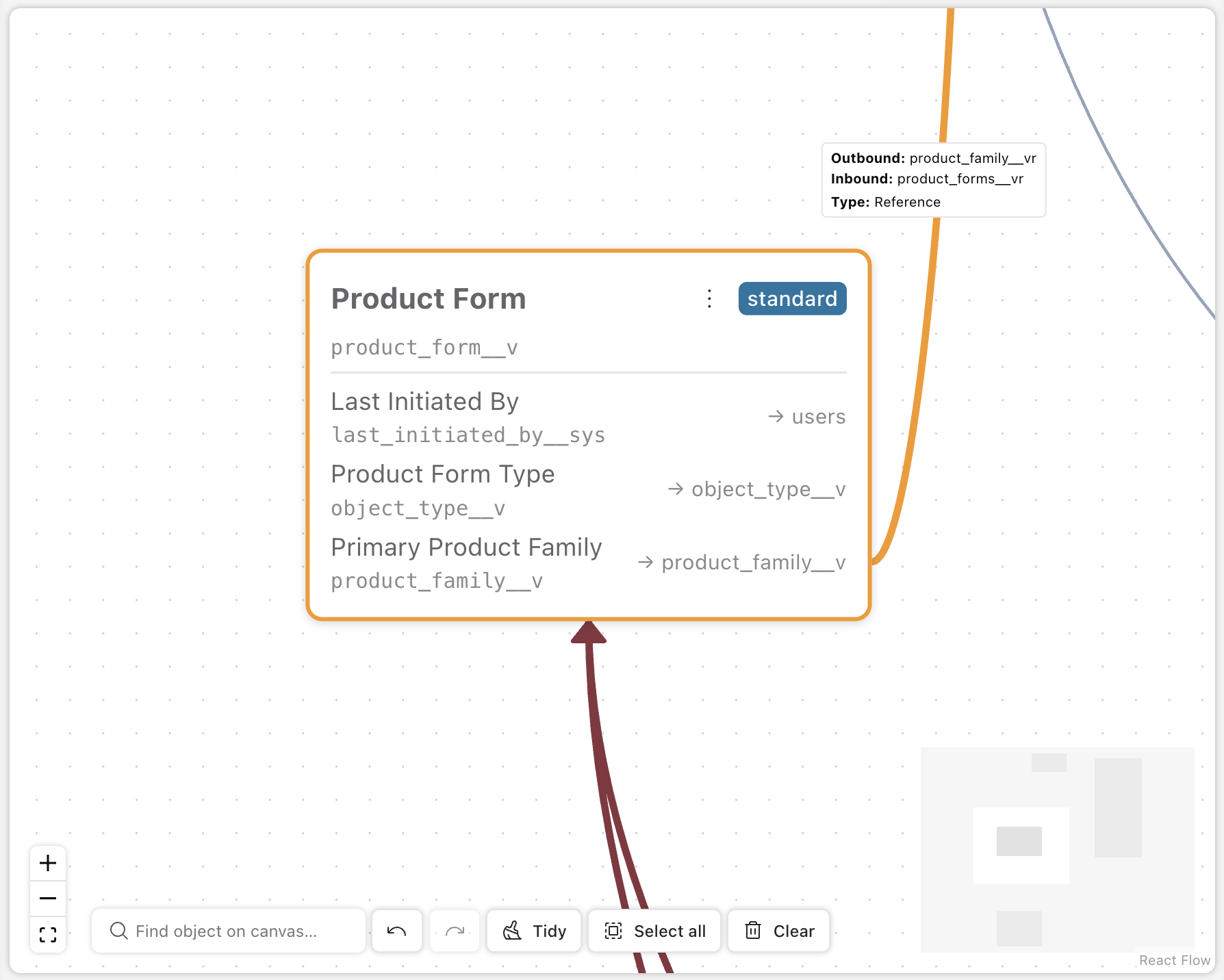
Section link for Viewing Relationship DetailsHover over an arrow to see a tooltip with its outbound and inbound field names and relationship type.
Field Selector Tab
Section link for Field Selector TabSelect exactly one object on the canvas, then open the Field Selector (
The tab includes several ways to narrow the list of fields:
- Categories: Filter the list to Reference, Data, Standard, or System fields. Data refers to custom fields that don't have a relationship.
- State: Toggle Selected to show only fields currently visible on the object.
- Quick Select: Apply All, Relationships, or None to the selected object.
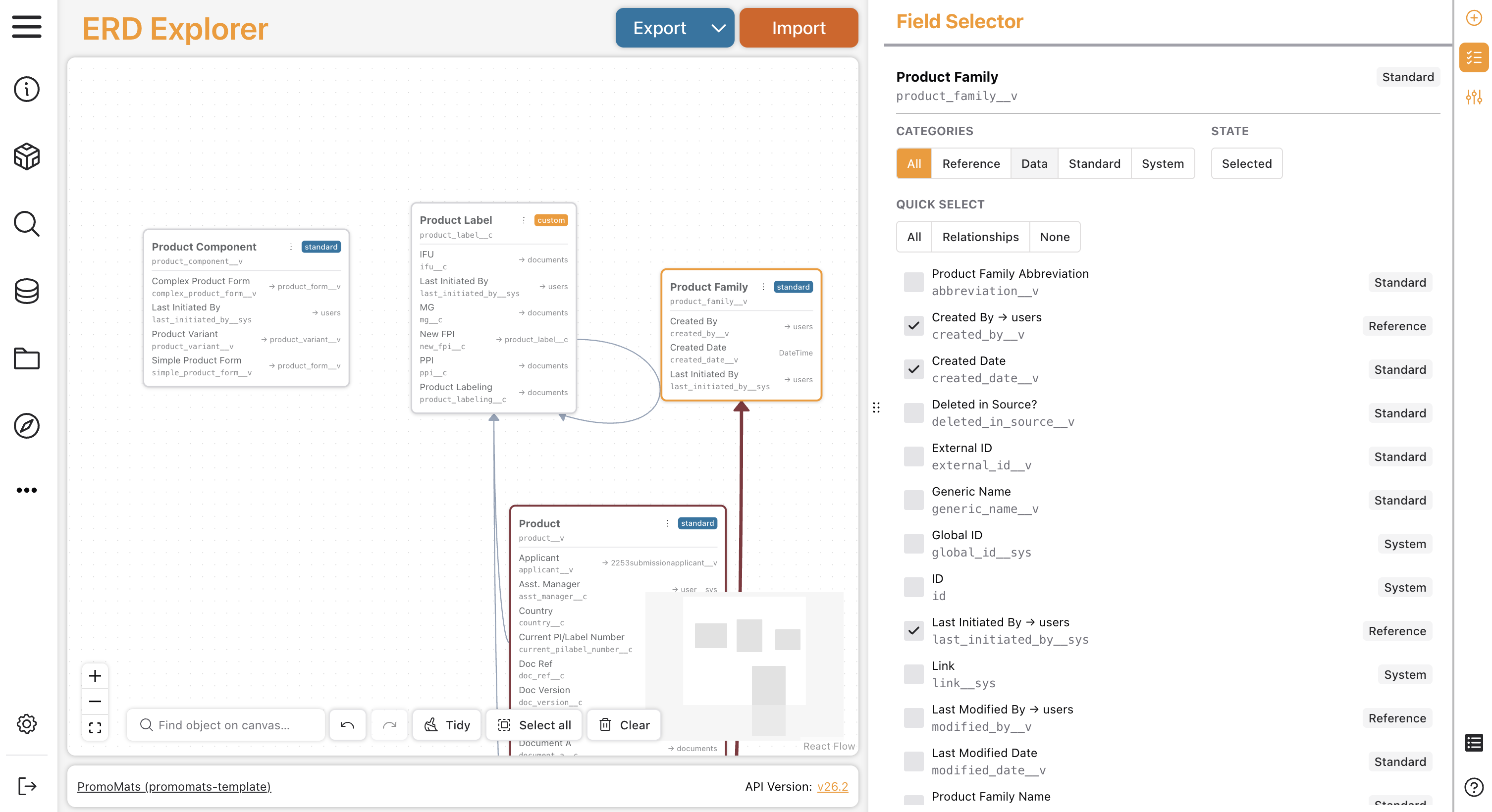
To apply field visibility presets across multiple objects at once, select two or more objects on the canvas. A toolbar appears above the canvas with the same All / Relationships / None presets.
View Settings Tab
Section link for View Settings TabThe View Settings (
- Color-coded relationships: Assign distinct colors to relationship types. Turning this on reveals a Legend toggle. Turning on both Color-coded relationships and Legend reveals individually customizable colors for reference, parent-child, simple join, and complex join relationships, and displays the legend on the canvas.
- Relationship line labels: Show or hide the relationship type label on each relationship line.
- Object source badges: Show or hide the standard, custom, or system badge on each object relationship line.
- Hide simple joins / Hide complex joins: When enabled, matching join objects are hidden from the canvas and automatically placed once both of their parent objects are present on the canvas. A single many-to-many relationship line, colored using the corresponding join color, represents the relationship between the two parents.
Click Restore defaults to reset all settings to their defaults.
Saving and Exporting
Section link for Saving and ExportingTo save your work, click Export. The downloaded project file (JSON) records the objects that are on the canvas and the field visibility settings for each object. The project file does not store relationship line positions and canvas settings.
To resume a saved project, click Import and choose your project file. If the canvas already has objects on it, Vault Toolbox prompts you whether to Merge the import with the current canvas or Replace the canvas entirely.
PNG and SVG Export
Section link for PNG and SVG ExportClick the caret next to Export and select PNG Image or SVG Image to export the full canvas as an image, automatically sized to cover all placed objects. The output reflects the current light or dark mode theme.
Mermaid Markdown Export
Section link for Mermaid Markdown ExportClick the caret next to Export and select Mermaid Markdown to export the ERD in Mermaid