
Building Direct Data API Integrations
This section outlines how to build an integration with Direct Data API. To see a working example of a Direct Data API integration, see our open-source accelerators, which you can use as a starting point to build your custom integration.
The following diagram visualizes how an integration processes Direct Data files extracted from Vault to populate an external data lake or warehouse.
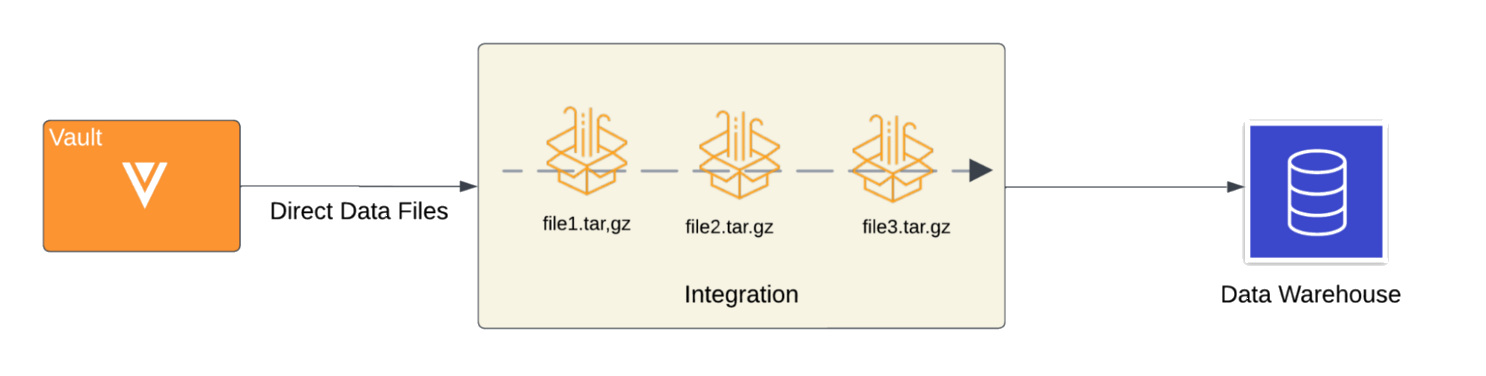
To learn more about the interaction between Direct Data API and your external data lake or warehouse, see our integration flow example diagram.
As outlined in this guide, your integration should be able to perform the following functions:
- Accessing the source system's data
- Staging the source system's data
- Building the target system tables
- Load the initial data
- Loading incremental data
- Handling schema changes
- Verifying data in the target system
This guide references the following terms:
- Source System: System from where data is being extracted. In this case, your Vault.
- Target System: External system where the extracted data is being loaded. It could be a database, data lake or a data warehouse based on the use case. For the purpose of this guide, we use a data warehouse.
- Staging: An intermediate location to store data downloaded from the source system before loading it into the target system.
Example Integration Flow
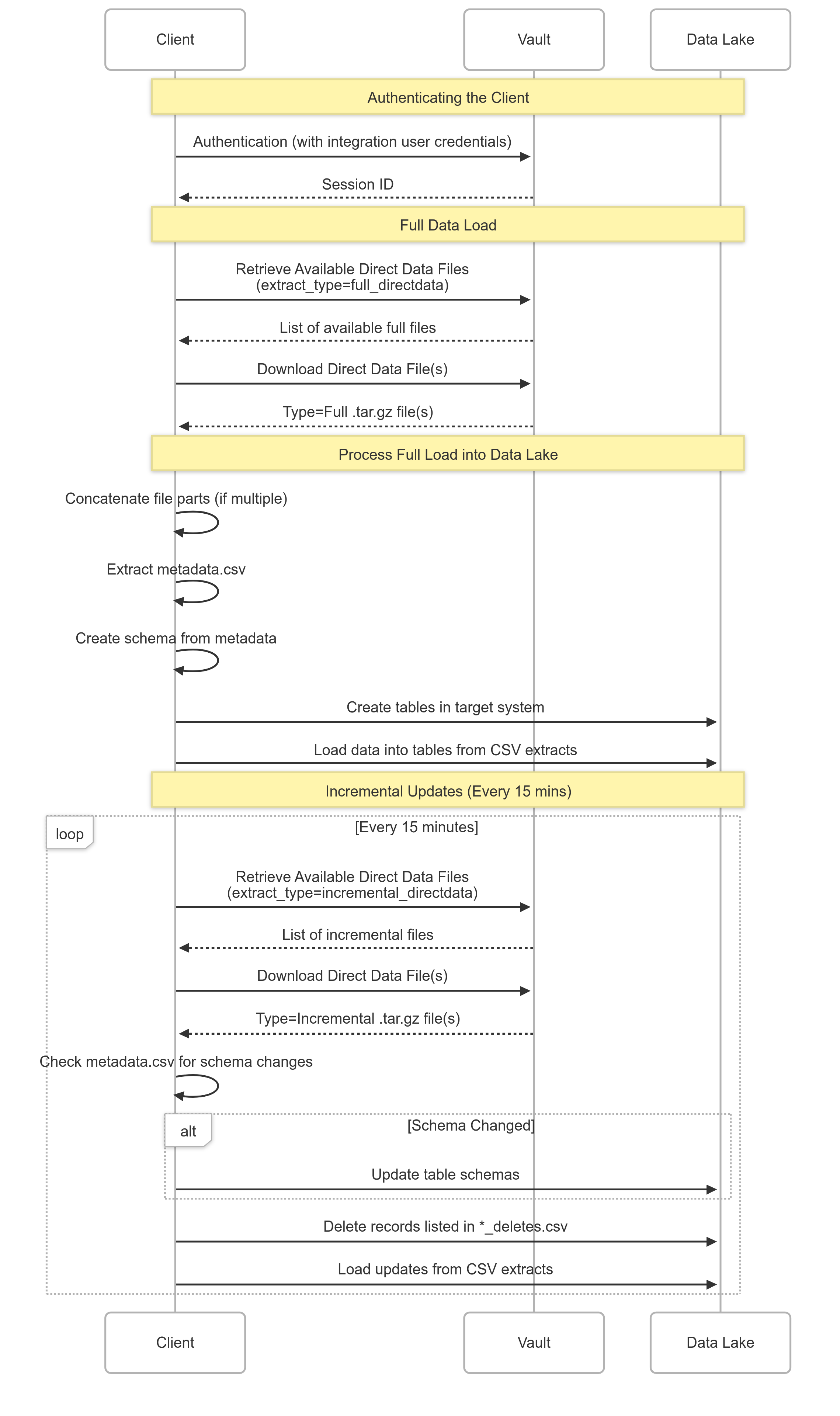
Section link for Example Integration FlowThe sequence diagram below visualizes the interaction flow between an external data lake and Direct Data API. It illustrates the steps involved in requesting a Direct Data file, including authentication, initiating the data export process, retrieving the generated file, and subsequent data processing. The diagram highlights the communication between the client application and the Vault server, clarifying the sequence of API calls and responses. This visual guide simplifies understanding of the end-to-end process and helps developers implement their integration logic effectively.
Accessing the Source System Data
Section link for Accessing the Source System DataTo access the source system data, you must first enable Direct Data API in your Vault by navigating to Admin > Settings > General Settings and selecting Enable Direct Data API. Once Direct Data API is enabled, perform the following steps:
- In your Vault, configure an integration user with the appropriate permissions to use Direct Data API endpoints.
- Send a request to one of the authentication endpoints to authenticate the integration user.
- With this user, retrieve the available Direct Data files for download using the Retrieve Available Direct Data Files endpoint.
- Use the Download Direct Data File endpoint to download a specific file.
Learn more about sending requests to these endpoints in our video walkthrough.
Staging the Source System Data
Section link for Staging the Source System DataTo stage the source system data retrieved in the previous step, you must create a separate location to store the Direct Data files once downloaded, such as an object storage service.
If a Direct Data file is greater than 1GB in size, it may have multiple parts. If your Direct Data file has multiple parts, concatenate the files into a valid .gzip file before use. Learn more in Working with File Parts.
Once Direct Data API successfully extracts the desired files to the staging location, you can start loading them into your target system.
Building the Target System Tables
Section link for Building the Target System TablesUtilize the following files nested within a Direct Data file to assist with building tables in your target system:
metadata.csv: This file provides the schema for all the components that are present in the Direct Data file. Any referenced data is defined withtype=Relationshipand the related extract is specified in themetadata.csv. Use this data to define tables in your database.manifest.csv: This file provides an inventory of all extracts and lists the record count for each extract.- Object extracts: Every object has its own extract CSV file. As such, every object should its own table in the target system.
- Document extract: Document version data should have its own table.
Learn more about the contents of a Direct Data file in Direct Data File Structure.
Loading the Initial Data
Section link for Loading the Initial DataFor the initial load into the target system, you will always work with a Full file. This contains all Vault data captured from the time the Vault was created until the stop_time of the file.
To load an extract into the database, simply load an extract CSV as a table with the schema already defined. For example, if you are loading Vault data into Amazon Redshift, once the extracts are stored in an S3 bucket, you can use the COPY command to load the table from the extract to create a table in Amazon Redshift. Below is a code example that provides a way to do this with data stored in AWS S3:
f"COPY {dbname}.{schema_name}.{table_name} ({csv_headers}) FROM '{s3_uri}' " \
                f"IAM_ROLE '{settings.config.get('redshift', 'iam_redshift_s3_read')}' " \
                f"FORMAT AS CSV " \
                f"QUOTE '\"' " \
                f"IGNOREHEADER 1 " \
                f"TIMEFORMAT 'auto'" \
                f"ACCEPTINVCHARS " \
                f"FILLRECORD"
Once all the tables have been populated with the data in the extracts, you have successfully replicated all Vault data in your target system up until the stop_time of the Full file. Following this step, you may choose to verify the data in your target system prior to loading incremental data.
Loading Incremental Data
Section link for Loading Incremental DataTo keep the target system up to date with the latest data in your Vault, you must configure your integration to download Incremental Direct Data files and load any changes.
Incremental files capture creates, updates, and deletes made to the data in your Vault. If the same piece of data has undergone multiple changes within the same time window indicated for an Incremental file, its extract will only reflect the most recent change. We recommend loading the target system with deletes before loading creates and updates, which are captured in a separate file.
Handling Schema Changes
Section link for Handling Schema ChangesVault Admins can easily make configuration changes to their Vault using the UI, Vault API, Vault Loader, or a Vault Package (VPK). Additionally, Vault Releases, which occur three times a year, may result in a number of schema changes. Learn more in Vault Release Upgrades and Direct Data API.
The metadata.csv of an Incremental Direct Data file captures schema changes, therefore, your integration should check this file for schema changes before updating any tables in the target system.
Schema changes may include the addition or removal of fields on objects and documents, which may alter the ordering of columns in extract files. Instead of fetching data according to its position within an extract, your integration should fetch data by field name.
Verifying Data in the Target System
Section link for Verifying Data in the Target SystemOnce the data is loaded in the target system, you will need to verify that the data in your Vault has been accurately replicated in your target system.
You can achieve this by querying Vault for some filtered data and compare it to the results obtained by querying your target system. Results may vary slightly if data in Vault has changed since it was extracted using Direct Data API.