
Working with Custom MDL
Vault Toolbox provides a variety of tools to assist with writing custom MDL for your Vault. This guide outlines how to use Vault Toolbox to generate MDL components, extract MDL from Vault, and download a Vault Configuration Report.
Using File Templates
Section link for Using File TemplatesVault Toolbox includes file templates for common MDL scripts to generate components including Vault Objects, JobMetadata, and WebAPI Groups. Learn more about file templates in the IntelliJ IDEA documentation
To access the MDL file templates, right-click on a parent folder within your project, hover over New, and select one of the available file templates.
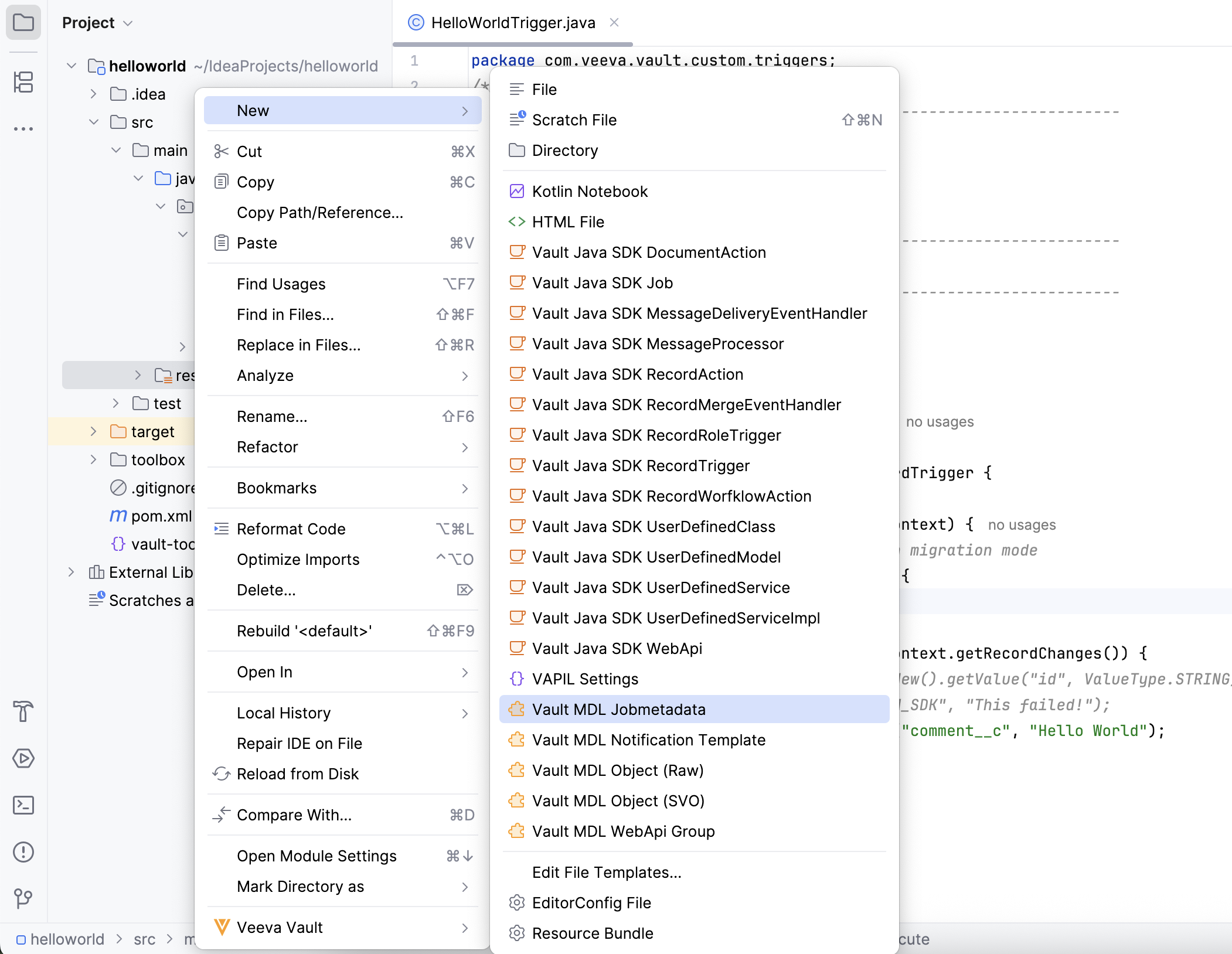
In the dialog, provide a File name and optionally a Name, Label, and Description, then click OK. You may be prompted for additional fields depending on the selected template. For example, if you select the Vault MDL Jobmetadata template, the dialog prompts for a ProcessorName.
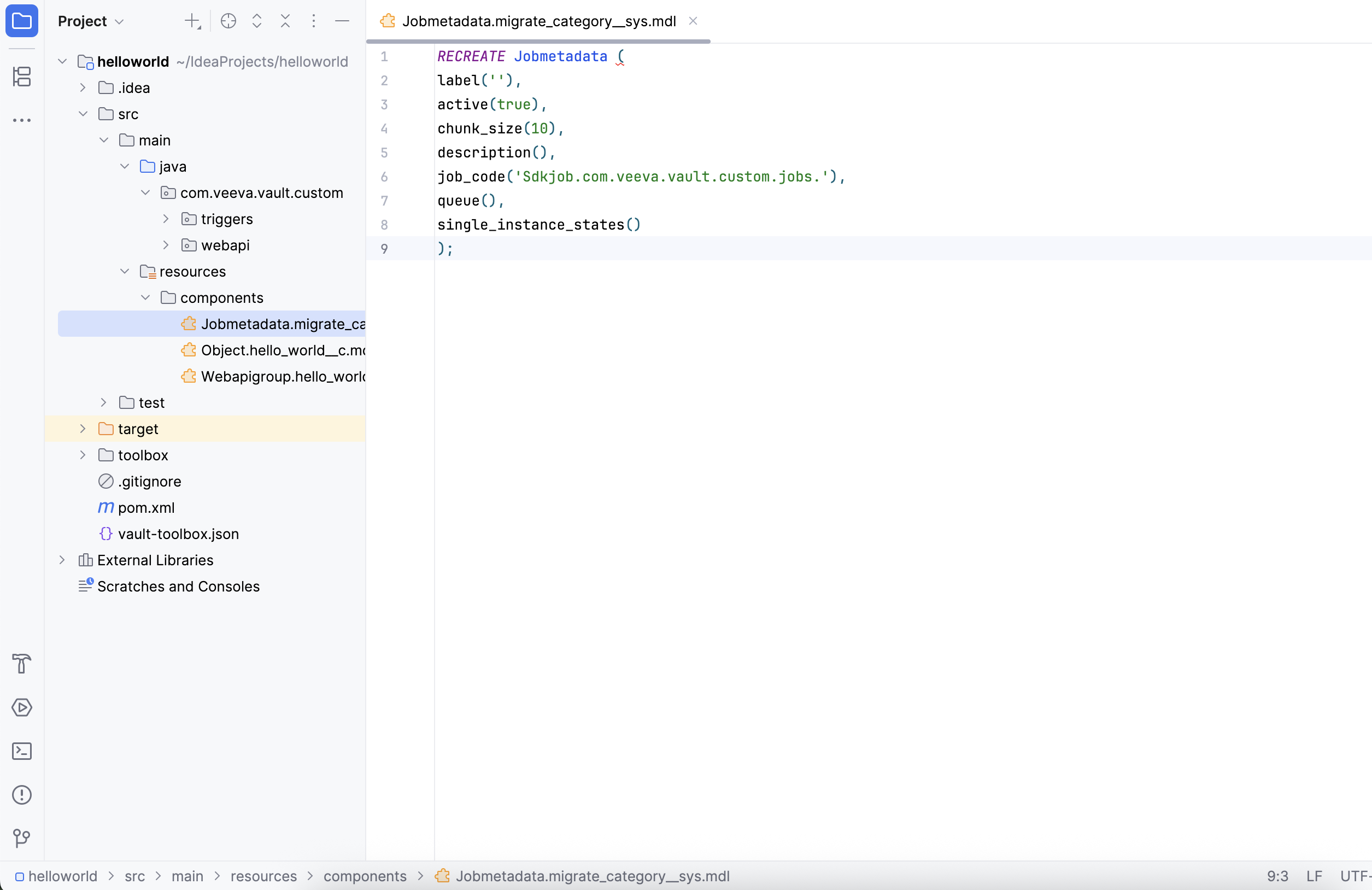
Within the parent folder, this action creates a .mdl file with the specified file name. The new file includes the initial formatting necessary for a given statement, pre-populated with the required attributes for a component. For example, selecting the Vault MDL Jobmetadata template produces a file with the required attributes for the Jobmetadata component.
Downloading Configuration Reports
Section link for Downloading Configuration ReportsYou can download a Vault Configuration Report from using the Vault Toolbox plugin instead of doing so through the Vault UI. Vault Configuration Reports are Microsoft Excel reports that contain configuration information and reference data. This is especially useful for evaluating your Vault's configuration prior to modifying components. Learn more about generating Vault Configuration Reports
To download a Vault Configuration Report:
- Within IntelliJ IDEA, open the Vault Toolbox plugin from the righthand sidebar.
- Select the Actions (
) tab. - Expand Components (
) and double-click Download Configuration Report ( ). 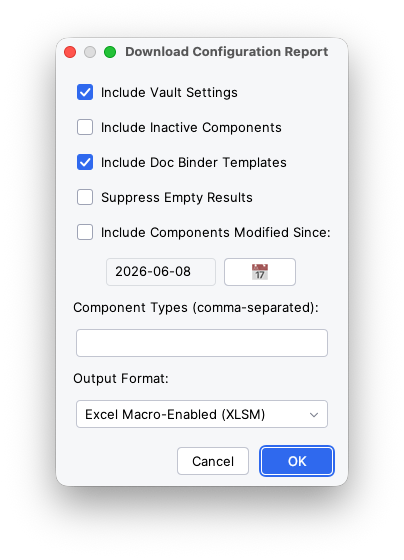
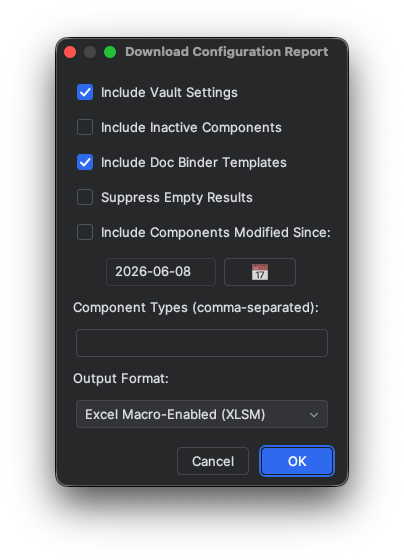
- Optional: In the dialog, configure the report parameters described in Configuration Report Options below.
- Click OK to download the report.
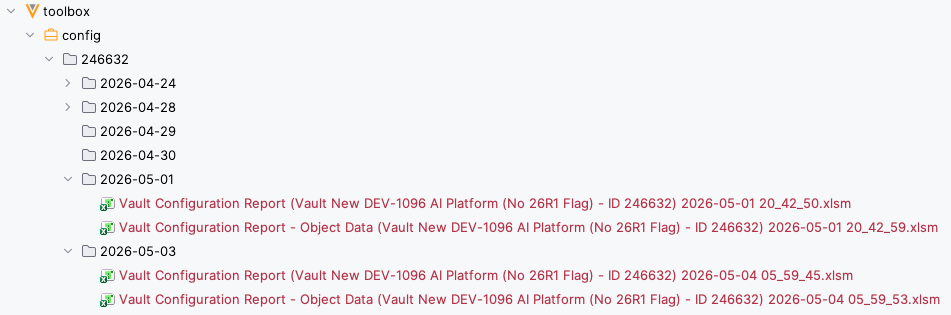
Once the operation is complete, you can access the downloaded Vault Configuration Report from the toolbox/config folder within your project directory. Vault also sends an email notification with a link to download the report ZIP files.
Configuration Report Options
Section link for Configuration Report OptionsThe Download Configuration Report dialog supports the following optional parameters:
- Include Vault Settings: If checked, the report includes Vault Settings. Enabled by default.
- Include Inactive Components: If checked, the report includes inactive components and subcomponents.
- Include Doc Binder Templates: If checked, the report includes document and binder templates. Enabled by default.
- Suppress Empty Results: If checked, the report excludes tabs with only header rows.
- Include Components Modified Since: If checked, the report only includes components modified since the specified date. Not available for subcomponents.
- Component Types: A comma-separated list of component types to include (for example,
Doclifecycle,Workflow). If empty, all component types are included. - Output Format: The output format for the report. Choose Excel Macro-Enabled (XLSM) or Excel (XLSX).
Extracting MDL from Vault
Section link for Extracting MDL from VaultThe Vault Toolbox plugin is also capable of extracting component MDL from Vault, allowing you to review the configuration for certain components prior to writing custom MDL.
To extract or refresh MDL from Vault:
- Within IntelliJ IDEA, open the Vault Toolbox plugin from the righthand sidebar.
- Select the Actions (
) tab. - Expand Components (
) and double-click Extract MDL from Vault ( ). - In the dialog, click Extract. This operation does not delete local components that do not exist in Vault.
- Optional: If you've already extracted MDL from your Vault, click Download to refresh all MDL in your project directory. This operation deletes local components that do not exist in Vault.
Once the operation is complete, you can access all component MDL in your Vault from the toolbox/mdl/{vaultid} folder within your project directory.
Deploying MDL Components to Vault
Section link for Deploying MDL Components to VaultVault Toolbox utilizes the RECREATE MDL command to create or alter selected component types in Vault. To deploy MDL components to Vault, right-click on one or more .mdl files in your project directory and select Veeva Vault > Deploy to Vault (
Dropping MDL Components from Vault
Section link for Dropping MDL Components from VaultVault Toolbox utilizes the DROP MDL command to delete selected component types from Vault. To drop MDL components from Vault, right-click on one or more .mdl files in your project directory and select Veeva Vault > Drop from Vault (