
Using the File Browser
Vault Toolbox includes a File Browser that allows you to browse, search, upload, and download files and folders in your Vault’s file staging. Additionally, the File Browser allows you to download Direct Data extracts directly instead of having to send requests to Direct Data API yourself.
This guide explains how to use the File Browser to browse and search for files, modify folder structures, upload files, and download Direct Data extracts.
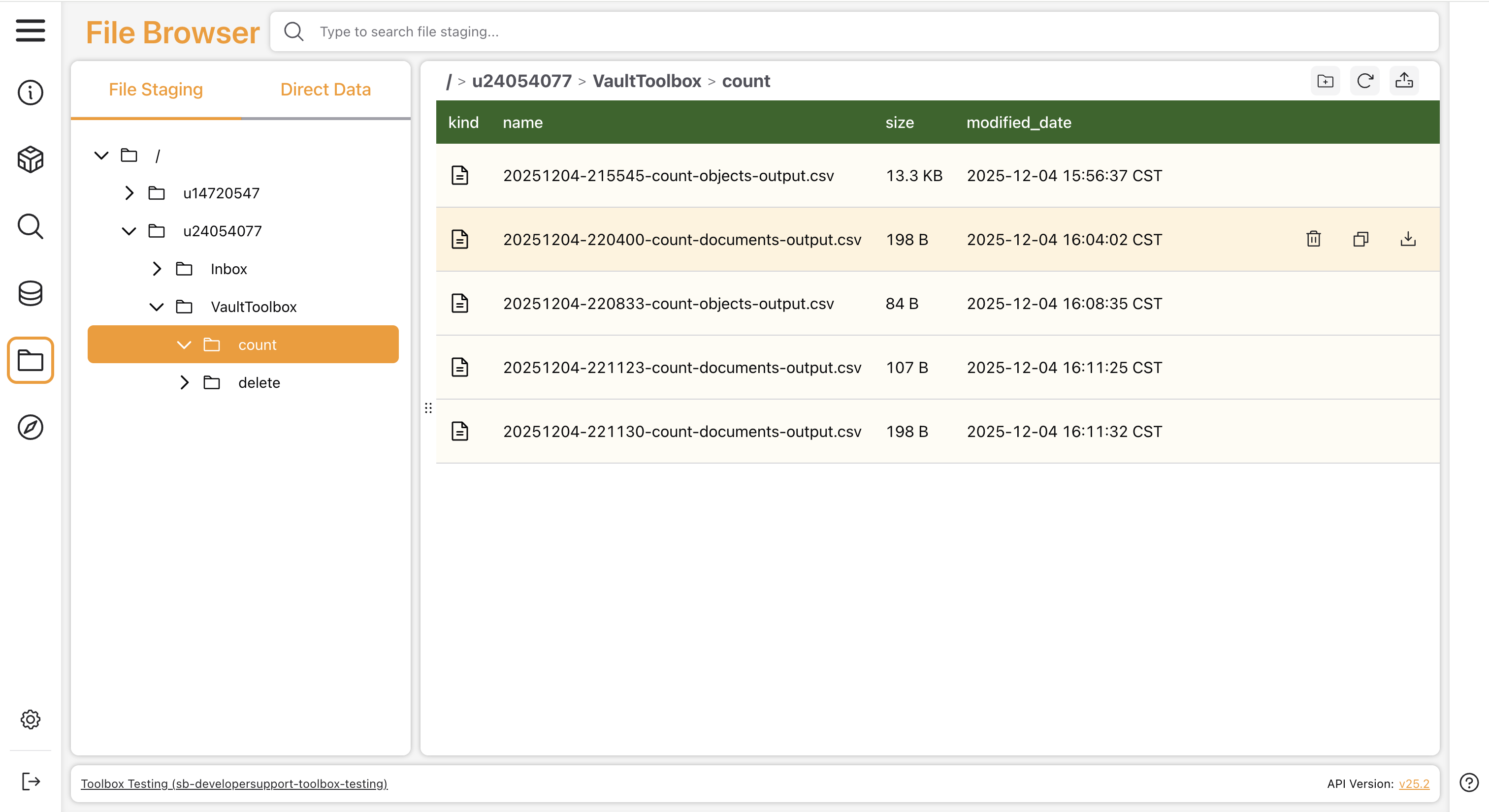
Browsing & Searching Files
Section link for Browsing & Searching FilesThe File Staging panel displays the files and folders in your Vault's file staging. If the File Staging tab is not visible, you must enable it from the Settings page.
Click the
Click Reload current directory (
When you type a term into the search bar, Vault Toolbox returns matches for both file and folder names in your file staging, and includes partial word matches. For example, search results for "bio" might contain "biological", "antibiotic", and "tibiofibular".
Exporting a Folder to CSV
Section link for Exporting a Folder to CSVTo export a folder's listing to CSV, hover over the folder in the File Staging panel and click Export this folder to CSV (file-staging-listing-<folder>.csv containing the kind, name, path, size, and modified date of each item in that folder and all subfolders.
Uploading & Downloading Files
Section link for Uploading & Downloading FilesTo upload a file, navigate to the folder in which to place the file and click Upload file to current directory (
If you upload a file that already exists in the current directory, Vault Toolbox displays a warning that compares the size and modified date of the existing file with the file you are uploading. Click Overwrite to replace the existing file, or Cancel to keep the existing file and cancel the upload.
Uploading a Folder
Section link for Uploading a FolderTo upload an entire folder and preserve its structure in your Vault's file staging, click Upload folder to current directory (
Before the upload begins, Vault Toolbox displays a confirmation dialog that reports how many files will be uploaded and lets you choose how to handle files that already exist at their destination:
- Click Overwrite existing to replace existing files with the ones you are uploading.
- Click Skip existing to keep existing files and upload only the new ones.
- Click Cancel to stop the upload.
While the upload is in progress, dialog displays a progress bar and running counts of files skipped or failed. Click Cancel during the upload to stop it.
Once the upload finishes, the dialog displays a summary, including a list of any files that failed and the reason.
Downloading a File
Section link for Downloading a FileTo download a file, hover over the file's row in the File Browser and click Download file (
Downloading Direct Data Extracts
Section link for Downloading Direct Data ExtractsThe File Browser is also capable of downloading extracts generated by Direct Data API, handling and merging the potential multiple file parts. Direct Data extracts contain the data for Vault components, such as Vault objects, documents, and picklists.
From the Direct Data tab of the File Browser, you can also use the search bar to return matches for Direct Data extract file names.
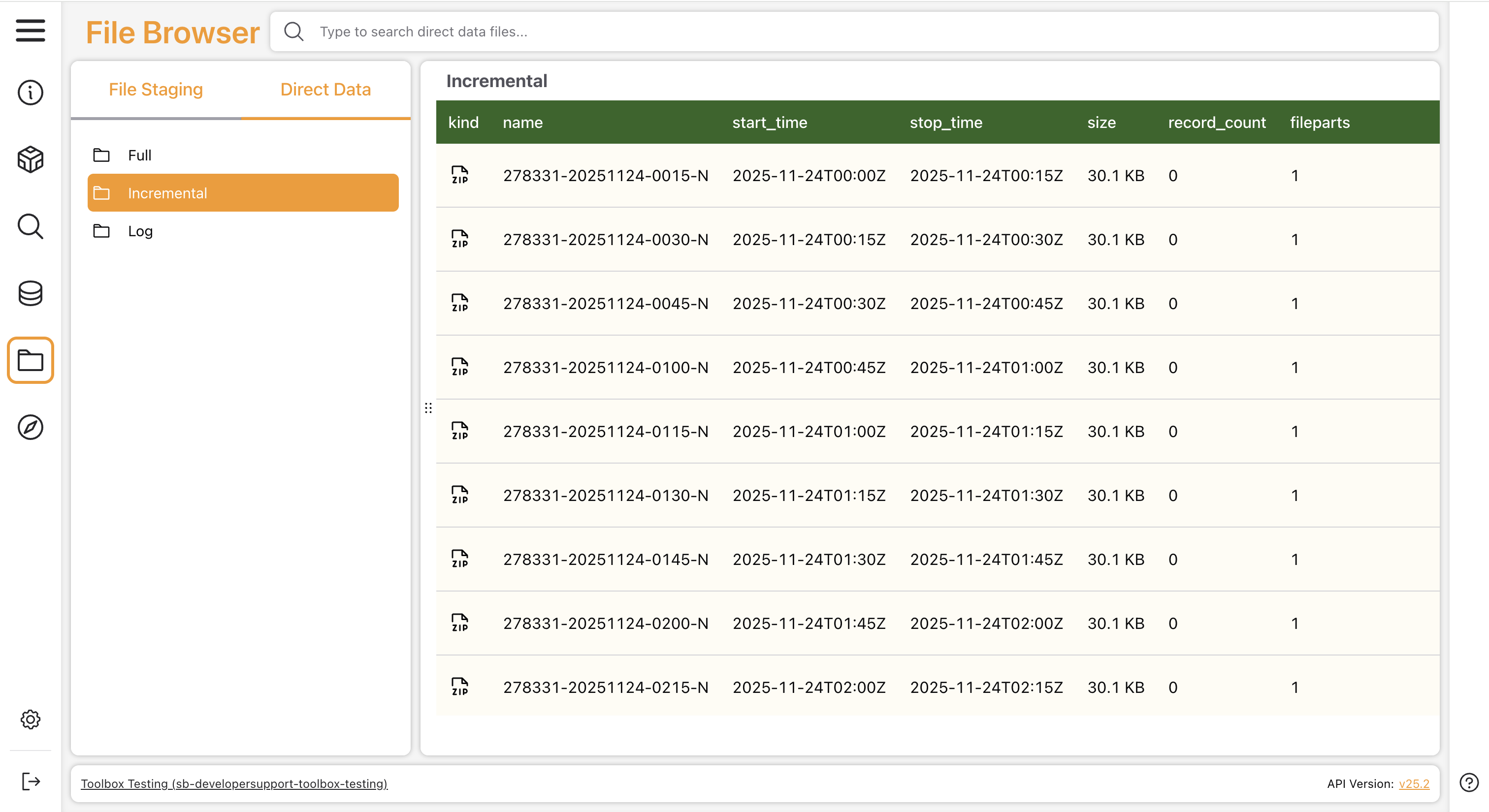
To download a Direct Data extract:
- From the File Browser page, select the Direct Data tab. If this tab is not visible, you must enable it from the Settings page.
- Select the file type: Full, Incremental, or Log.
- Hover over the extract file’s row in the File Browser and click Download file (
).
See Extract Naming and Attributes to learn more about how to interpret downloaded Direct Data extracts.