
Sending Requests to Vault API
Once you’ve successfully authenticated to your Vault and set up a Postman environment, you can send requests to Vault API.
To send a request to a particular endpoint, navigate to that endpoint within the nested folders of the Vault Platform Postman Collection. To help you navigate, the Vault API Reference and Vault Platform Postman Collection endpoints share the same hierarchy.
For example, if you'd like to retrieve all supported versions of Vault API, navigate to Authentication > Retrieve API Versions, as you would in the Vault API Reference.
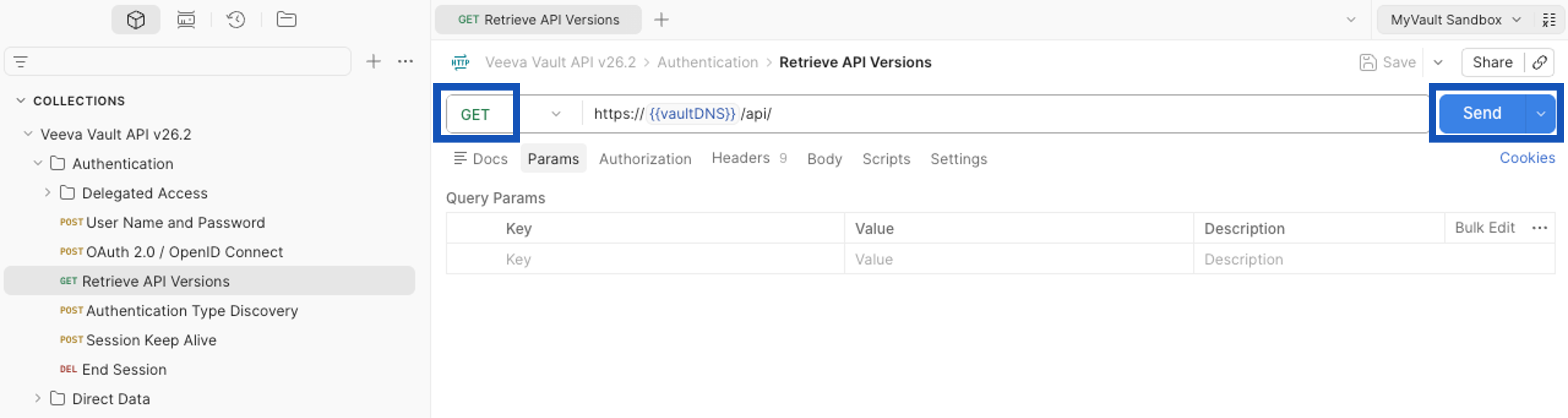
Within the workbench are the following relevant tabs: Params, Headers, and Body.
At the top of the workbench, Postman displays the method (GET, POST, PUT, or DELETE) and the request URL. Next to the URL box is the Send button. After ensuring that the request has all the required parameters to execute successfully, you can click the Send button to send a request to Vault API.
The following subsections outline how to work with headers, populate key-value pairs for parameters, download files, interpret the response, and store history.
Working with Request Headers
Section link for Working with Request HeadersHeaders such as Accept and Content-Type usually serve as additional metadata for a request. Within the Vault Platform Postman Collection, each endpoint is preconfigured with default header values.
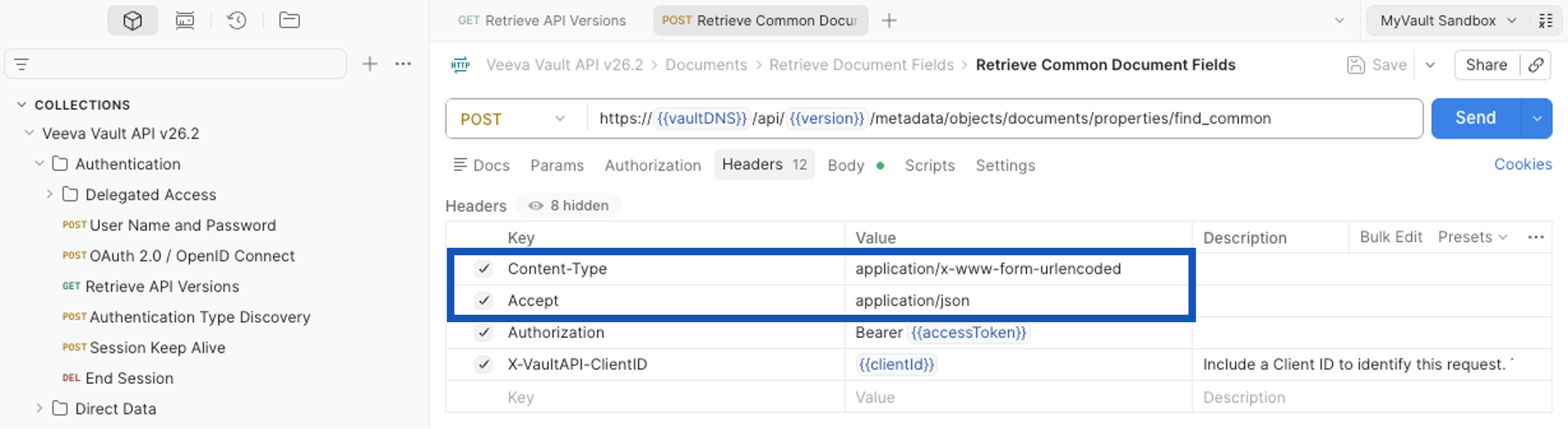
To view the headers for a particular endpoint, navigate to the Headers tab. To omit a header, select the checkmark next to the header's name. To include a header, select the empty checkbox next to the header's name. To modify the value of a header, click into its box underneath the Value column.
Populating Parameters
Section link for Populating ParametersSome endpoints in the Vault Platform Postman Collection give you the option to populate parameters before sending a request to Vault API. Depending on the endpoint, there may be query, path, or body parameters, whose values can influence the information returned in the response.
Query Parameters
Section link for Query ParametersQuery parameters are often optional and usually help to filter requests to return more precise results. Query params are key-value pairs appended to the end of the request URL following a ? and separated by a &. If a query parameter is omitted from a request, it may default to a particular value. Within the Vault Platform Postman Collection, each endpoint that has one or more query parameters is preconfigured with key-value pairs, with the parameter itself omitted by default from the request.
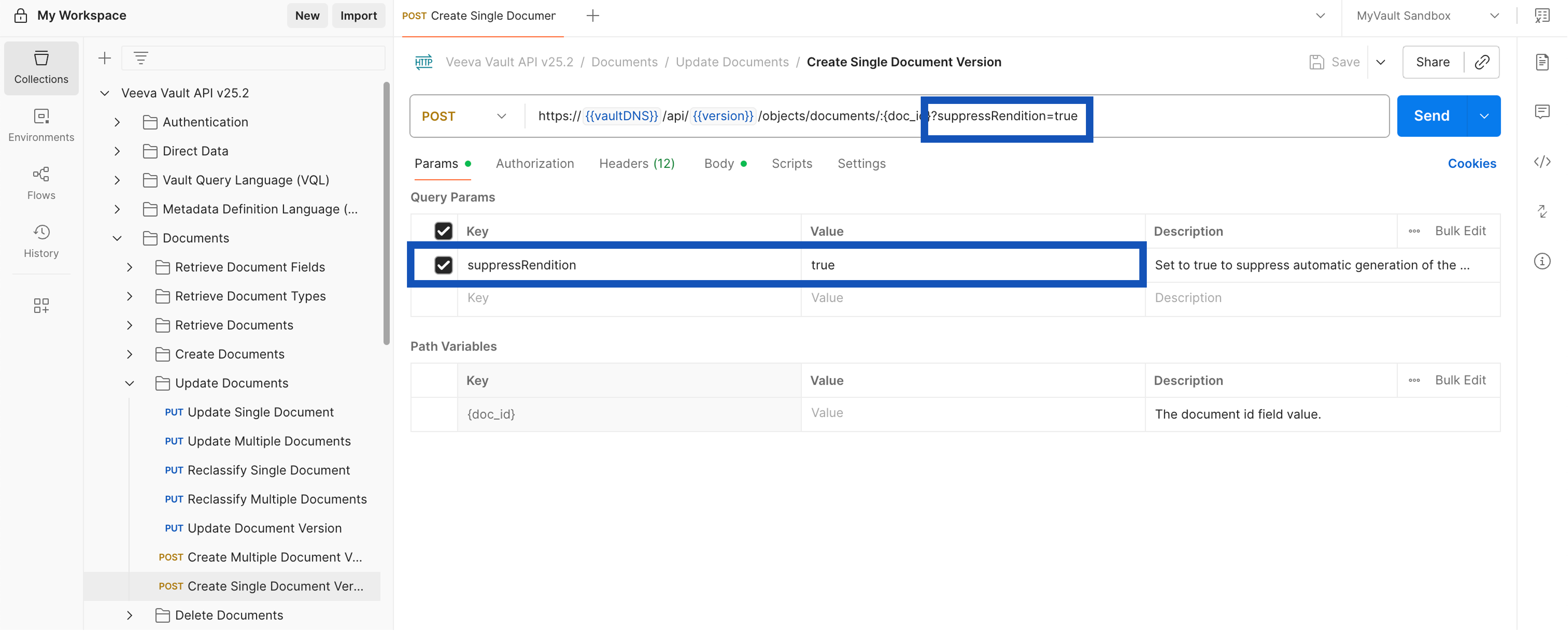
For example, the Create Single Document Version endpoint includes a query parameter called suppressRendition. If you wanted to suppress automatic generation of the viewable rendition for a new draft version of an existing document, you would include this parameter by selecting the empty checkbox and provide a value of true for the query parameter. Postman then automatically modifies the request URL to appear as follows:
https://{{vaultDNS}}/api/{{version}}/objects/documents/:{doc_id}?suppressRendition=true
If omitted, this value would default to false and Postman would exclude the query parameter from the request URL.
Path Parameters
Section link for Path ParametersPath parameters are a part of the request URL, preceded by a colon and sometimes surrounded by curly braces ({}). They typically communicate pertinent information that does not need to be within the body of the request. Within the Vault Platform Postman Collection, if an endpoint requires path parameters, they appear underneath the Path Variables section in the Params tab. If an endpoint does not require path parameters, this section is not visible.
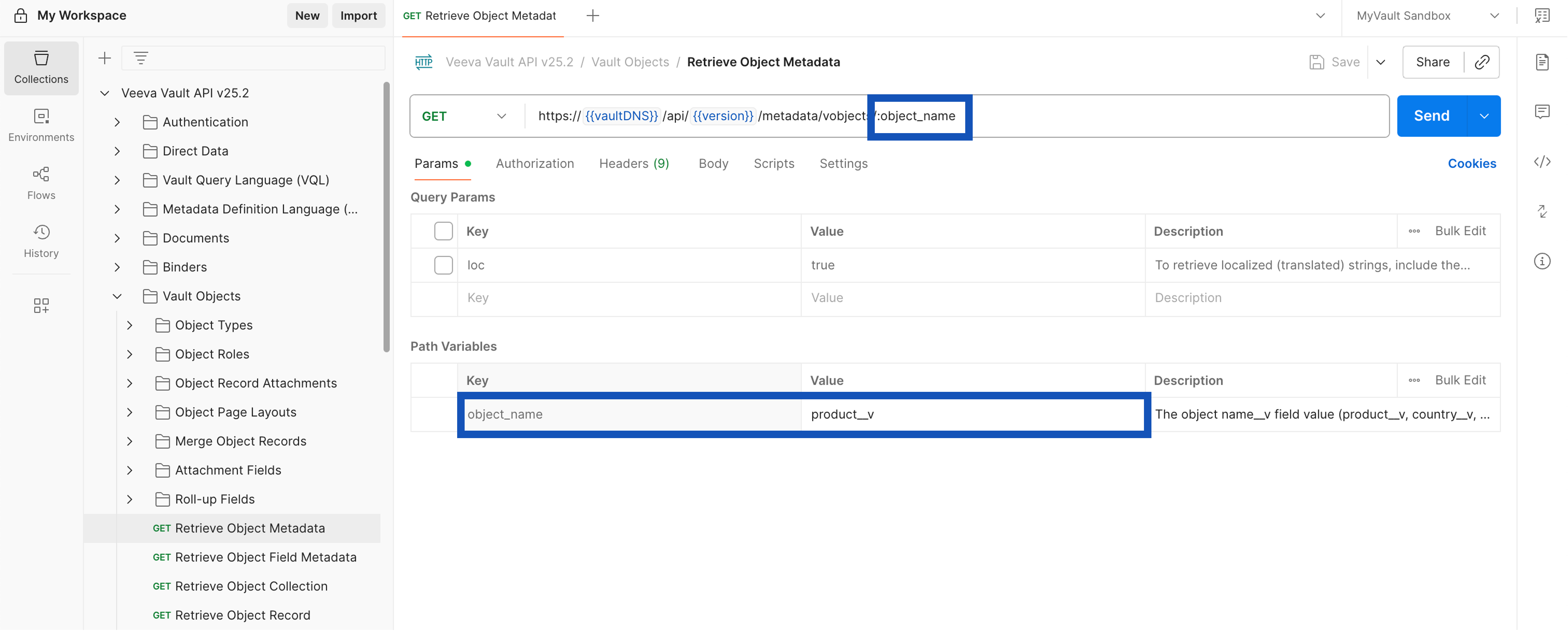
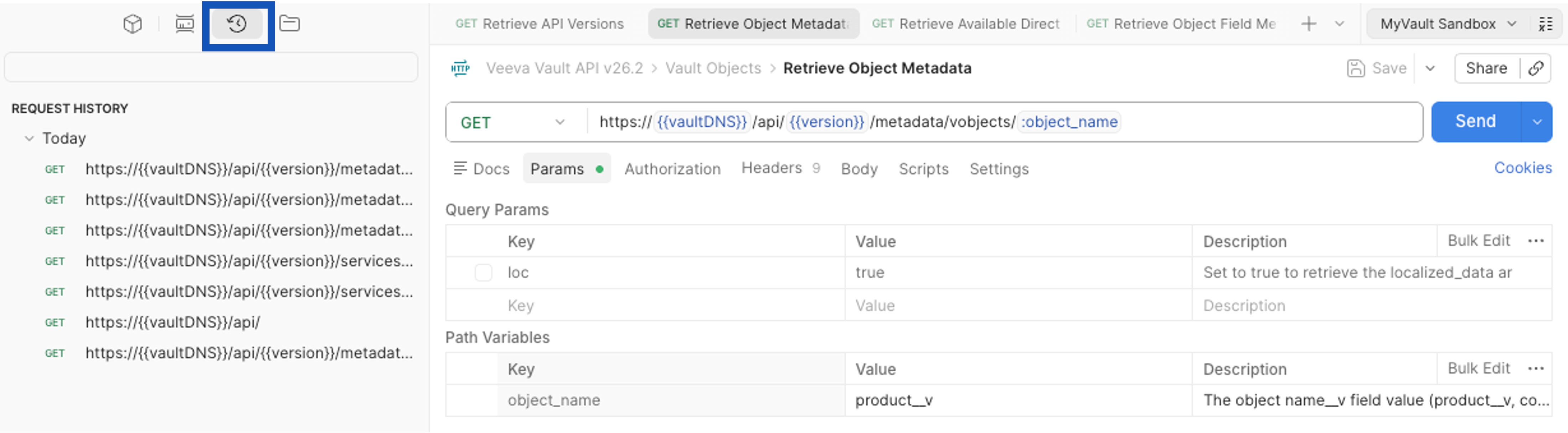
For example, the Retrieve Object Metadata endpoint has a path parameter called object_name. If you wanted to retrieve the object metadata for the object, product__v, you would populate this value by clicking into its box underneath the Value column. This path parameter is visible within the request URL in Postman as follows:
https://{{vaultDNS}}/api/{{version}}/metadata/vobjects/:object_name
You cannot omit path parameters in Postman and the request is likely to fail if you do not provide a value.
Body Parameters
Section link for Body ParametersBody parameters are sent along with the request in order to add or update data in your Vault. Within the Vault Platform Postman Collection, if an endpoint has body parameters, they appear underneath the Body tab. Each endpoint that has one or more body parameters is preconfigured with a key and a description. Any optional body parameters are omitted by default from the request while required body parameters are included by default.
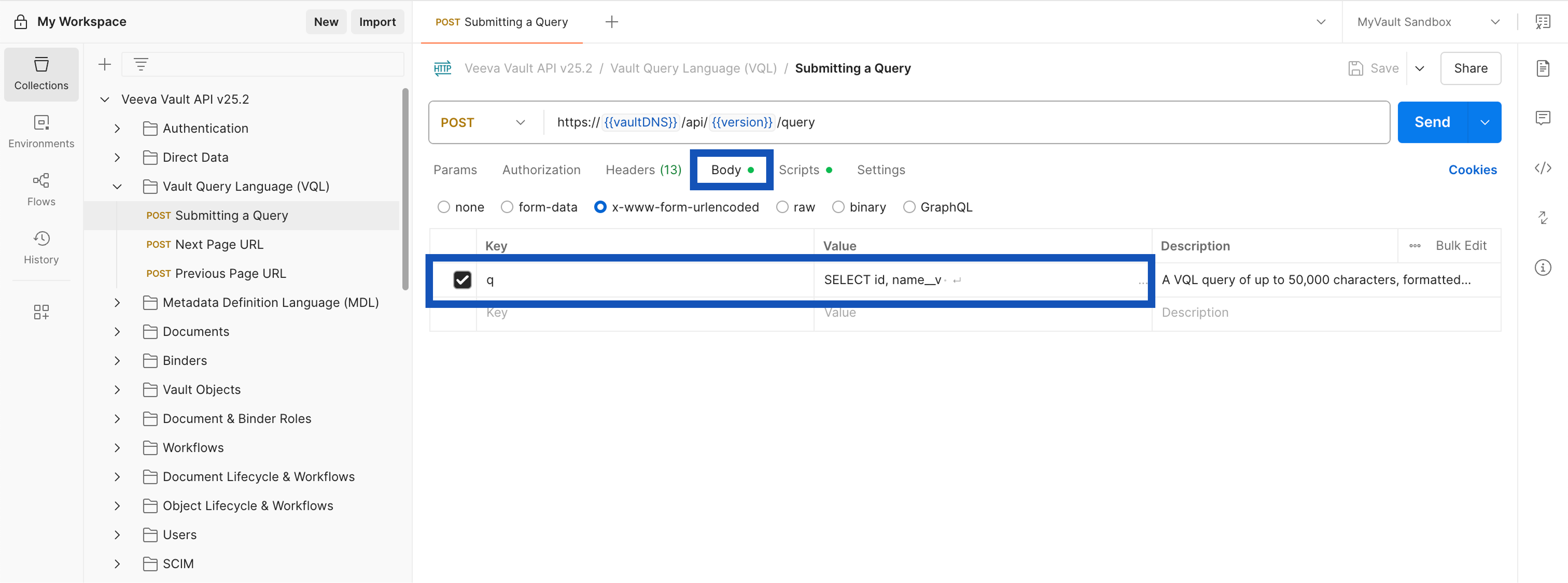
For example, the Submitting a Query endpoint has a single required body parameter, q. If you wanted to retrieve the name and ID of all person__sys records, you would populate the value of the q body parameter with the following VQL query: SELECT id, name__v FROM person__sys.
Downloading Files
Section link for Downloading FilesSome endpoints, such as Download Direct Data File, allow you to download files from your Vault's file staging to your local machine. To do so, instead of clicking Send, click the drop-down arrow and select Send and Download, as shown below.
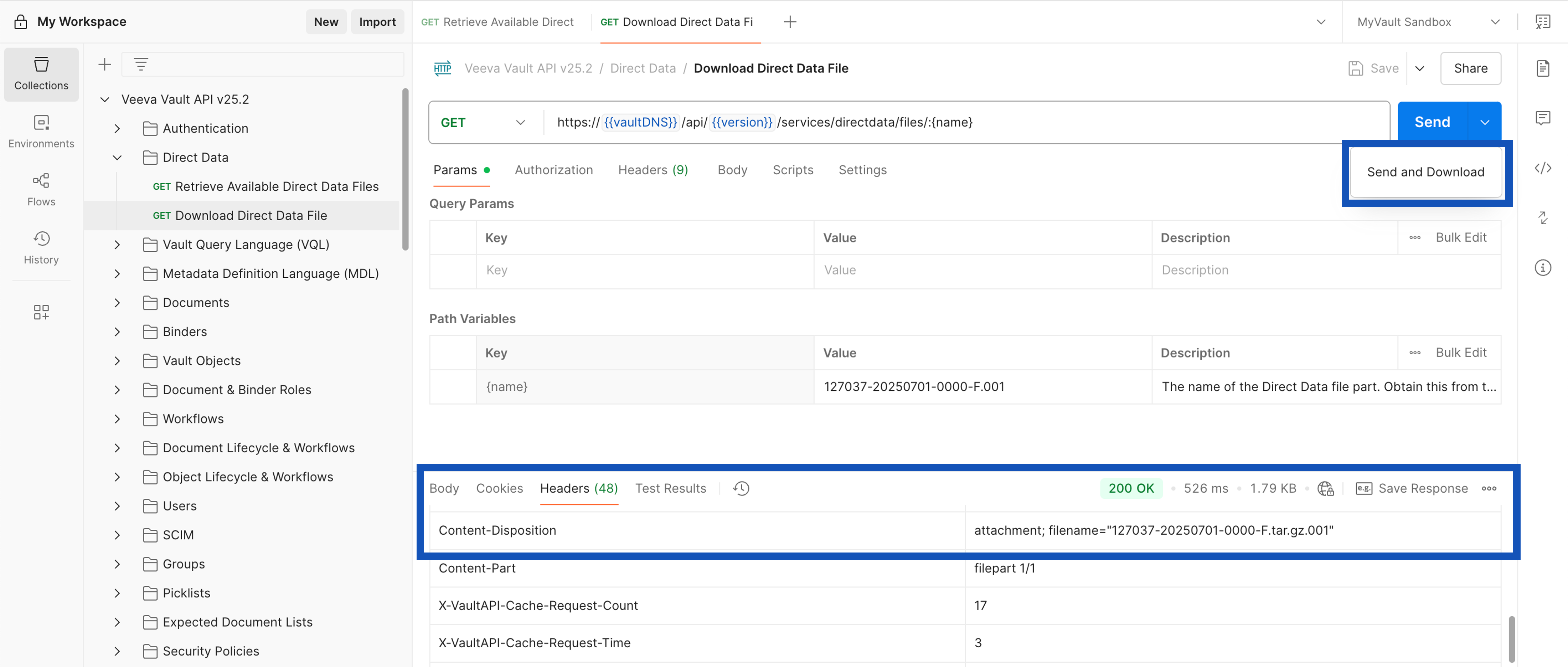
If the request is successful, you may be prompted in a pop-up window to "Select path to save file." When naming the local file, we advise naming it according to the filename indicated within the Content-Disposition HTTP Response Header. You can obtain this value from the Headers tab in the lower pane.
Viewing the Response
Section link for Viewing the ResponseThe Body tab of the lower pane on the workbench displays the response returned by Vault API. On SUCCESS, the response includes the desired information by default in JSON format. On FAILURE, the response typically includes an error message in JSON format. To change the format of the response, click the drop-down arrow next to the current format. To interpret the response, refer to the information contained in the Response Details section for the endpoint in the Vault API Reference.
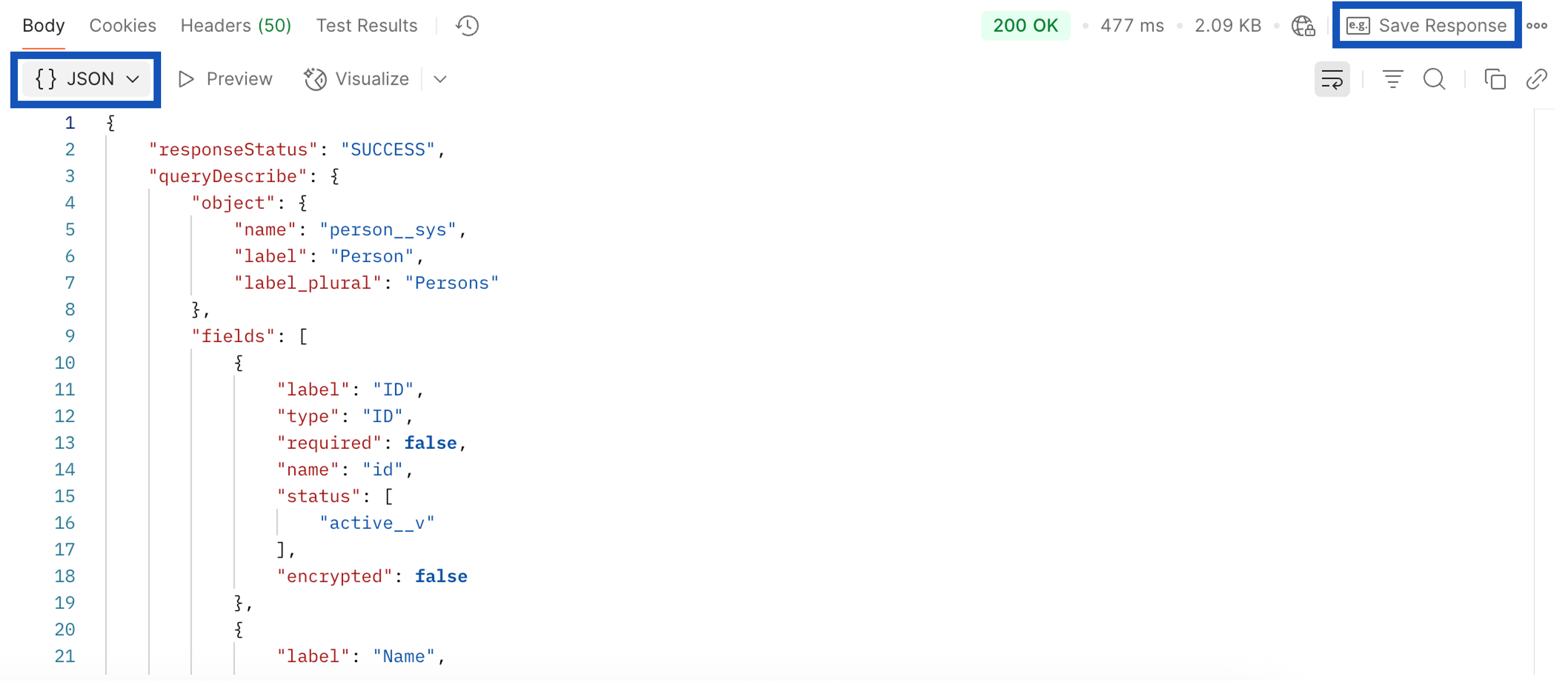
To save a particular request response, click Save Response from the upper righthand corner of the lower pane. A tab will open, upon which you can provide a name for the response. Upon saving, this response is nested underneath the corresponding endpoint within the collection. If a response is not saved, it cannot be referenced in the future or shared with collaborators. To have Postman save all responses by default, see how to store history.
Viewing Response Headers
Section link for Viewing Response HeadersThe Headers tab of the lower pane on the workbench displays each response header returned by Vault API. These headers contain various metrics to aid developers in monitoring performance, limits, and more. There are standard response headers returned for all calls to Vault API while any additional headers may vary based on the request. Learn more about response headers.
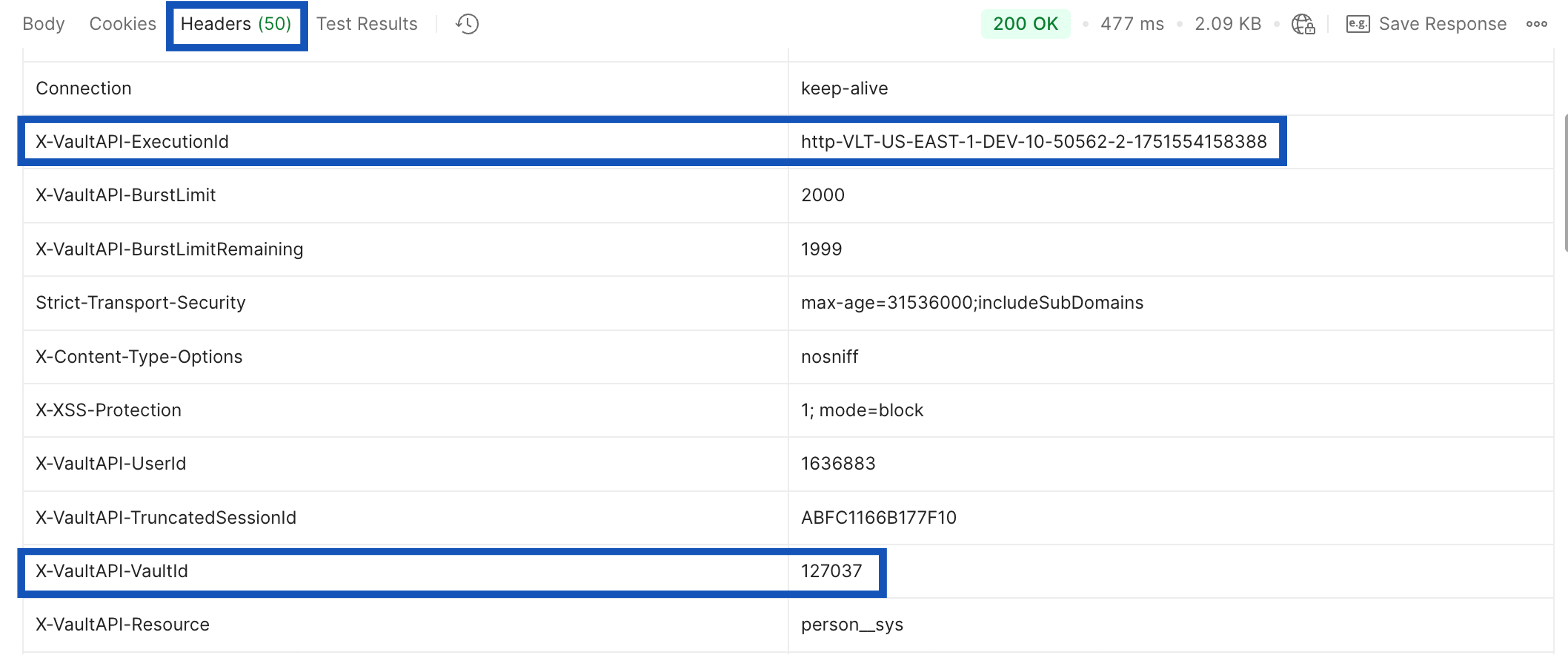
For example, if you need to access the unique ID associated with your request, you can obtain this value from the X-VaultAPI-ExecutionId response header. This value may be useful to provide in Veeva Support tickets regarding Vault API. The X-VaultAPI-VaultId response header returns the currently authenticated Vault's ID.
Storing History
Section link for Storing HistoryYou can access previous requests from the History (
From the More actions (