
Vault Setup
In this step, you will:
- Prepare your Vault environment for the Getting Started
- Learn how to deploy Vault configuration & custom code to Vault with a VPK
As the first step in the Getting Started, you need to configure your Vault with the provided SDK record trigger. Besides the custom code for the record trigger itself, the sample trigger runs on the vSDK Hello World object, which you must also add to your Vault. Instead of manually configuring your Vault, you will deploy a prepackaged set of components called a Configuration Migration Package, or VPK (.vpk). This VPK is included in the downloaded vSDK Hello World project
In the future, you can also use this VPK process to copy the configuration of your production environment and replicate it in your sandbox Vault. You can learn more about Configuration Migration Packages (VPKs)
Import & Deploy a VPK
Section link for Import & Deploy a VPK- Log in to your Vault and navigate to Admin > Deployment > Inbound Packages.
- Click Import.
- Locate and select the
deploy-vpk/vsdk-helloworld-components.vpkfile in your downloaded or cloned project folder. The import should take less than a minute to complete. Refresh the page to find the imported package. - From the Actions menu, which looks like an ellipsis icon (), select Review & Deploy. Vault displays a list of all components in the package.
- Click Next.
- On the confirmation page, review and click Finish.
- In the warning dialogue that appears, click Continue to start the deployment. This warning appears because the provided VPK uses the
replace_allVault Java SDK deployment option, which ensures your getting started environment will not have any conflicting configuration. You can learn more aboutreplace_alland other Vault Java SDK deployment options in the SDK documentation. When the deployment is complete, you will receive a notification. Deployment should take less than 5 minutes. - Once deployment is complete, you need to verify that the VPK imported successfully by locating the new Vault objects and sample record trigger in your Vault. To find these objects, navigate to Business Admin > Objects and search for Hello World. If the vSDK Hello World (
vsdk_hello_world__c) and vSDK Hello World Child (vsdk_hello_world_child__c) objects exist here, the VPK imported the Vault objects successfully!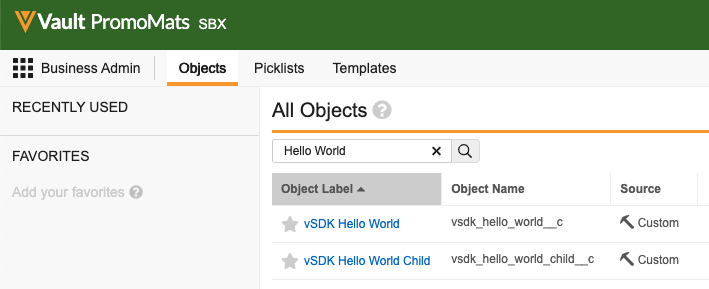
- To verify the VPK imported the sample record trigger, navigate to Admin > Configuration > Record Triggers. Verify that a trigger named
com.veeva.vault.custom.triggers.HelloWorldexists here. If theHelloWorldtrigger exists, your Vault setup is complete! You can learn more about the information and options available on this pagein Vault Help, such as how to download deployed code and how to turn deployed code on and off. 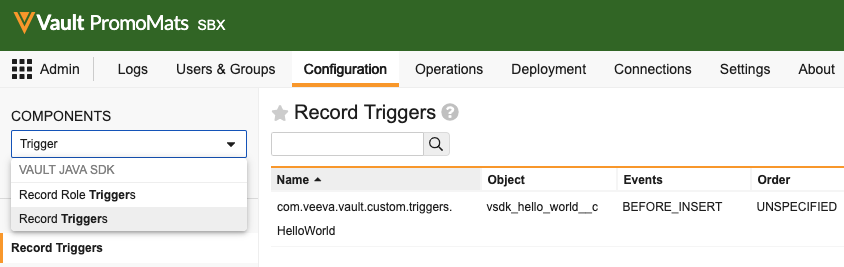
Continued Learning
Section link for Continued Learning- Learn more about sandbox Vaults
, including instructions for your Vault Admin to refresh your sandbox Vault if you need to start over. You can also use Vault API to manage sandboxes. - Learn more about about
replace_alland other Vault Java SDK deployment options in the SDK documentation - Learn more about Configuration Migration Packages (VPKs)
in Vault Help - Learn more about the information and actions available in the UI for deployed SDK code
in Vault Help