
Processing Direct Data Files
The following tips should be kept in mind when processing Direct Data files.
Working with File Parts
Section link for Working with File PartsA Direct Data file name always includes a file part number. If the compressed file is over 1 GB, then the file is broken into 1 GB parts to simplify the downloading of very large files. After downloading all the file parts, you should concatenate the files into a valid .gzip file before use. Each part in itself is not readable.
Below is a code example to handle multiple file parts:
try:
    for file_part in directDataItem.filepart_details:
        file_part_number = file_part.filepart
        response: VaultResponse = request.download_item(file_part.name, file_part_number)

        response = s3.upload_part(
            Bucket=bucket_name,
            Key=object_key,
            UploadId=upload_id,
            PartNumber=file_part_number,
            Body=response.binary_content
        )

        part_info = {'PartNumber': file_part_number, 'ETag': response['ETag']}
        parts.append(part_info)

    s3.complete_multipart_upload(
        Bucket=bucket_name,
        Key=object_key,
        UploadId=upload_id,
        MultipartUpload={'Parts': parts}
    )
except Exception as e:
    # Abort the multipart upload in case of an error
    s3.abort_multipart_upload(Bucket=bucket_name, Key=object_key, UploadId=upload_id)
    log_message(log_level='Error',
                message=f'Multi-file upload aborted',
                exception=e,
                context=None)
    raise e
Handling Field Data
Section link for Handling Field DataThe following best practices should be kept in mind when handling field data extracted from your Vault with Direct Data API.
Formula Fields
Section link for Formula FieldsDirect Data API only evaluates formula fields during initial staging (for Full files) or when a record change occurs (for an Incremental file). Other endpoints of Vault API evaluate formula fields every time a record is requested. For example, if a formula field contains Today(), the only time the formula field value will be the same between Direct Data API and Vault API is on a day when the record has changed.
Icon Formula Fields
Section link for Icon Formula FieldsWhen configured, a formula field can display as an icon based on the formula’s evaluation. Direct Data API handles icon formula fields in a unique way. While these fields are represented as a single character in length within the Direct Data file's metadata, they can contain additional metadata representing the alternative text for the icon. This alternative text can be up to 3,968 characters long and offers context about the icon.
MultiRelationship Fields
Section link for MultiRelationship FieldsWhen working with MultiRelationship type document fields that reference multiple objects, set the maximum length of such fields to 65,535 bytes in your external system to avoid truncated data.
Rich Text Fields
Section link for Rich Text FieldsRich Text fields present a unique challenge when extracting data. While Vault's user interface limits the plain text portion of Rich Text content to 32,000 characters, the underlying storage and the Direct Data export handle these fields differently. To accommodate potential markup and ensure data integrity, Direct Data API metadata always reports a length of 64,000 characters for Rich Text fields. While the metadata indicates a larger potential size, the plain text still adheres to Vault's 32,000-character limit (excluding markup).
Retrieving Component Labels
Section link for Retrieving Component LabelsWhile Direct Data API provides comprehensive data extracts, associating user-facing labels with certain components requires additional integration logic. For example, document types or lifecycles. Component labels are included within the Vault Component Object extract (vault_component__v.csv), which is available in the Object folder in the .gzip Direct Data file. The examples below demonstrate how to join the relevant IDs from the main data files with the corresponding entries in the vault_component__v.csv file to obtain the correct labels for lifecycles, document types, and other related components. These queries should be executed after loading data into the Target System.
Example: Retrieve Document Type Label
Section link for Example: Retrieve Document Type LabelTo retrieve the document type label, join the vault_component__v table on the document_version__sys table by matching component_name__v from vault_component__v with the type__v column in document_version__sys. After the join, select the label__v column from vault_component__v to obtain the document type label.
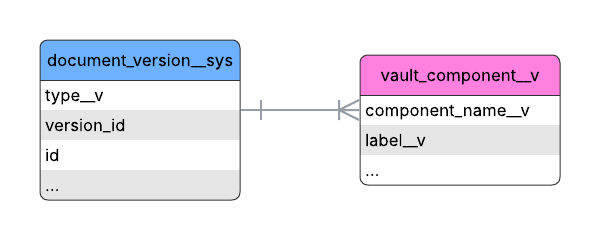
The following SQL query retrieves the document type label:
SELECT vc."label__v", vc."component_name__v", dv."type__v"
FROM document_version__sys AS dv
JOIN vault_component__v AS vc ON vc."component_name__v" = dv."type__v";
Example: Retrieve Object Record's Lifecycle Label
Section link for Example: Retrieve Object Record's Lifecycle LabelTo retrieve an object record's lifecycle label, join the vault_component__v table on the custom_object__c table by matching component_name__v from vault_component__v with the lifecycle__v column in custom_object__c. After the join, select the label__v column from vault_component__v to obtain the object record's lifecycle label.
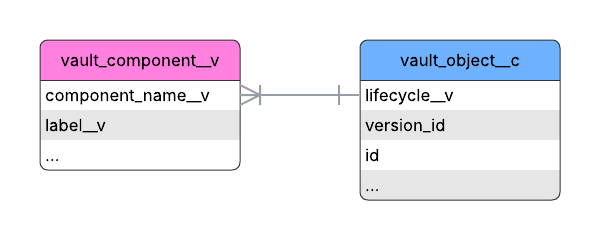
The following SQL query retrieves an object record's lifecycle label:
SELECT vc."label__v", vc."component_name__v", co."lifecycle__v"
FROM custom_object__c AS co
JOIN vault_component__v AS vc ON vc."component_name__v" = co."lifecycle__v";
Retrieving Subcomponent Labels
Section link for Retrieving Subcomponent LabelsTo associate user-facing labels with subcomponents, use the Retrieve Component Record endpoint to request the parent component's metadata. This retrieval is not necessary for picklist values and object fields because their user-facing labels are provided by Direct Data API.
Vault Upgrades and Direct Data API
Section link for Vault Upgrades and Direct Data APIDuring a Vault release, a production Vault is typically unavailable for up to 10 minutes in a 2-hour timeframe. Each Vault release may introduce configuration updates and new components. You should expect to see a large number of updates within a short period of time in your Vault’s Direct Data files.
External System Refreshes
Section link for External System RefreshesIt is typical for a Vault to undergo data model changes with each release. Maintaining data consistency between your data warehouse or data lake and Vault requires a strategic refresh approach. We recommend a full resynchronization of your replicated data once per General Vault release, or three (3) times per year. This ensures that your data warehouse or data lake accurately reflects the latest Vault schema and avoids potential inconsistencies or data corruption.
Periodic Data Resynchronizations
Section link for Periodic Data ResynchronizationsWhile Incremental Direct Data files capture frequent changes, incorporating periodic full resynchronizations into your data integration strategy is crucial for maintaining data integrity and simplifying error recovery. A full resynchronization involves downloading and processing a Full Direct Data file, and then replacing your existing dataset with the data from this Full file. A Full file provides a complete snapshot of all relevant data in your Vault as of the time the file was generated.
Periodic data resynchronization will benefit your integration in the following ways:
- Data Integrity: Over time, processing numerous incremental updates may lead to subtle data inconsistencies in your target system due to unforeseen processing errors or network issues. A full resynchronization provides a reliable way to realign your data with the source.
- Simplified Error Recovery: In the event of a data processing error, recovering by processing multiple Incremental files can be complex and time-consuming. A full resynchronization allows you to quickly reset your data to a known state from the Full file.
- Handling Schema Changes: Following schema changes as a result of configuration or Vault Releases, we recommend performing a full data resynchronization. For example, if an Admin adds a new formula field to an existing object, the data will be available in the next generated Full file.
We recommend performing a full resynchronization at regular intervals, such as weekly. We also strongly recommend performing a full resynchronization after every Vault Release at minimum, as they may include data model updates that must be incorporated into your existing dataset.