
Comparing Environments
Vault Toolbox allows you to compare MDL and Vault Java SDK code between two environments, and apply changes from one to the other. This guide outlines how to run a comparison, review the differences, and apply changes from one Vault to another.
Running a Comparison
Section link for Running a ComparisonSince Vault Toolbox connects to both environments as needed, you don't need to make either one your active environment first.
To compare two environments:
- Select the Vault Toolbox icon in the lefthand panel.
- Select the Compare Environments (
) tab. - Select a Source (pull from) and a Target (apply to) environment. You must have at least two environments added to compare.
- Optional: Click
to swap the source and target environments. - Under Compare, select the kinds to include: Components (MDL) and/or Code (Vault Java SDK). Both are selected by default and you must select at least one.
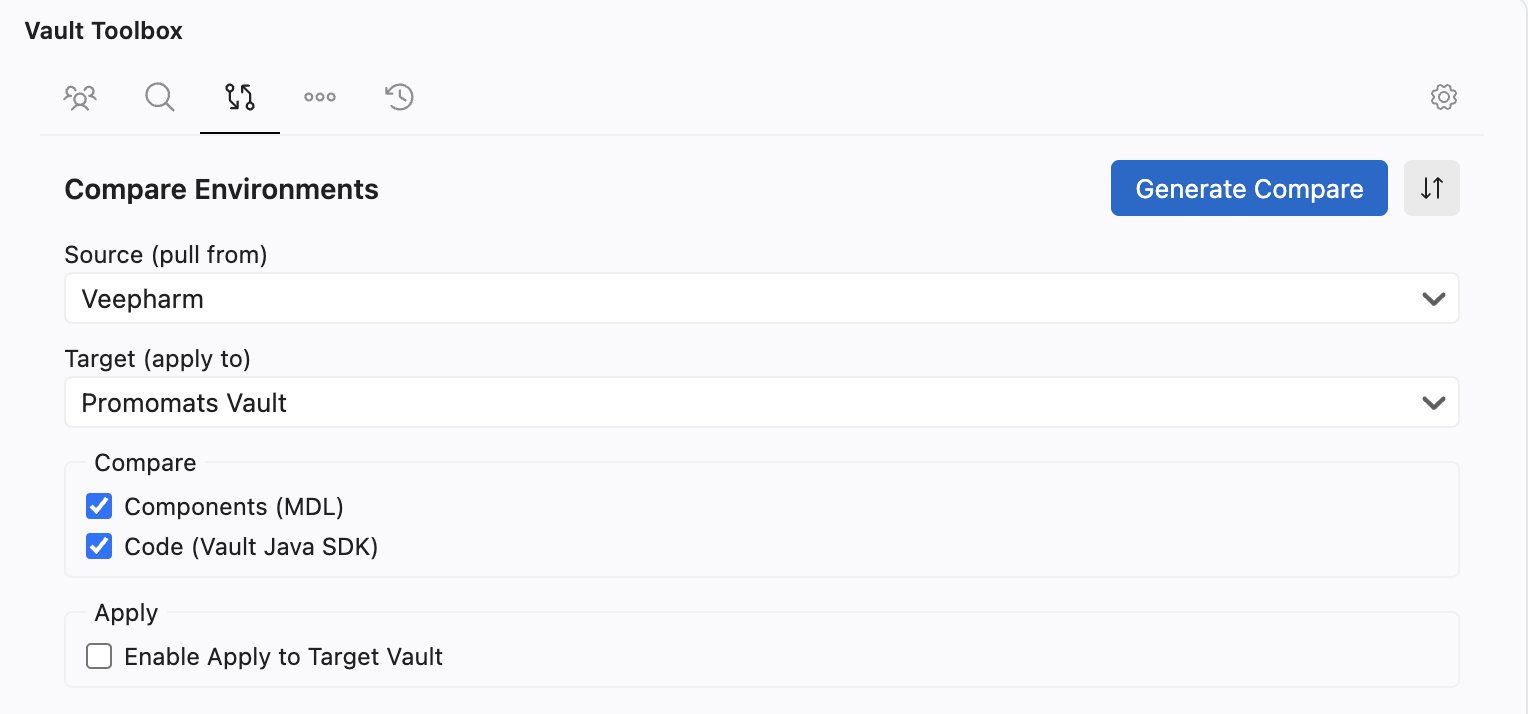
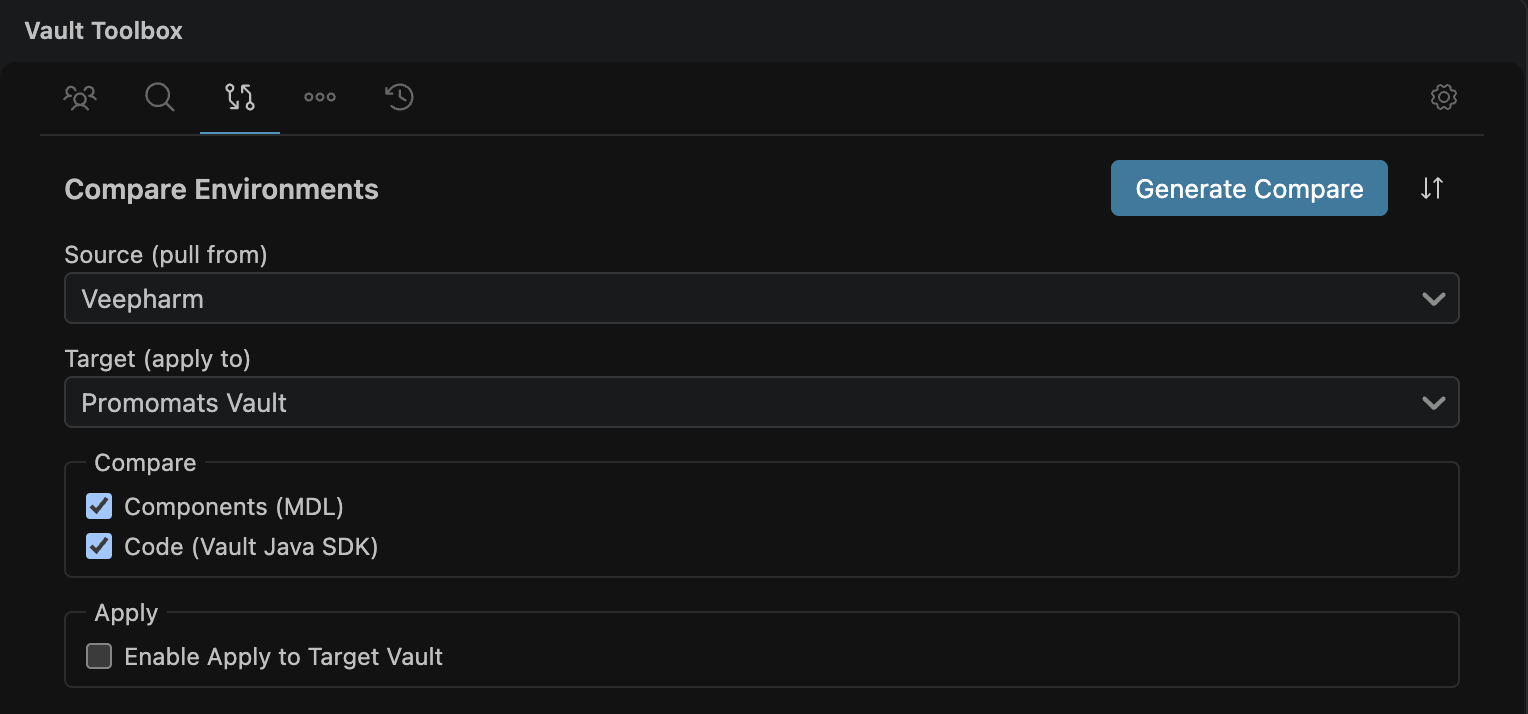
- Click Generate Compare. Click Cancel to stop a comparison while it's running.
Once the operation completes, the results appear in the Vault Compare view. The source, target, and kind selections lock until you click New Compare.
Reviewing Differences
Section link for Reviewing DifferencesResults appear in the Vault Compare view, a tree in the lefthand panel. When you compare both kinds, the tree splits into two top-level groups, Components (MDL) (grouped by component type) and Code (Vault Java SDK) (grouped as a Java package tree). Comparing a single kind shows that kind's groups directly at the root.
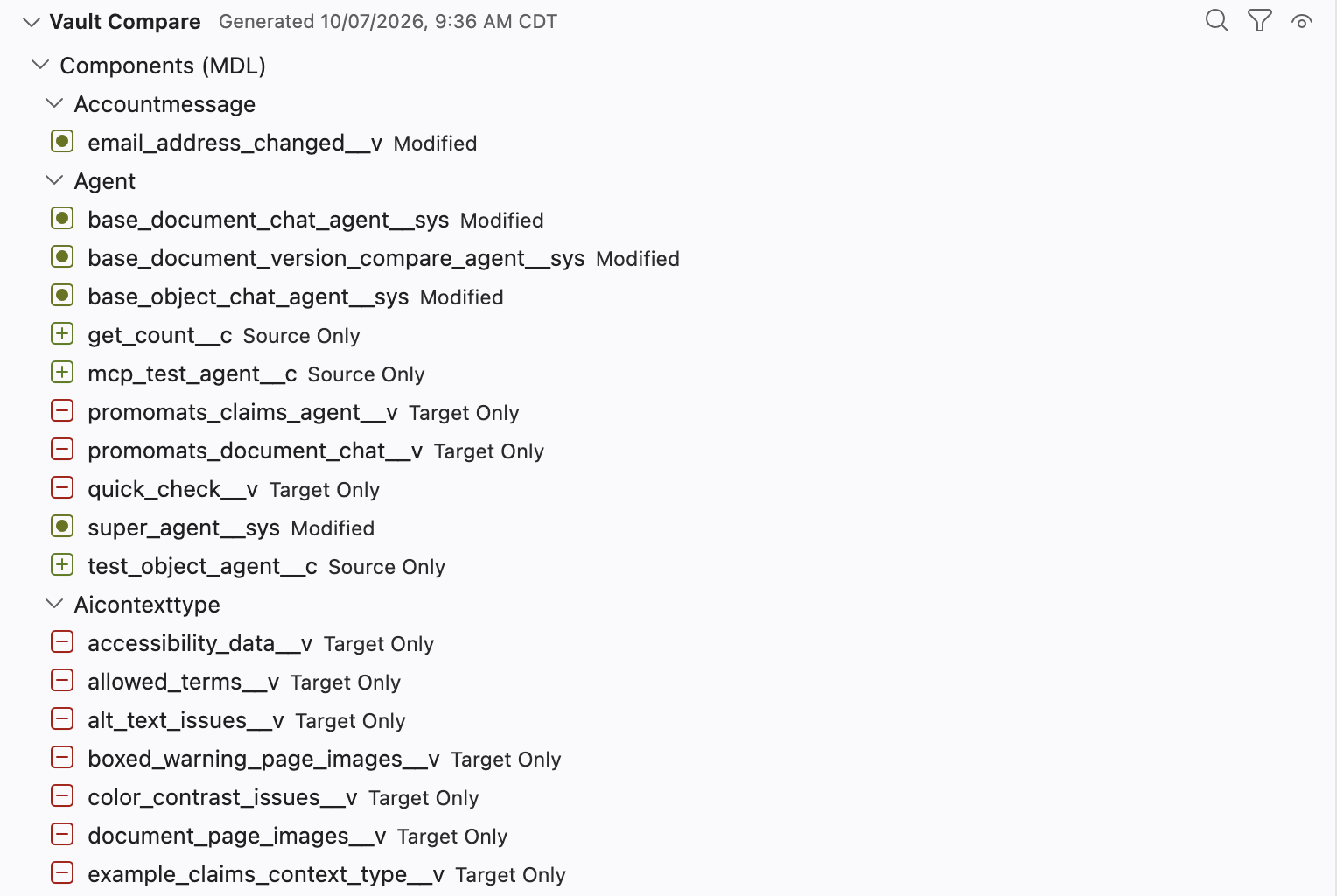
Each entry shows one of the following statuses as its description:
- Source Only (
): The component or class exists in the source Vault but not the target. - Target Only (
): The component or class exists in the target Vault but not the source. - Modified (
): The component or class exists in both Vaults with different content. - Identical (
): The component or class exists in both Vaults with identical content. - Unavailable (
): The class exists, but Vault Toolbox couldn't retrieve its source from one side. Code comparisons only.
Select an entry to open a side-by-side diff in the Visual Studio Code editor tab, with each side labeled by its Vault DNS. A source-only or target-only entry shows an empty document on its missing side while an unavailable entry shows the retrieval failure as a comment instead of an empty side.
From the toolbar at the top of the Vault Compare view you can select from the following options to narrow the results tree:
- Search by Name (): Narrow by name.
- Filter Components by Source (
): Narrow by Vault naming convention (all, custom ( __c), standard (__v), system (__sys), or other). - Show Only Selected (
): Select to show selected entries. This option only appears when applying changes to target environments. - Toggle Identical Components (
): Select to show or hide entries with an Identical status.
Applying Changes
Section link for Applying ChangesYou can apply individual differences from the source Vault to the target directly from the comparison results. This permanently writes to the target Vault. Vault Toolbox does not keep a local backup or offer a revert.
To apply a change:
- After running a comparison, select the Enable Apply to Target Vault checkbox. This option is disabled if the target is a production Vault.
- In the Vault Compare view, select the checkbox next to one or more Source Only, Target Only, or Modified entries. Identical and Unavailable entries can't be applied.
- Click Apply Selected to Target to apply every checked entry, or right-click a single entry in the tree and select Apply to Target to apply just that one.
Vault Toolbox applies components (MDL) entries before code (Vault Java SDK) entries in a batch, so object and field definitions land before code that may reference them. A Target Only entry is deleted from the target while a Source Only or Modified entry is written to the target using the source's content. After applying changes, Vault Toolbox re-reads the target and updates the entry's status to match, including any diff you still have open.