
Using the Component Editor
Vault Toolbox includes a Component Editor that allows you to view the Metadata Definition Language (MDL) of components in your Vault. In sandbox Vaults, you can also execute MDL commands directly from the Component Editor to Vault, allowing you to quickly test configuration changes. See the MDL Overview to learn more about MDL commands.
This guide explains how to use the Component Editor to search, browse, and modify components.
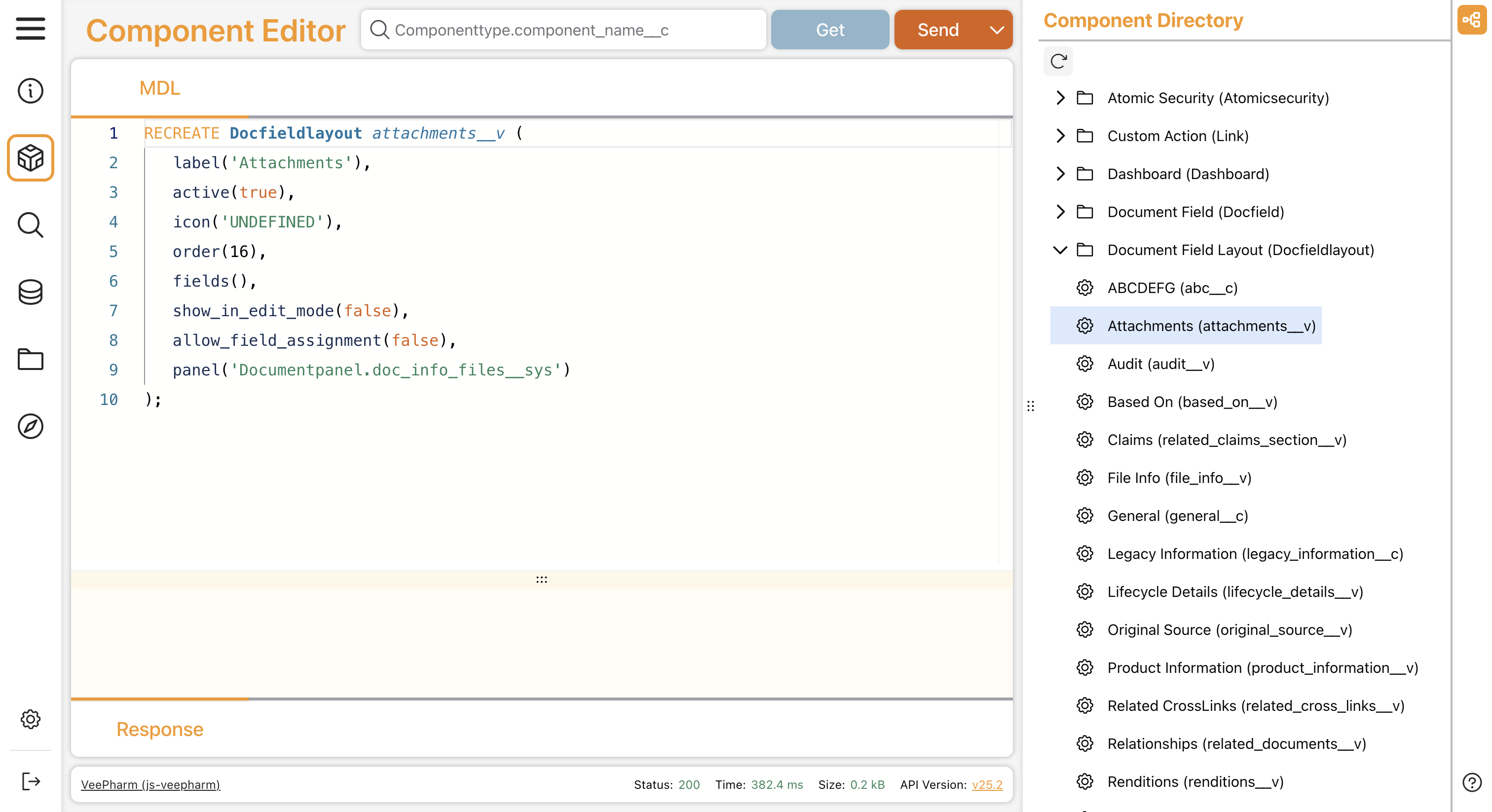
Searching & Browsing Components
Section link for Searching & Browsing ComponentsTo search for a component, type it into the search bar in the format Componenttypename.Componentname. For example, Picklist.language__v. Then click Get. The component MDL appears in the Component Editor.
Vault Toolbox retrieves all MDL-based components from your Vault, displaying them in the right-hand-side Component Directory. To browse components, scroll to a component type in the Component Directory, then click the
Click Reload (
Toggle the
Modifying Components
Section link for Modifying ComponentsThe Component Editor allows you to modify existing components in your sandbox Vault by executing MDL commands. By default, the Component Editor sends a synchronous request to Vault API, and the execution results appear in the bottom half of the editor.
Some large operations may require an asynchronous request, which the Component Editor supports. Learn which kinds of operations require an asynchronous request in the API Reference.
To modify a component:
- Search or browse a component to load its MDL into the Component Editor.
- Edit the MDL command in the editor, then click Send.
- Optional: To execute the MDL command asynchronously, click the down chevron on the Send button and then click Send MDL Script Asynchronously.
- Optional: To retrieve asynchronous MDL operation results, click the down chevron on the Send button and then click Retrieve Asynchronous MDL Script Results.