
Using the Schema Explorer
The Vault Toolbox plugin includes a Schema Explorer for browsing the authenticated Vault's schema, including objects, picklists, and MDL component types. The schema tree rebuilds automatically when the snapshot changes, such as on connect or refresh.
Browsing Vault Schema
Section link for Browsing Vault SchemaTo browse the Vault schema:
- Within IntelliJ IDEA, open the Vault Toolbox plugin from the righthand sidebar.
- Select the Schema Explorer(
) tab. 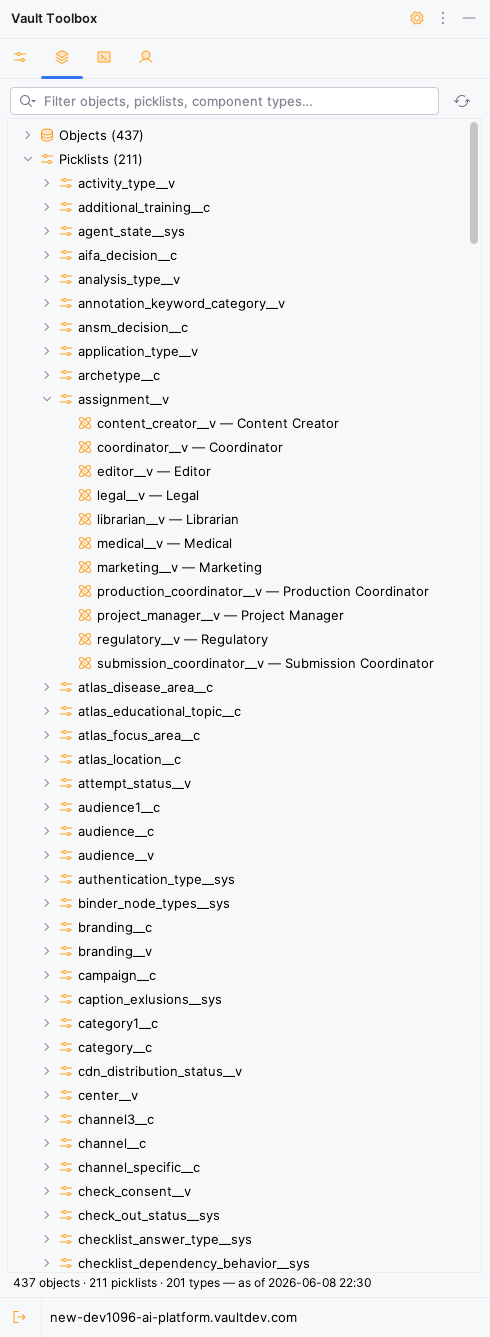
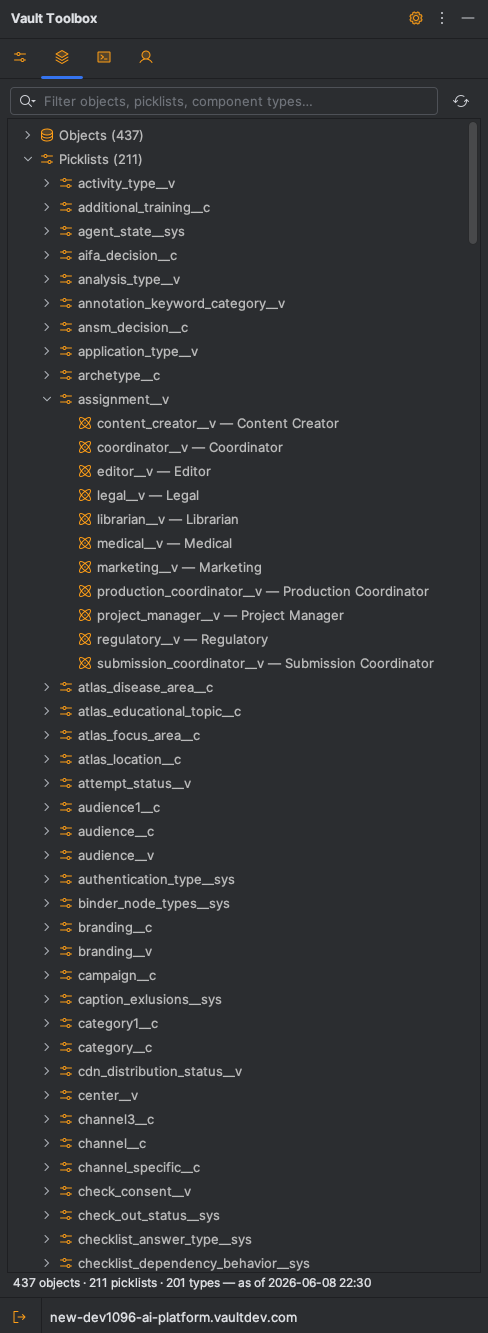
- Expand Objects, Picklists, or Component Types to browse the schema. Expand an object node to reveals its fields and relationships.
- Use the search bar to narrow the schema list by name.
- Optional: Click
to refresh the schema from the authenticated Vault.
Schema Explorer Actions
Section link for Schema Explorer ActionsRight-click a node in the Schema Explorer to access the following context menu actions, which can vary depending on whether the selected node is an object, picklist, or component type.
| Action | Node Type |
|---|---|
Open in VQL Console: Opens the VQL Console with a SELECT id, name__v FROM {object} query. | Objects |
Query All Fields in VQL Console: Opens the VQL Console with a SELECT statement that includes every field on the object. | Objects |
Query Selected Field(s) in VQL Console: For one or more fields on the same object, opens the VQL Console with a SELECT statement scoped to those fields. | Objects |
| Open Definition (extracted MDL): Opens the extracted MDL definition for the selected component, if it has been extracted to your project. | Objects, Picklists |
| Find Usages in MDL: Searches the project's extracted MDL files for references to the selected component. | Objects, Picklists, Component Types |