
Creating Projects
Creating new Vault development projects typically requires setting up various configuration files and directory structures. This process can be time-consuming and requires careful attention to ensure proper project organization. Vault Toolbox makes creating projects for Vault simple by delivering generators, which set up your project with the necessary configurations and dependencies.
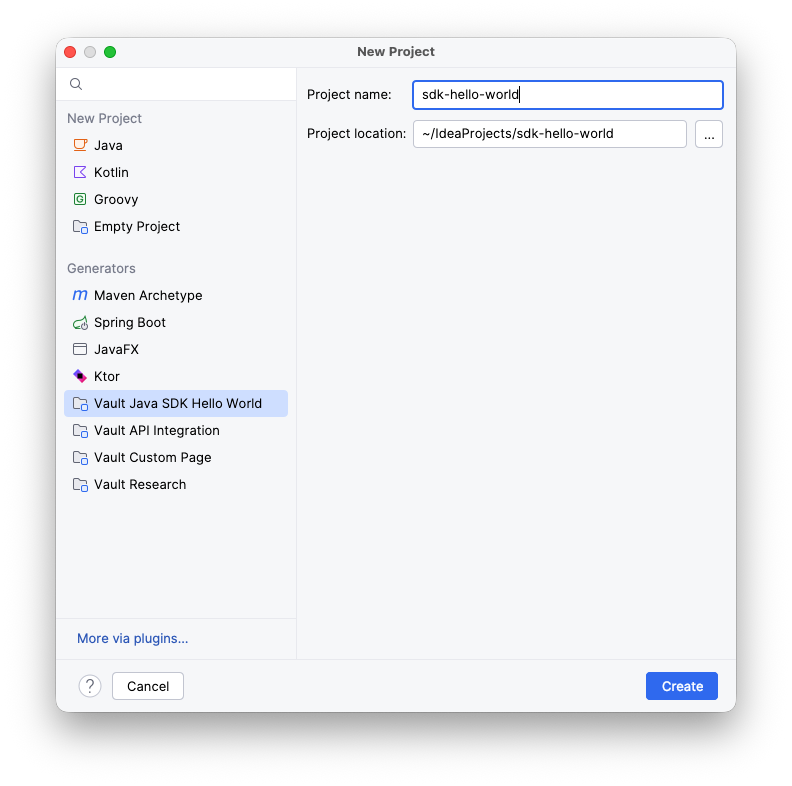
Creating a New Project
Section link for Creating a New ProjectTo create a new project from a generator:
- Select Projects from the left sidebar, then select New Project.
- From the left sidebar of the dialog, select one of the available generators. See the list of available generators for Vault Toolbox projects.
- Populate the Project name and confirm the Project location, then click Create.
Your new project is now available with Vault Toolbox tools already configured.
Linking an Existing Project
Section link for Linking an Existing ProjectIf you have an existing project, you can link it to Vault Toolbox. To link a project to Vault Toolbox, right-click on the root project folder and select Enable Vault Toolbox. All included project templates are auto-linked to Vault Toolbox.
To unlink an existing project from Vault Toolbox, right-click on the root project folder and select Disable Vault Toolbox.
Defining the Project Structure
Section link for Defining the Project StructureBy default, when you create a new project from one of Vault Toolbox's generators, your project directory includes a toolbox folder containing the following root folders:
config- Stores downloaded Vault Configuration Reportslogs- Stores downloaded developer logsmdl- Stores MDL components extracted from Vaultsdk- Stores Vault Java SDK code extracted from Vaultvpk- Stores local packages for deployment
To mark a different folder in your project directory with one of the above roles, right-click on that folder and select Veeva Vault > Mark As.... Reassigning a role to another folder does not impact the files within that folder, however, it changes the folder icon and indicates where Vault Toolbox should download files to.