
Using the Workflow Activity Log Inspector
Vault Toolbox includes a Workflow Activity Log Inspector that allows you to visually inspect the Workflow Activity logs for object and document workflows. Admins can use this information to analyze and troubleshoot workflows. Learn more about the contents of the Workflow Activity log
This guide explains how to use the Workflow Activity Log Inspector to retrieve workflow information in your Vault. To access the tool, select
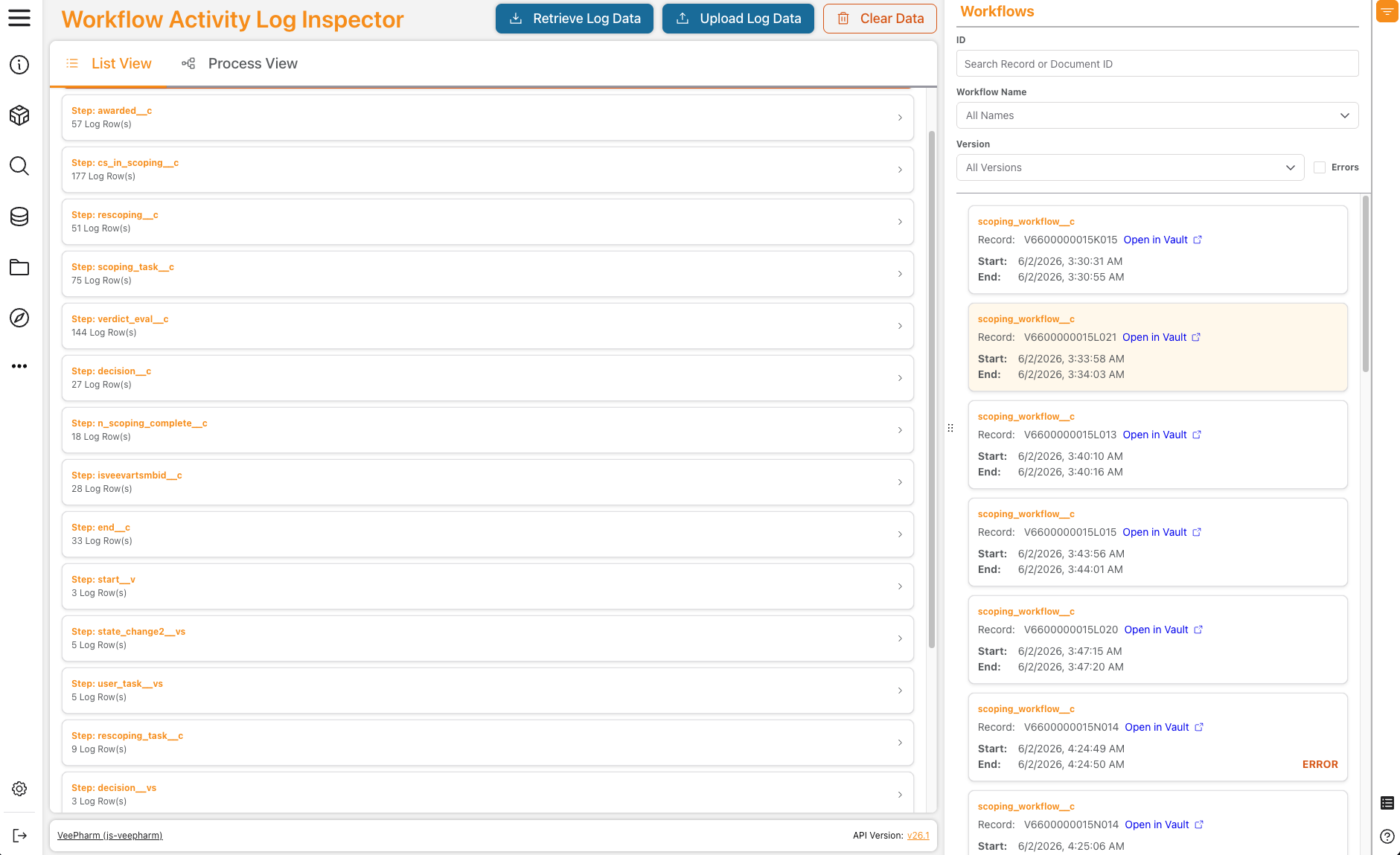
Retrieving & Uploading Log Data
Section link for Retrieving & Uploading Log DataUpon opening the Workflow Activity Log Inspector, there are no logs to display and you must add log data by retrieving it directly from your Vault or uploading the log file.
To retrieve a Workflow Activity Log from Vault, click
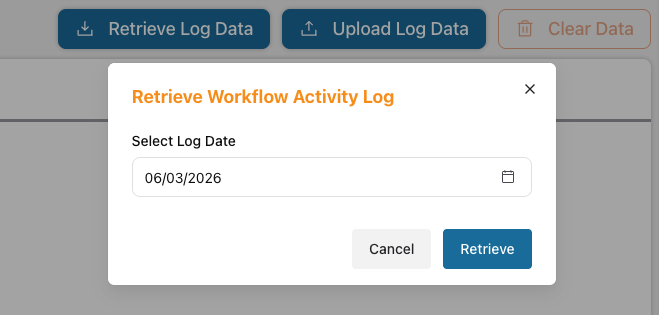
To upload log data that has been downloaded from Vault, drag and drop a file into the empty List View, or click .zip file, then click Open. Learn more about downloading the Workflow Activity log
Inspecting Workflow Data
Section link for Inspecting Workflow DataAfter adding log data, the right-hand panel displays a list of all workflows captured within the Workflow Activity log. From this panel, you can filter for specific workflows or select a workflow's card to view its step details within the List View or Process View.
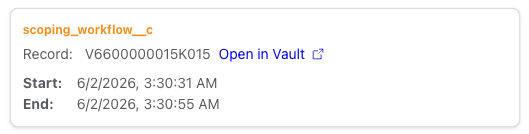
Each workflow card includes the ID of the record upon which the workflow was executed, and its start and end date. Click Open in Vault (
Filtering Workflows
Section link for Filtering WorkflowsTo narrow down the workflows displayed in the right-hand panel, you can filter by record or document ID, the name of the workflow, or the version (if multiple versions of the same workflow exist).
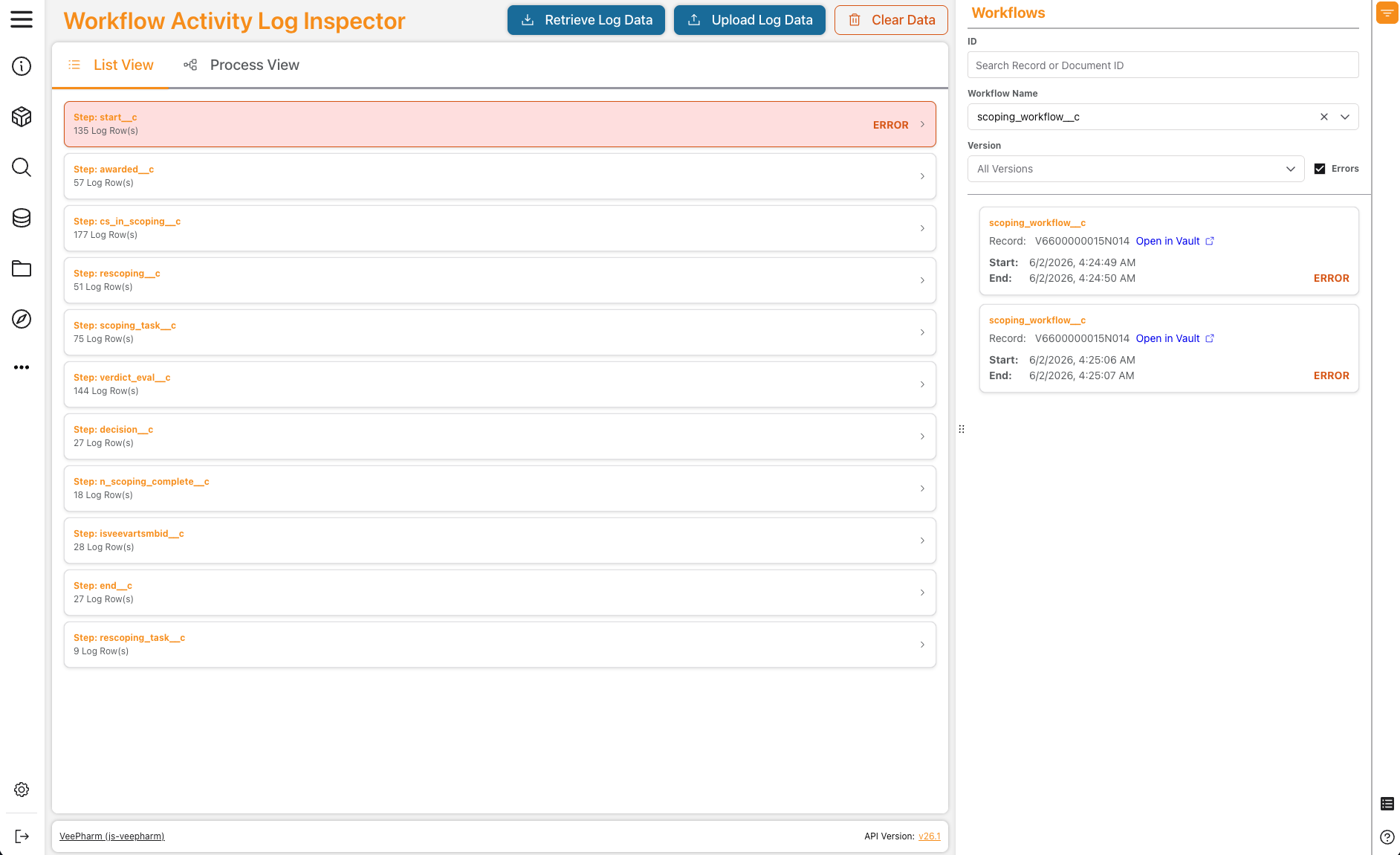
Additionally, you can select the Errors checkbox to filter by which workflows encountered errors upon their execution.
Viewing Workflow Steps
Section link for Viewing Workflow StepsWhen you select a workflow card from the right-hand panel, its steps appear to the left in the List View. Click
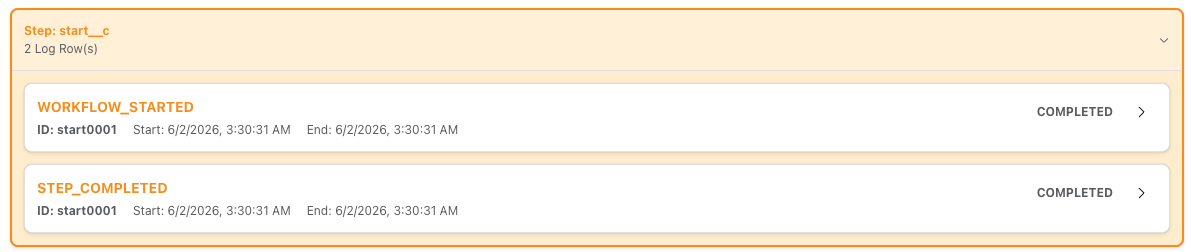
Each workflow step card includes event cards that correspond to the number of rows within the Workflow Activity log. For example, expanding a start step's card may display two events, WORKFLOW_STARTED and STEP_COMPLETED. Expanding an event card exposes its details, such as its final result, start and end date, the user who initiated the event, and any user-provided input.
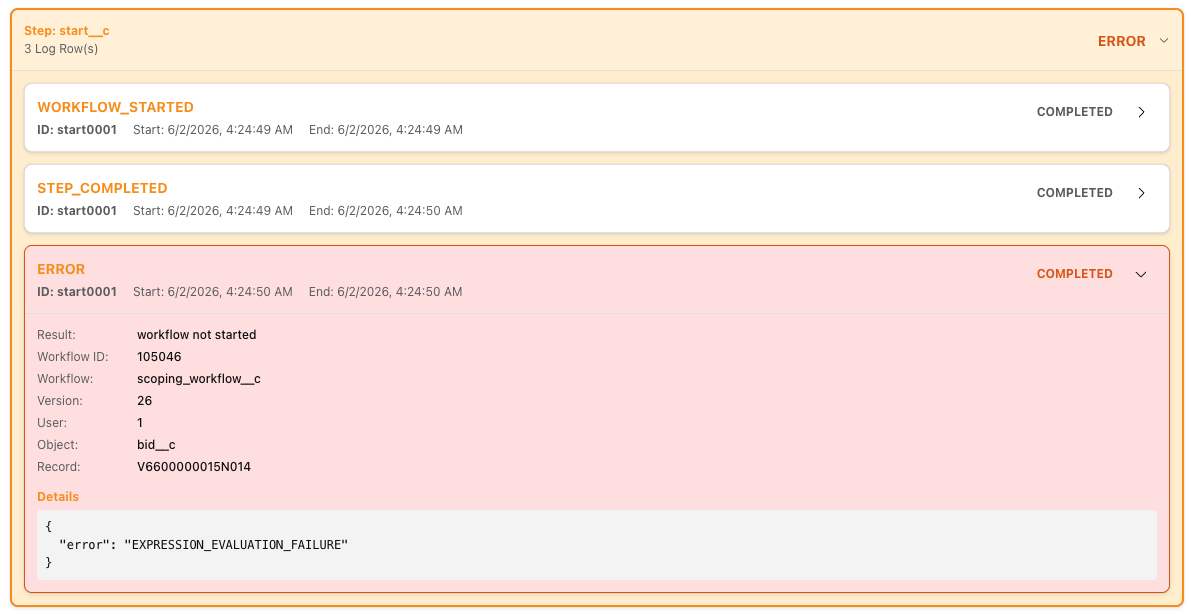
Red event cards represent events that encountered errors upon their execution. Expand their details to view the final result and any error messages.
Using the Process View
Section link for Using the Process ViewIn addition to using the List View to inspect workflow activity data, you can see a visual representation of the workflow from the Process View. Select the
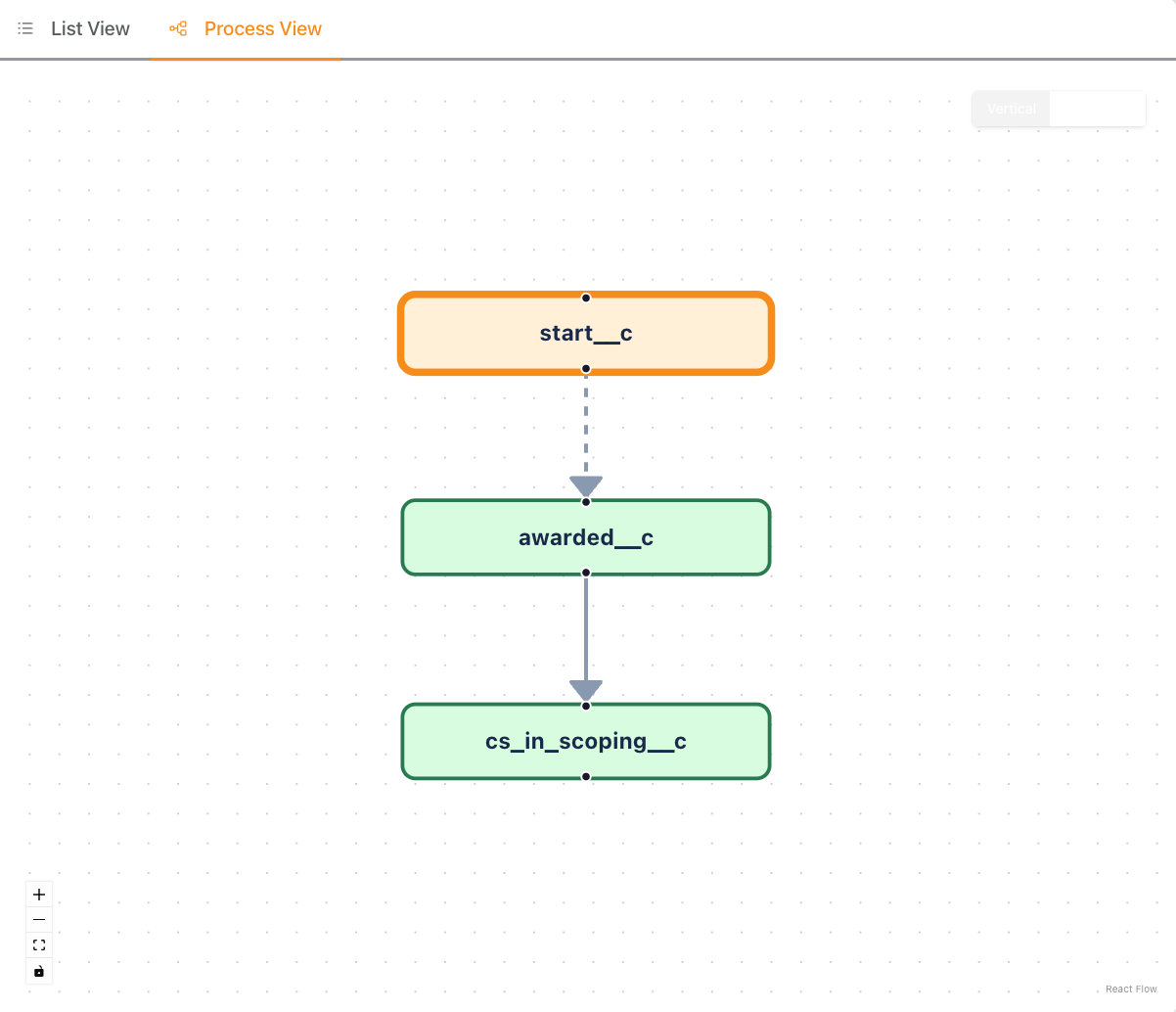
If a step has encountered a particular error, a dashed line appears between the step with the error and the following step.