
Using API History
Vault Toolbox logs every Vault API call it makes during your current session, so you can troubleshoot a failed action by inspecting the exact request and response. API History clears when you reload the window or restart Visual Studio Code and does not serve as an audit trail.
To view API History:
- Select the Vault Toolbox icon in the lefthand panel.
- Select the API History (
) tab. - Select a call to expand it and view its full request and response, including headers and body.
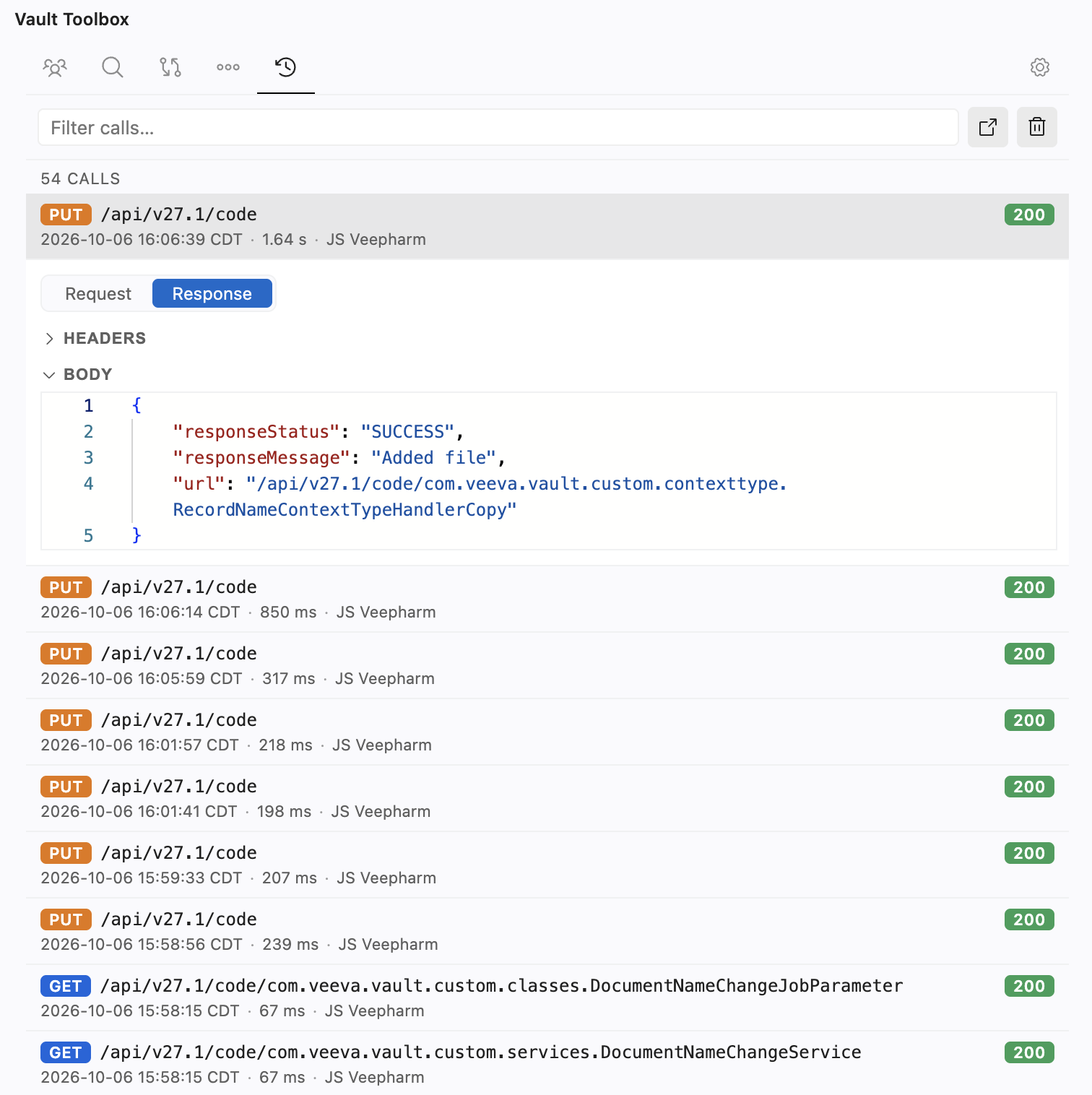
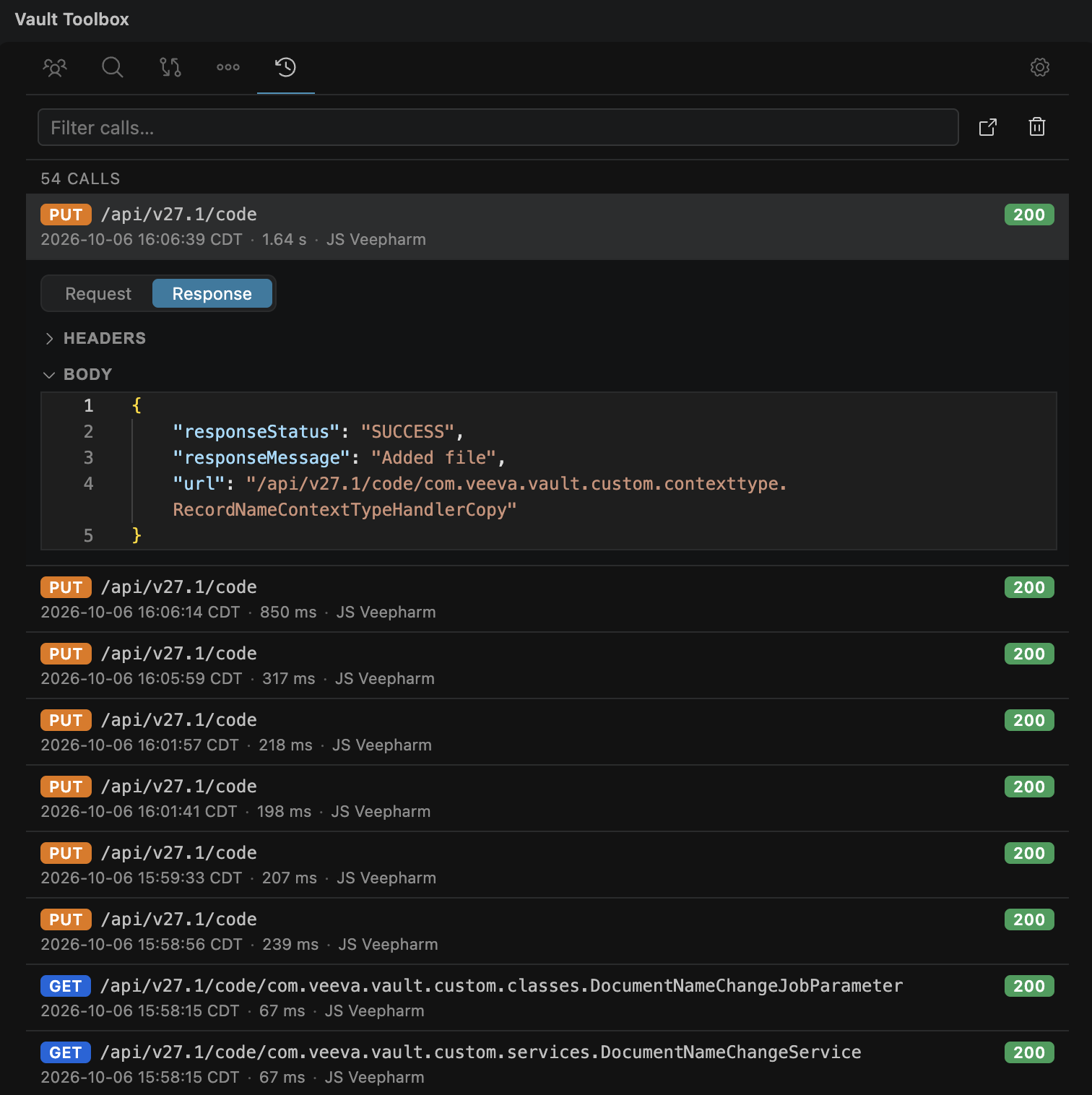
The newest calls appear first, each showing its method, endpoint, and status, with the time, duration, and environment underneath. Vault Toolbox retains the most recent 100 calls and redacts the Authorization header and the username and password on login calls.
Many actions elsewhere in Vault Toolbox, such as deploying MDL or Vault Java SDK code, show a View API Call button on their success or failure notification. Clicking it navigates you to that call's entry in the API History with its information expanded.
Filtering and Clearing
Section link for Filtering and ClearingUse the Filter calls… search bar to narrow the list by method, endpoint, status, or environment name. Click (
Opening in a Tab
Section link for Opening in a TabClick (