
Vault Toolbox Workshop
Vault Toolbox Workshop is an open-source tool that allows Vault Admins and developers to extend Vault Toolbox using any code assist agent. It's specifically optimized for collaboration with AI agents, providing a structured framework for extending functionality through feature designs and automated workflows.
The following sections guide you through how to connect Toolbox Workshop to your preferred AI agent, create new features, and test those features within the Vault Toolbox browser extension.
Prerequisites
Section link for PrerequisitesTo follow this tutorial, you need:
- The latest version of Node.js and npm
- Google Chrome
, Microsoft Edge , or any Chromium-based web browser downloaded and installed - An AI agent, such as Gemini CLI
or Claude Code - A clone of the Vault Toolbox repository
on your local machine
Launching the AI Agent
Section link for Launching the AI AgentOnce you have cloned the Vault Toolbox repository to your local machine, you must launch your preferred AI agent and onboard it using the below process.
Navigate to the repository within your terminal and execute the following commands to launch your preferred AI agent:
- Navigate to the
frontendfolder.cd frontend - Launch your agent.
- Execute the following command to initialize the agent and sync it with the project's standards:
:onboard
The AI agent outputs a summary of the onboarding process, confirms the Vault Developer Docs MCP is connected, updates the knowledge graph, and lists the available commands.
Creating a Feature
Section link for Creating a FeatureOnce the AI agent is launched and onboarded, you can start building a new feature by using the :feature command.
Paste the following example prompt into your terminal:
:feature Document Text is Document Text Viewer that allows a user to see a list of documents in their Vault. The user can then select a document and view the extracted text using Vault API.

List of documents is retrieved using VQL:
SELECT id, document_number__v, major_version_number__v, minor_version_number__v, name__v FROM documents

The text for the selected document is retrieved using Vault API:
/api/{version}/objects/documents/{doc_id}/versions/{major_version}/{minor_version}/text
The agent may ask clarifying questions and prompt you for additional information to further iterate the feature design. Toolbox Workshop stores feature design documents in the .agents/features folder.
Testing a Feature
Section link for Testing a FeatureTo test your feature directly within the browser, you can ask the code assist agent to build and run the server on your behalf. Otherwise, perform the below steps within your terminal:
- Navigate to the
frontendfolder in the Vault Toolbox repository.cd frontend - Execute the following command to regenerate the
distfolder:npm run build - Open your preferred browser and navigate to the extensions manager page at the following URL:
- Click Load unpacked and select the
distfolder. Once the Vault Toolbox extension has been installed, access Vault Toolbox from your Extensions () menu in the top navigation bar of the browser. The Vault Toolbox login page appears in a new tab. - Log in to Vault Toolbox using your preferred authentication method.
- Click
to expand the navigation panel, then select the Document Text tool.
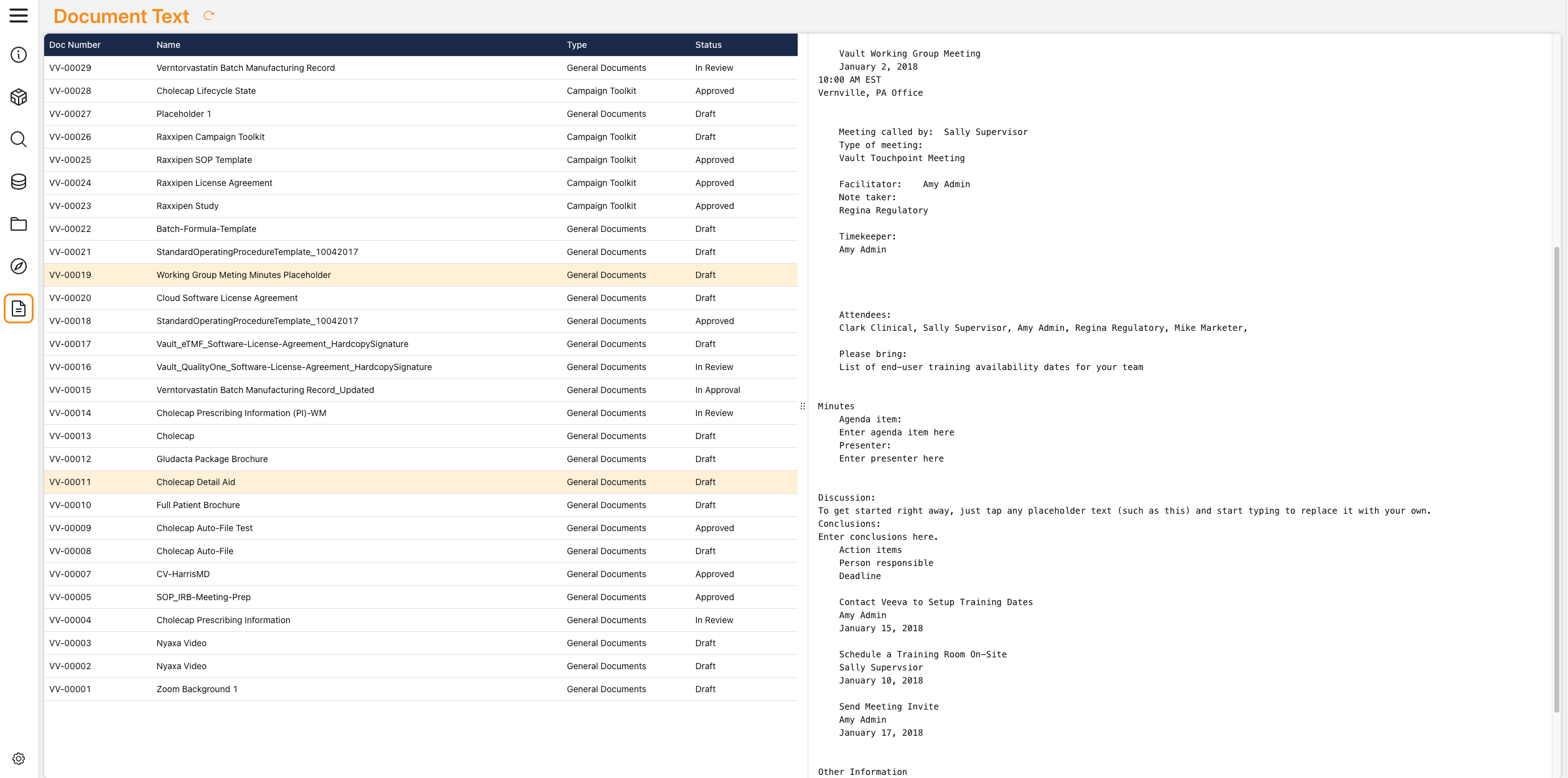
Observe the feature you built with Toolbox Workshop. The Document Text tool should be capable of displaying the plain text of a document when selected from the list. Its appearance may vary slightly from the screenshot above, but the functionality should be identical.