
Gemini Code Assist Setup
This section outlines how to connect the Vault Developer Docs MCP to Gemini Code Assist in IntelliJ. You must have the Gemini Code Assist IntelliJ plugin
To add the Vault Developer Docs MCP:
-
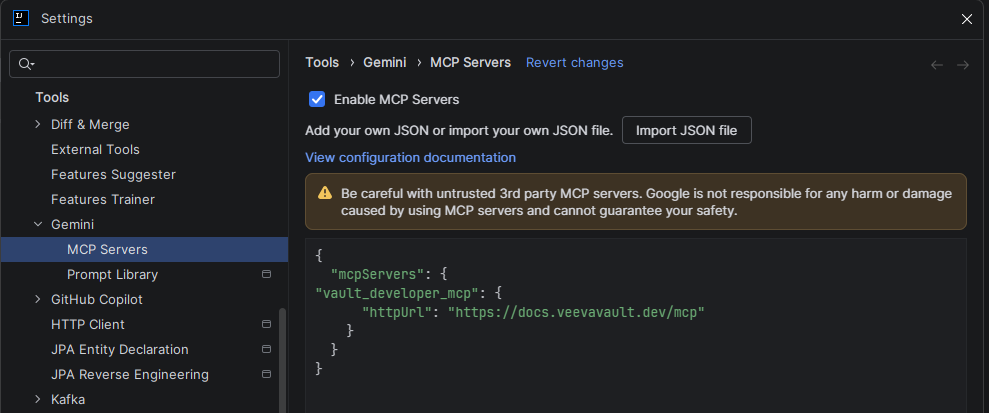
Navigate to Settings > Tools > Gemini > MCP Servers. Add the following JSON to the space provided, then click OK.
{
  "mcpServers": {
    "vault_developer_mcp": {
      "httpUrl": "https://docs.veevavault.dev/mcp"
    }
  }
}
-
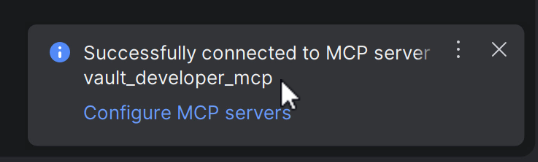
Wait for a popup to appear indicating that the server connected. This may take 10 seconds or so.
-
Open Gemini Code Assist chat in Agent Mode, and type
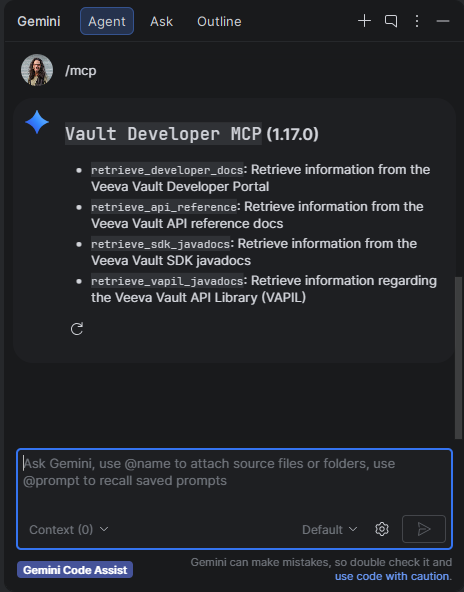
/mcpto list available MCP Servers.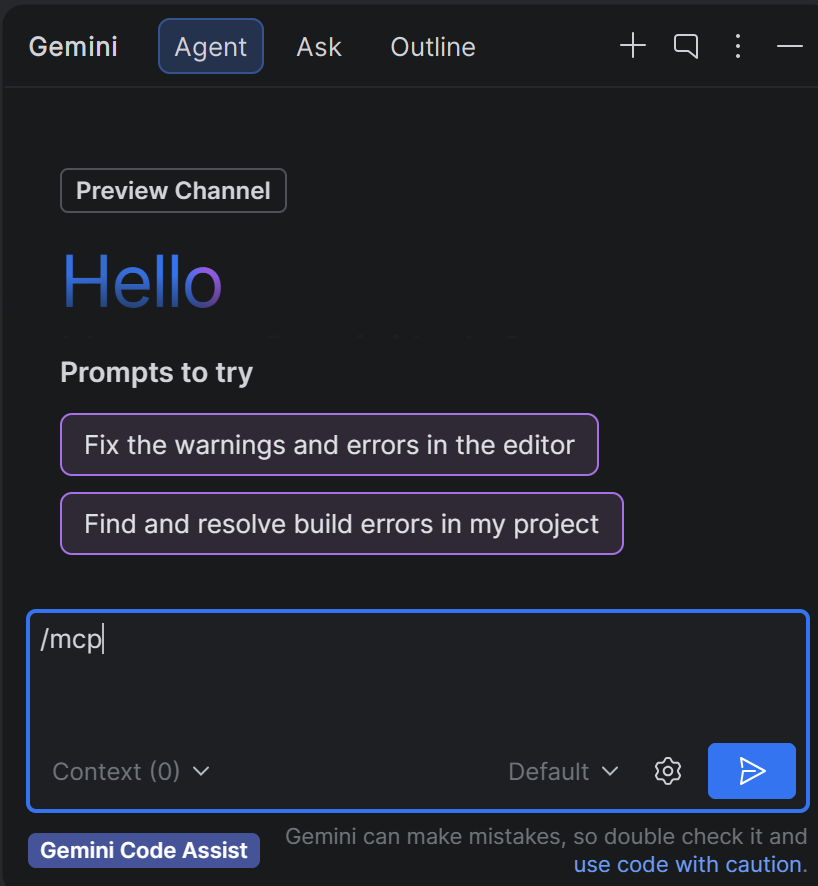
- You should see the Vault Developer Docs MCP in the chat.
-
Ask a Vault-related question. Gemini automatically calls the Vault Developer Docs MCP and appropriate tool based on the context of the question. See Formatting MCP Queries for best practices.
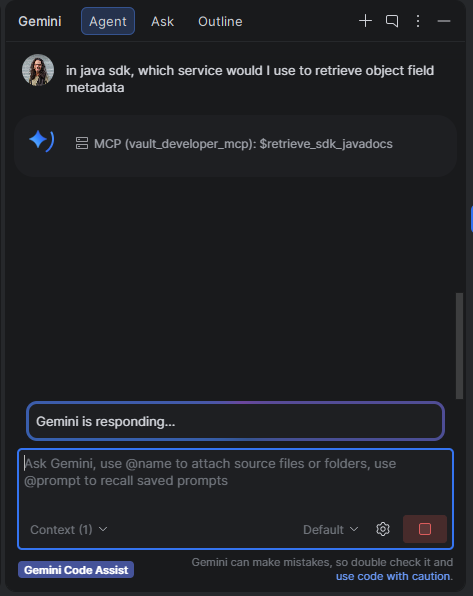
Congratulations, you've successfully connected the Vault Developer Docs MCP!